On a paid-content website, we can publish a WooCommerce product named “Upgrade to VIP Annual Membership”. After a user purchases that product, they are upgraded to VIP membership and can read all the content on the site.
The overall process of changing a user role after a purchase in WooCommerce can be implemented in two steps:
- There are many possible moments to switch roles, so we first need to decide when the role conversion should happen.
- Check whether the order contains a specific product, or one of several products, and then perform the role-conversion operation.
The code below implements this requirement. If you want, you can try the code first and then read the explanation that follows to understand the process more deeply.
add_action( 'woocommerce_payment_complete', 'wprs_set_role_on_specific_product_purchase' );

function wprs_set_role_on_specific_product_purchase( $order_id ) {

	// Get the order object
	$order = wc_get_order( $order_id );

	// Do nothing if this purchase did not create an account
	if( ! $order->user_id ) {
		return;
	}

	$items = $order->get_items();

	// One or more product IDs to check, such as the VIP upgrade product
	$product_ids = array( 5, 10, 32 );

	foreach( $items as $item ) {

		if( in_array( $item[ 'product_id' ], $product_ids ) ) {

			$user = new WP_User( $order->user_id );

			// Remove the previous role if needed (optional)
			$user->remove_role( 'customer' );

			// Add the new role
			$user->add_role( 'editor' );

            // Depending on business requirements, you may also want
            // to set a membership expiration date and do more processing here

            // Exit the loop
			break;

		}
	}

}
Now, let us break this code down:
- I chose to use the
woocommerce_payment_completehook to ensure the payment has completed. In some tutorials, you may seewoocommerce_order_status_{$status}used instead. That can work too in theory, but the logic is less clear. - We also use the
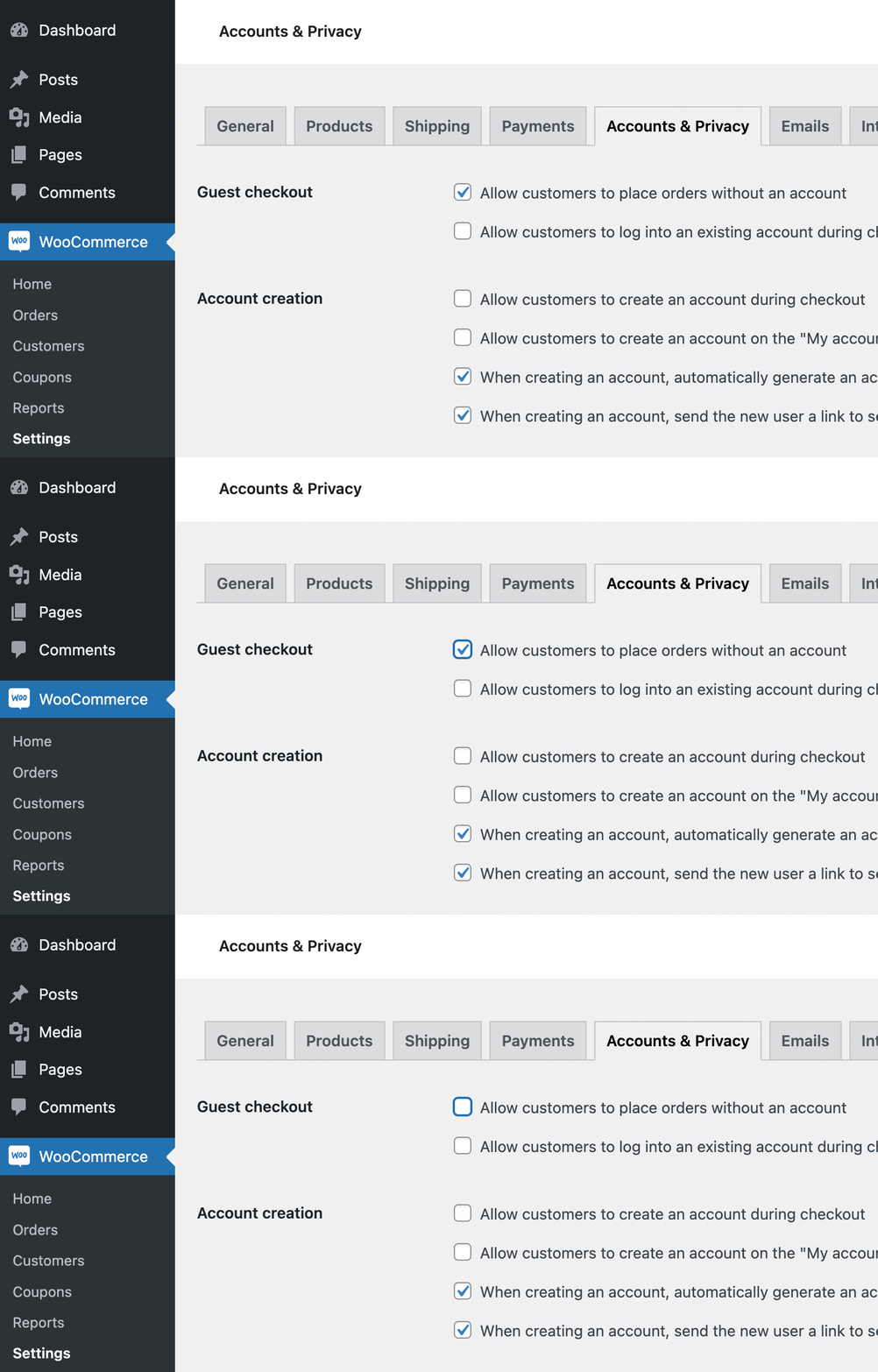
$order->get_items()method to retrieve all products in the order. - In lines 8-10, we check whether the purchase was completed by a real user or by someone who did not create an account. If you do not want people without accounts to shop on your site, you can disable that in WooCommerce settings, as shown in Figure 1.
- On line 15, specify one or more product IDs. If the user purchases any of those products, the role-conversion operation can be triggered.
- If you want to remove the previous customer role, specify it on line 23. Specify the new role, or multiple roles, on line 25. If you are not sure what the customer’s previous role is, you can slightly modify the code.