Our WordPress development environment is all on Mac. The code of the development environment is submitted to the remote Git repository in time every day, so you don’t have to worry about code backup. Although the development environmentWordPress databaseIt is not as important as the formal environment, and it is still a good habit to back up in time. The MySQL database in the development environment cannot be backed up by directly backing up the database file, so our development engineers did some research and found that automatic backup can be achieved through the Automator method of Mac OS. Here we share the method of setting up backup with everyone for reference by friends in need.
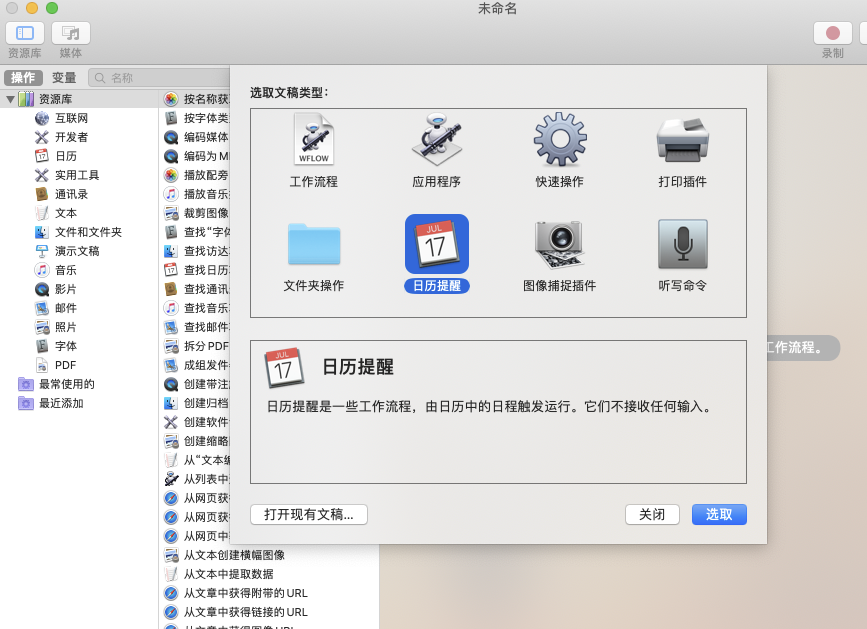
1. Open Automator. Select “Calendar Reminder” from the document type.
2. Then select “Run Shell Script” in the resource library and “Run Shell Script” to add the workflow on the right.
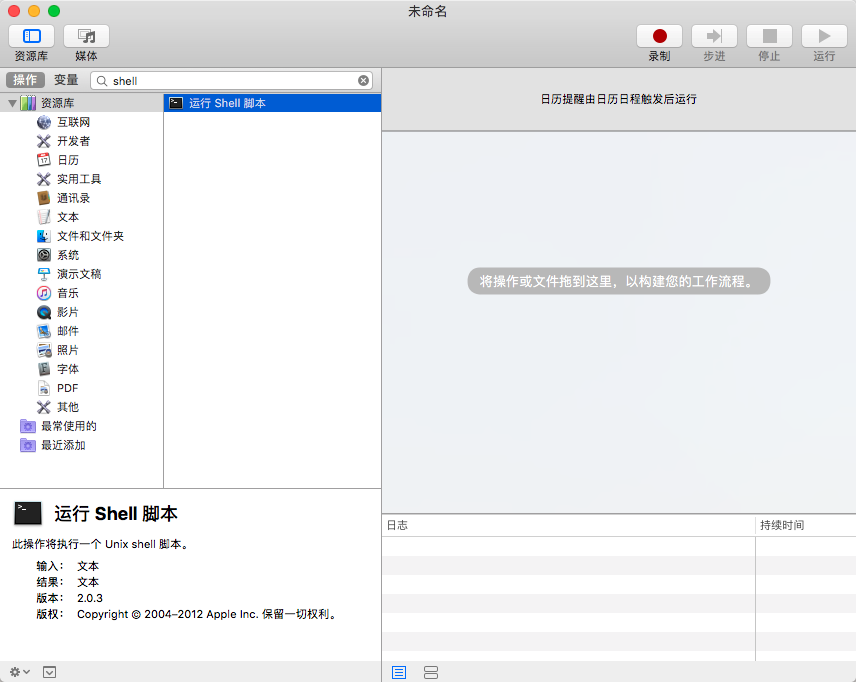
3. Edit the script that needs to be executed
Then enter the following script content in the “Run Shell Script” edit box, or save the following script content as a .sh file, grant execution permission, and enter the path to the .sh file in the edit box.
#!/bin/bash
MYSQL_USER="root" ##数据库帐号
MYSQL_PASS="" #数据库密码
BACK_DATA=/Users/Amoslee/Dropbox/macdev #本地备份文件存放目录,手动创建 #定义数据库的名字和旧数据库的名字
DBBakName=DB_$(date +"%Y%m%d").tar.gz
OldDB=Data_$(date -d -3day +"%Y%m%d").tar.gz

#删除本地3天前的数据
rm -rf $BACK_DATA/$OldDB cd $BACK_DATA

#使用命令导出SQL数据库,并且按数据库分个压缩
for db in `/usr/local/bin/mysql -u$MYSQL_USER -p$MYSQL_PASS -B -N -e 'SHOW DATABASES' | xargs`; do
(/usr/local/bin/mysqldump -u$MYSQL_USER -p$MYSQL_PASS ${db} | gzip -9 - > ${db}.sql.gz)
done

tar zcf $BACK_DATA/$DBBakName $BACK_DATA/*.sql.gz
rm -rf $BACK_DATA/*.sql.gz echo -e "Thank you! all down"
Friends who have modified the VPS backup to Dropbox script may find the above code very familiar. Yes, this is the script that was modified based on it. I would like to thank the friend who wrote this script.
4. Set the time for regular execution of the script
Finally, click “File > Storage” and then close Automator. The calendar will automatically open, and then configure a regular reminder in the calendar to schedule the time for the script to run.
After setting it up, there is no need to worry about it. When the time we set comes every day, a calendar reminder will appear on the Mac and the database backup operation will start at the same time.