We know that we can use PHP’s error_log function to record logs to a file and then view them in wp-content/debug.log. While this debugging method is simple, it’s quite primitive. WooCommerce provides us with a more robust logging method: the WC_Logger class.
Activating WooCommerce Logs
By default, WooCommerce’s logging functionality is enabled. To be safe, you can navigate to WooCommerce > Status > Logs to check. If you see information similar to the image below, you’ll need to manually enable logging:
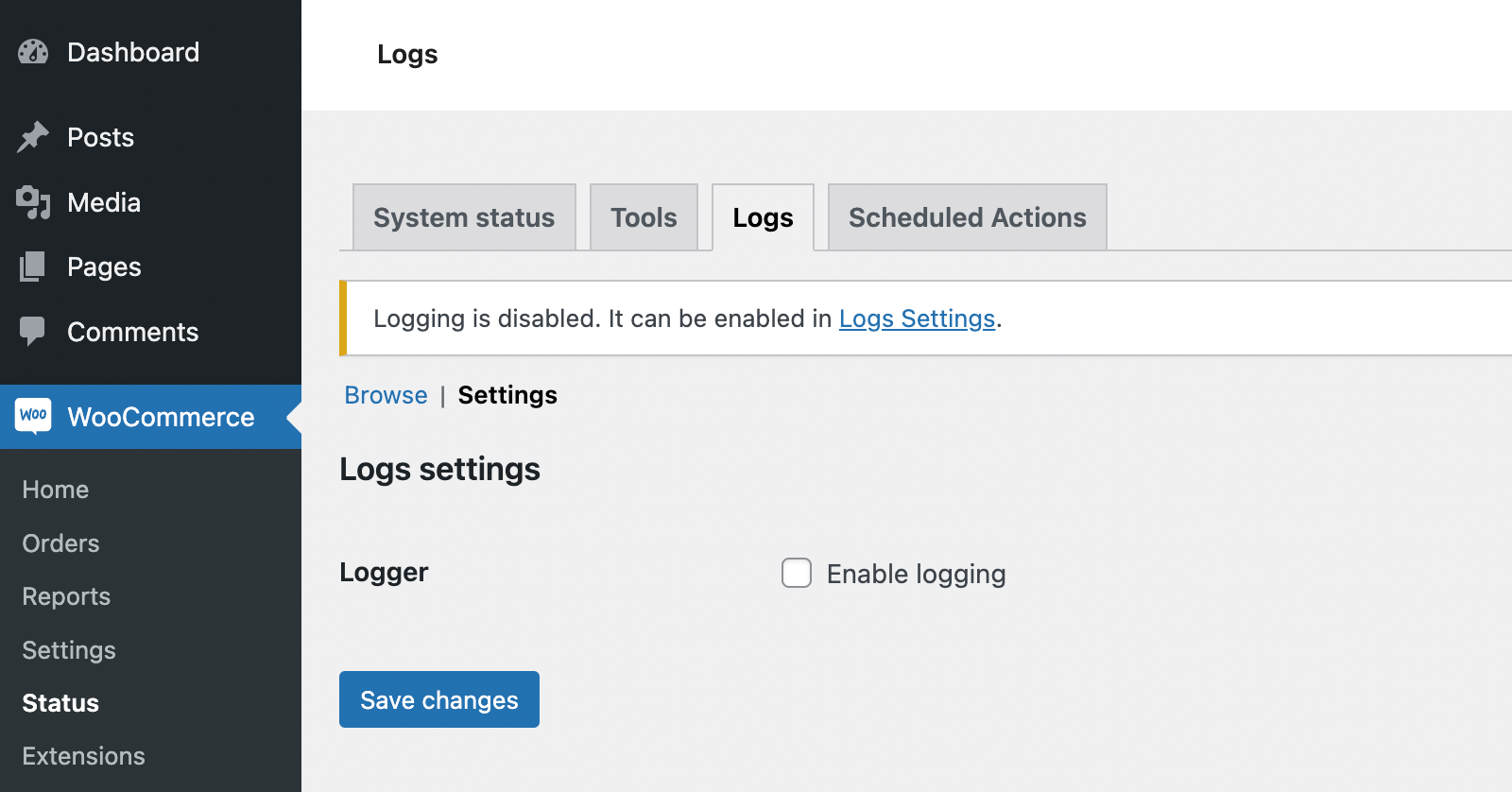
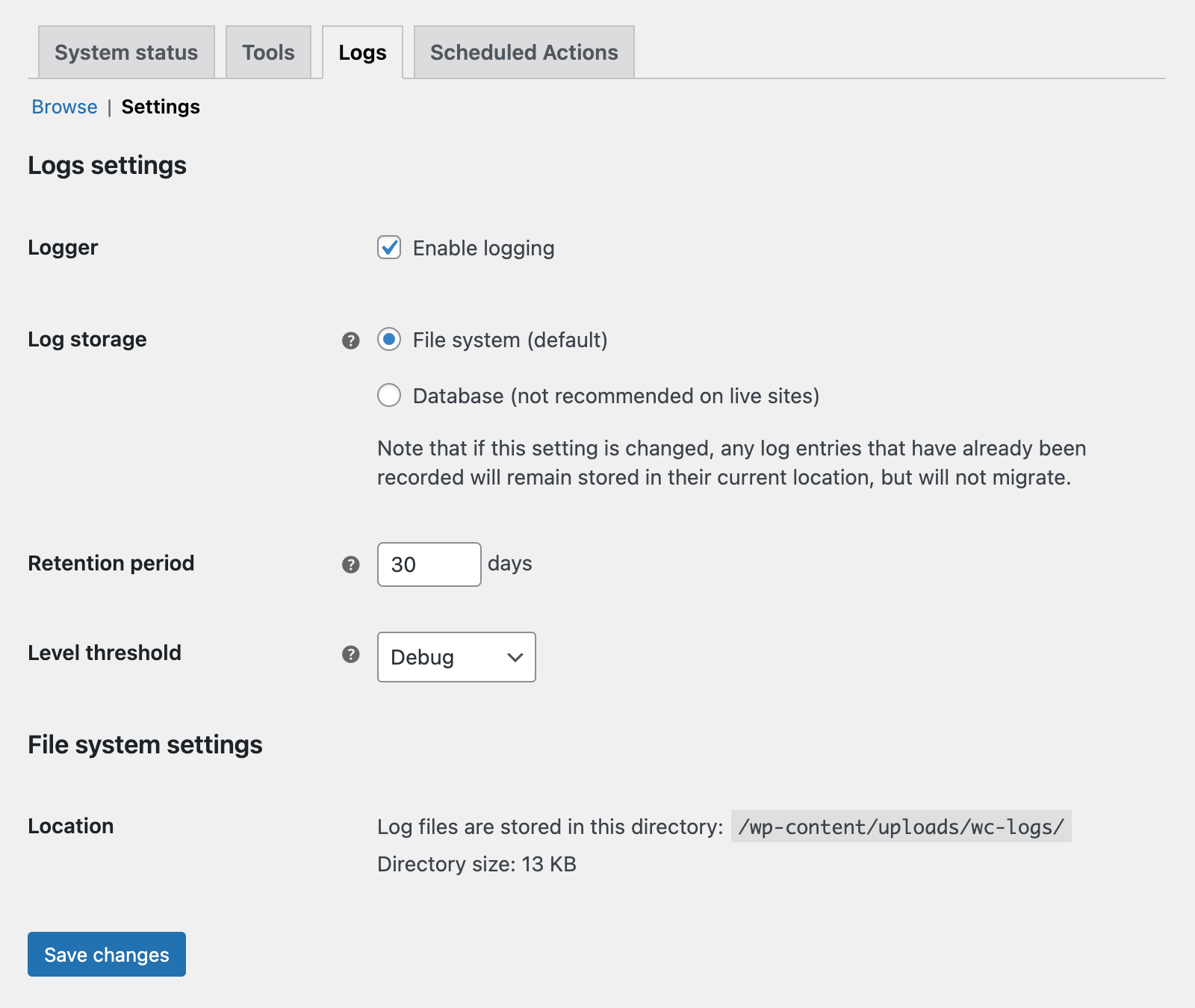
After checking the checkbox and clicking “Save Changes,” more settings will appear. The process is very straightforward. For instance, you can decide whether to store logs in /uploads/wc-logs/ or the database, define the retention period, and set the minimum logging level (which we’ll discuss in the Log Levels section below).
Using WC_Logger to Create Debug Messages
Let’s start by recording the simplest message. Try adding the following code:
$wc_logger = wc_get_logger();
$wc_logger->debug( 'Custom log message' );
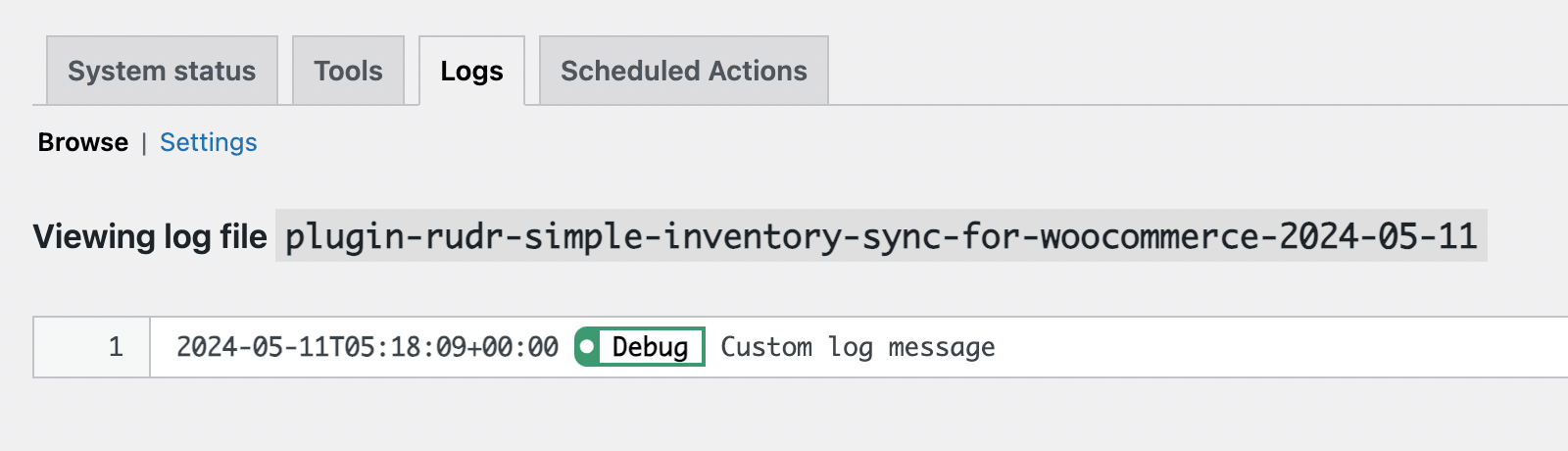
You will then find a new log entry appearing on the Status > Logs page:
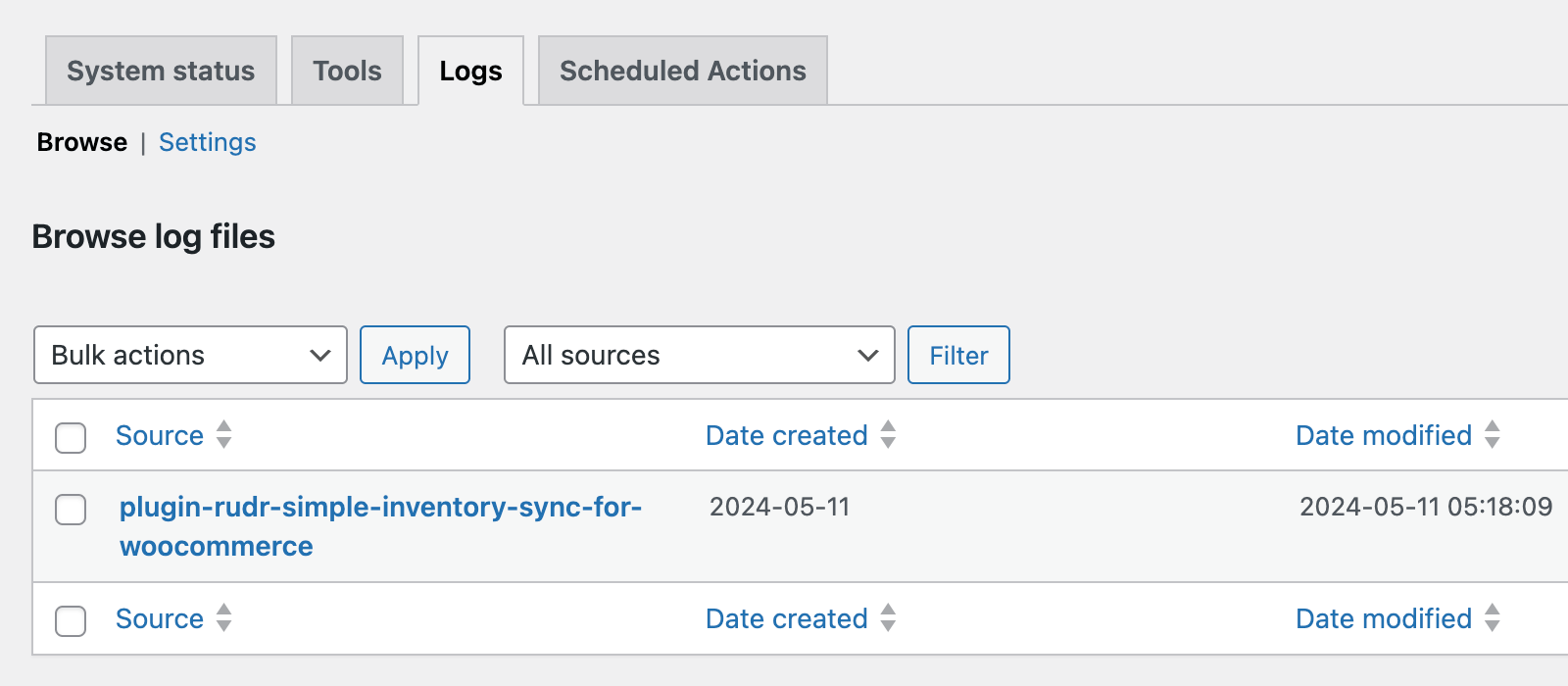
Open it, and you will see the log message we just recorded.
Changing the Debug Message Source
Now let’s talk about the “Log Source.”
From the screenshot above, it’s clear that our debug log source is plugin-rudr-simple-inventory-sync-for-woocommerce.
This source information is automatically generated because we didn’t provide a specific log source in our code. Since the debug() method was used within a hypothetical “Wenprise Simple Sync” plugin (specifically in the wenprise-simple-sync-for-woocommerce.php file), the log source follows the plugin-{PLUGIN SLUG} pattern. It’s that simple.
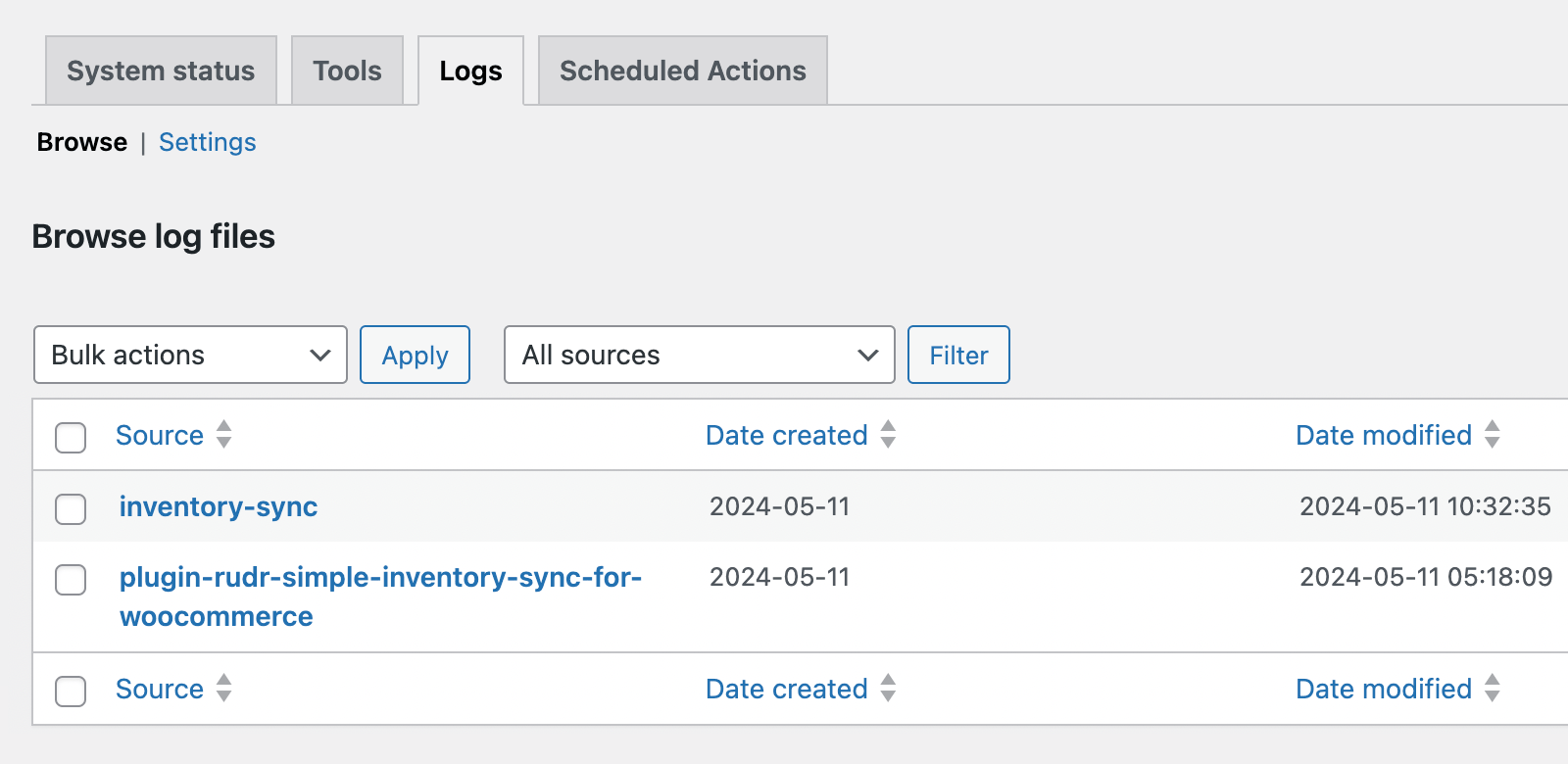
The good news is that we can also customize the log source if needed:
$wc_logger = wc_get_logger();
$wc_logger->debug( 'Custom log message', array( 'source' => 'wprs-sync' ) );
Now, our custom debug message will appear under a new log source:
Log Levels
Depending on the urgency of the debug information, the WC_Logger class offers different log levels:
| Log Level | WC_Logger Method |
|---|---|
| 0. Emergency | $wc_logger->emergency() |
| 1. Alert | $wc_logger->alert() |
| 2. Critical | $wc_logger->critical() |
| 3. Error | $wc_logger->error() |
| 4. Warning | $wc_logger->warning() |
| 5. Notice | $wc_logger->notice() |
| 6. Info | $wc_logger->info() |
| 7. Debug | $wc_logger->debug() |
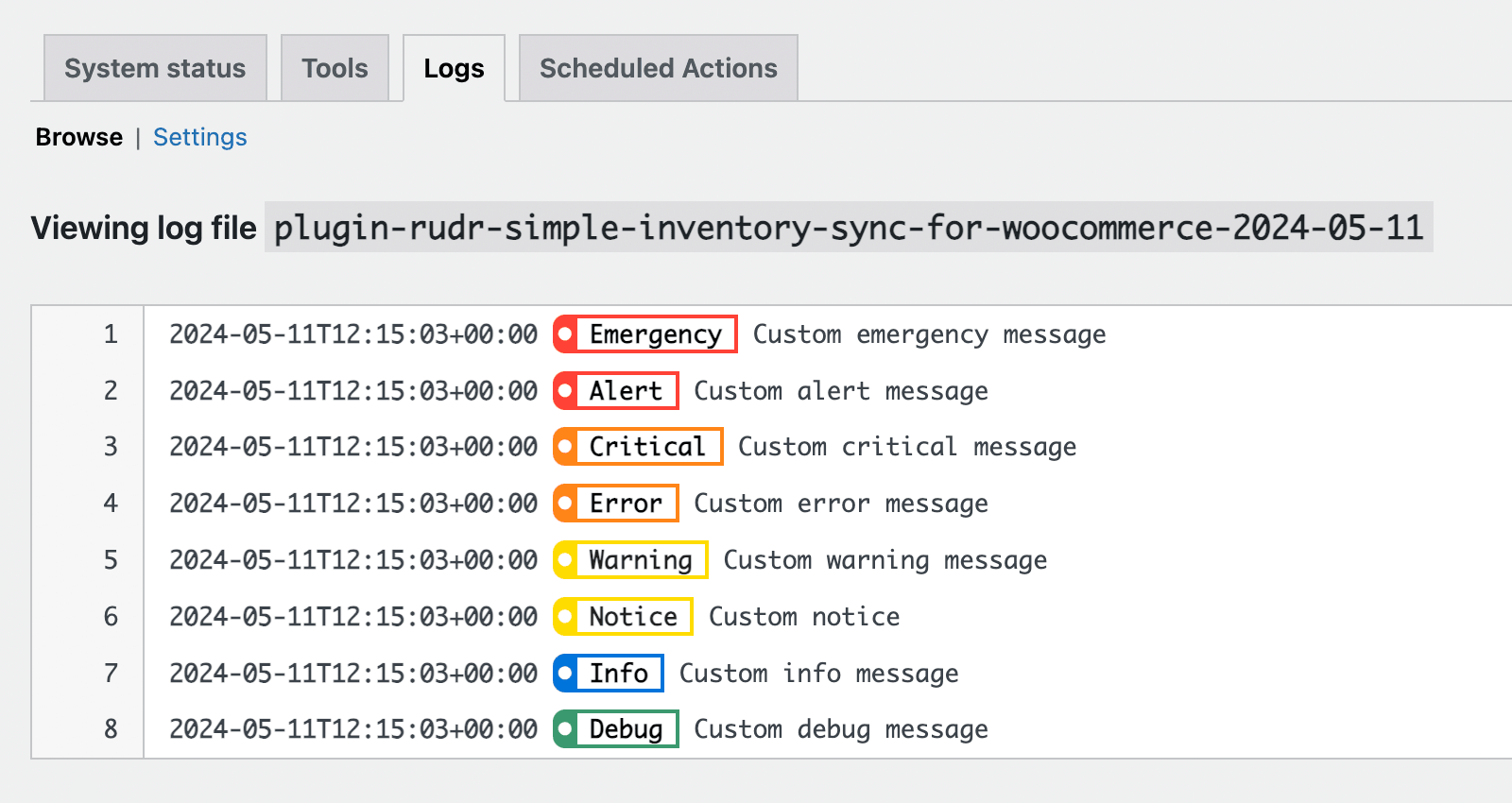
Let’s try printing all possible types of log messages!
$wc_logger = wc_get_logger();
$wc_logger->emergency( 'Custom emergency message' );
$wc_logger->alert( 'Custom alert message' );
$wc_logger->critical( 'Custom critical message' );
$wc_logger->error( 'Custom error message' );
$wc_logger->warning( 'Custom warning message' );
$wc_logger->notice( 'Custom notice' );
$wc_logger->info( 'Custom info message' );
$wc_logger->debug( 'Custom debug message' );
And here is the resulting log output:
Retrieving Log Files
Finally, you can easily retrieve all available log filenames as an array using WC_Log_Handler_File::get_log_files().
$log_files = WC_Log_Handler_File::get_log_files();

print_r( $log_files );
/*
Array
(
    [inventory-sync-2024-05-11-e0930f2abe2090418ae706d63df70418-log] => inventory-sync-2024-05-11-e0930f2abe2090418ae706d63df70418.log
    [plugin-rudr-simple-inventory-sync-for-woocommerce-2024-05-11-962ebe40bad4004ef06cd4171353b636-log] => plugin-rudr-simple-inventory-sync-for-woocommerce-2024-05-11-962ebe40bad4004ef06cd4171353b636.log
)
*/
Unlike error_log, WooCommerce’s WC_Logger provides a user-friendly interface within the WooCommerce backend to view debug information. We no longer need to log into the server to check log files, which undoubtedly offers immense convenience for developers.