When WordPress was first installed, the performance was no problem. We installed themes, plug-ins, added some widgets and menus, and then we started uploading content. We were all diligent, and content was added to the WordPress site every day. More and more users left comments. I don’t know when we started to feel that the website pages were opening slowly. It’s time to do itWordPress performance optimizationYes, we know that improving the server configuration can solve the problem, but we are very poor…
It doesn’t matter, we have the technology, and today I’m going to introduce you to a plug-in that can cache WordPress pages into memory——Cachify, Cachify is a smart, simple caching plug-in specially developed for WordPress sites. It stores content in the form of static pages in a database, hard disk, or Memcached. When the user accesses this page again, the serverRead cache directly from memoryAfter passing the page, it is sent to the user, giving the user the feeling of opening it instantly.
Cachify caching plugin description
Cachify optimizes page loading by caching articles, pages, and archive pages as static content. We can choose to cache static content toWordPress database, hard disk, APC (PHP cache) or Memcached. When the user accesses the page again, the page is read directly from the cache to the user without querying the database. As we all know, the performance bottleneck of an application is the database. We have reduced the database query to 0. Do you think it is faster? The Cachify plug-in will only cache pages that users have visited. If a page has not been visited again by a user for a long time, Cachify will clear the page from the cache to ensure efficient caching.
Cachify cache plugin features
- Available for custom post types.
- Caching methods: DB, HDD, APC and Memcached.
- Delete the cache via the “Refresh Cache” button in the WordPress toolbar.
- Supports WordPress multisite.
- You can choose to compress HTML or JavaScript.
- You can set up no caching for user browsers and articles.
- Manual and automatic cache deletion.
- Automatic cache management.
- Dashboard widget to view cache status.
- Apache and Nginx server setup.
- Extend plugins via hooks/filters.
Use Memcached with Nginx to cache WordPress pages
Although Cachify can also cache pages in the database and hard disk, we don’t bother to use these compromise methods. After all, in addition to the CPU, the fastest thing on the server is the memory. What we want is fast, fast, fast. First, the server uses Nginx, and then the Memcached service is installed on the server. After ensuring that these two conditions are met, install and enable the Cacify plug-in, add the following configuration to the Nginx configuration file of the site, and restart Nginx.
location / {
    error_page 404 405 = @nocache;

    if ( $query_string ) {
        return 405;
    }
    if ( $request_method = POST ) {
        return 405;
    }
    if ( $request_uri ~ "/wp-" ) {
        return 405;
    }
    if ( $http_cookie ~ (wp-postpass|wordpress_logged_in|comment_author)_ ) {
        return 405;
    }

    default_type text/html;
    add_header X-Powered-By Cachify;
    set $memcached_key $host$uri;
    memcached_pass localhost:11211;
}

location @nocache {
    try_files $uri $uri/ /index.php?$args;
}
If it is set in the pagoda panel, directly add the above configuration to the pseudo-static settings of the site and replace the original pseudo-static settings.
Then in the Cachify settings of the WordPress dashboard, select the caching method as Memcached, as shown below, set the cache time, and the timing of cache generation (not cache for logged in users, clear the cache when users leave comments).
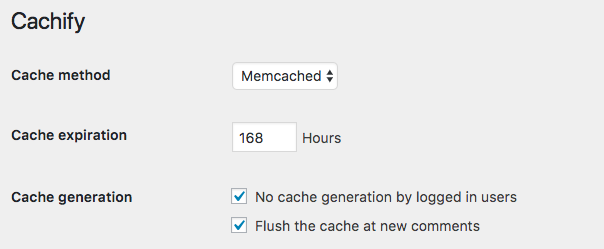
Then exit the background and try refreshing the page a few times in the foreground. Without looking at the detailed parameters, we can find that after the page is opened once, the speed of opening the page again is extremely fast. Some friends may say that it is a problem with the browser cache. Well, let’s turn on the debugging mode, clear the cache and try again. Look at the specific parameters. I believe it is obvious how much faster it is.
Some friends may have a question, if the content is cached in the memory, will the memory be burst? You can imagine that what is cached in the memory is actually the code of the page (excluding multimedia such as pictures and videos). How big can the code of a page be? You can calculate how many pages can be cached with 1M or 1G of content. If the memory of your server is too small (for example, 128M), I can only advise you to increase the memory of the server. After all, we are in the Internet business, no matter how poor we are, we cannot afford a website.