Most shared WordPress hosting environments support FTP, which allows us to upload files and manage WordPress sites over FTP. As we know, FTP is an unencrypted protocol, so all data sent over it travels across the network in plain text, including the FTP username and password. That is not secure.
At the same time, FTP is so convenient and efficient that asking everyone to stop using it is unrealistic. That is why FTP over SSL/TLS exists. It adds encryption on top of the FTP protocol, so the data transferred through FTP becomes encrypted and we do not have to worry as much about someone intercepting it on the network.
Today we will use the popular FTP server Pure-FTPd, which we also use frequently, as an example of how to implement FTP over TLS.
Step 1: Enable TLS Support for Pure-FTPd
Edit the /usr/local/pureftpd/etc/pure-ftpd.conf file on the server, find the TLS line, and set its value to 1 or 2.
1: support both insecure FTP and FTP over TLS2: support only FTP over TLS
To ensure security, it is recommended to set the value to 2 so that the FTP server accepts secure connections only.
Step 2: Create a TLS Certificate for Pure-FTPd
Run the following command on the server:
openssl req -x509 -nodes -days 7200 -newkey rsa:2048 -keyout /etc/ssl/private/pure-ftpd.pem -out /etc/ssl/private/pure-ftpd.pemThe command will ask us to fill in some information. That information becomes the content of the TLS certificate and is shown to users when they inspect the certificate, so just fill it in truthfully as requested.
After that, we also need to change the certificate file permissions so the certificate can take effect. Run the following command:
chmod 600 /etc/ssl/private/pure-ftpd.pemIf you want to know why the file should use 600 permissions rather than something else, see our article about server directory permissions.
Once the certificate permissions are configured, restart the Pure-FTPd service so the new settings take effect.
service pure-ftpd restartFinally, Configure the FTP Client to Connect Using Explicit Encryption
The screenshot below shows the settings interface of the Mac Transmit client. Other FTP clients have similar settings.
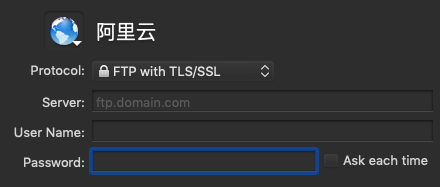
After you enter the server information and connect, the FTP client may tell you that it cannot verify the server. That happens because the certificate was generated by us and is not signed by a trusted certificate authority. Since we are connecting to our own server, we do not actually need a third-party signature, and it does not affect normal use. Just click Continue to proceed.
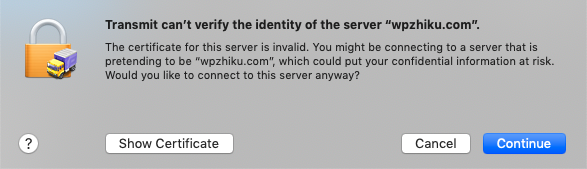
If you are still unsure, click Show Certificate to inspect it. In the certificate, you will be able to see the information you entered in the first step. As long as those details are correct, it means the certificate is indeed your own and can be trusted.
In addition to FTP over SSL/TLS, if the server supports SSH, we can also connect through SFTP. SFTP is built on SSH, and because SSH is encrypted, we do not need to worry about data leakage when connecting this way.
There are many ways to run a server, but security always comes first. Only by keeping security in mind at all times can we truly keep our servers safe.