When developing WooCommerce themes or plugins, you often need to know the specific ID of a payment gateway. Displaying these IDs directly in the payment method list can significantly improve development efficiency by providing quick access to essential identifiers.
The image below shows the final result, with a new ID column successfully added after the Method column.
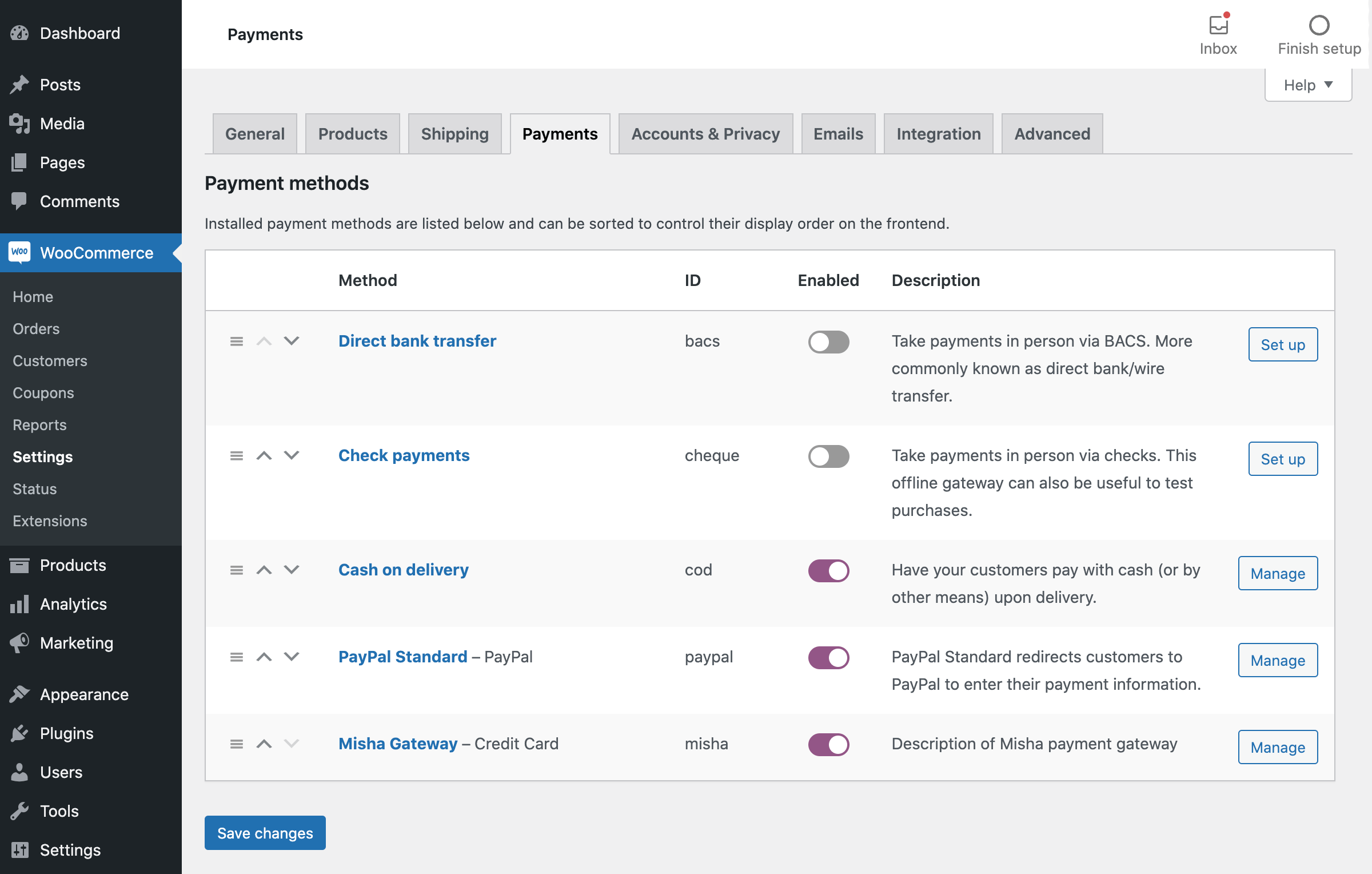
Implementing this functionality requires only a few lines of code. You can add the following snippet to your theme’s functions.php file or a custom plugin to enable the ID column.
add_filter( 'woocommerce_payment_gateways_setting_columns', 'wprs_add_payment_method_column' );

 function wprs_add_payment_method_column( $default_columns ) {
     // Insert the 'id' column after the first two default columns
     $default_columns = array_slice( $default_columns, 0, 2 ) + array( 'id' => 'ID' ) + array_slice( $default_columns, 2, 3 );
     return $default_columns;

 }

 // Populate the custom 'id' column
 // Hook: woocommerce_payment_gateways_setting_column_{COLUMN ID}
 add_action( 'woocommerce_payment_gateways_setting_column_id', 'wprs_populate_gateway_column' );
 function wprs_populate_gateway_column( $gateway ) {
     echo '<td style="width:10%">' . $gateway->id . '</td>';
 }
If you need to retrieve other properties from the $gateway object for debugging or further customization, you can use the print_r function to inspect the object’s contents:
echo '<td>' . print_r( $gateway, true ) . '</td>';