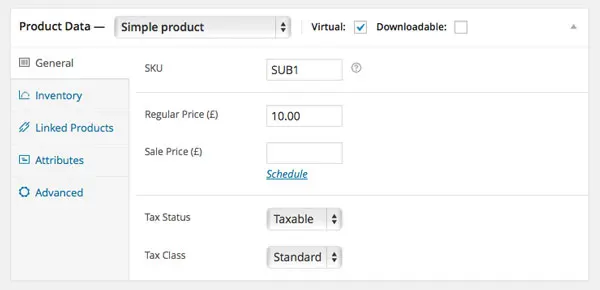
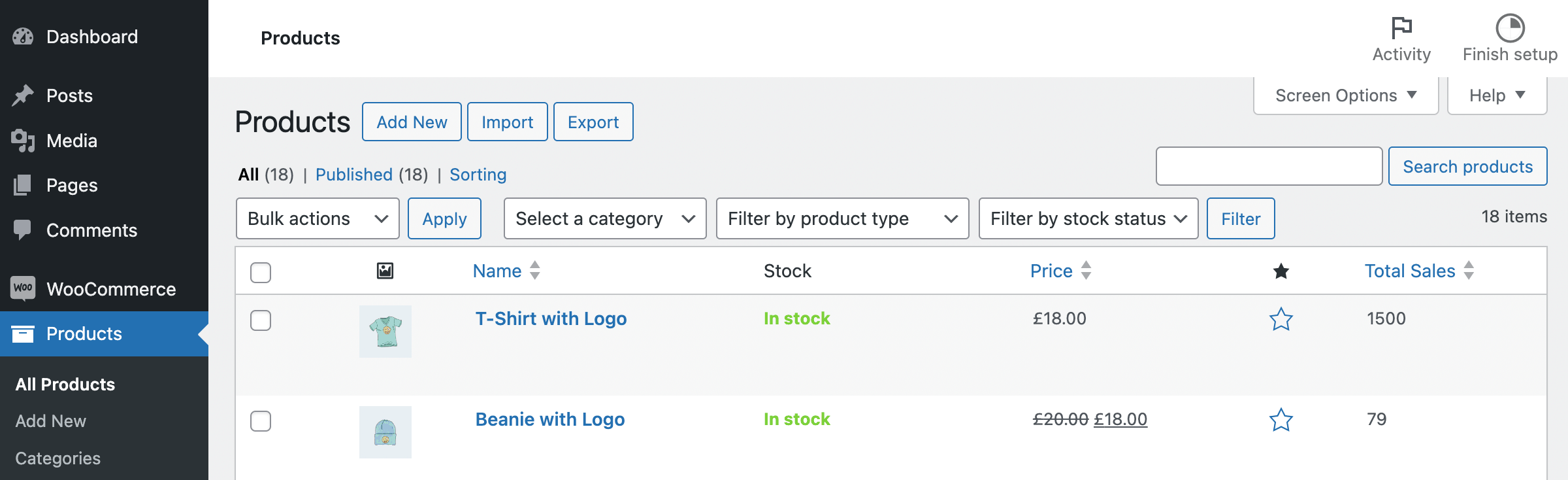
In WooCommerce, the most frequently used data tables are the Product and Order lists. While managing these columns is quite similar to standard WordPress posts or pages, there are unique hooks and considerations, especially with the introduction of High-Performance Order Storage (HPOS). In this guide, we will explore how to add, remove, and populate custom data columns across the WooCommerce dashboard.
Which Hooks Should You Use?
The hooks required depend on the specific management page you are targeting. Since WooCommerce 8.0+, many stores use HPOS, which changes how orders are stored and how list tables are modified. Here is a breakdown of the essential hooks:
1. Hooks to Add/Register Columns
| Hook Name | Target Page |
|---|---|
manage_edit-shop_order_columns | Orders (Legacy CPT mode) |
manage_woocommerce_page_wc-orders_columns | Orders (HPOS mode) |
manage_edit-product_columns | Products |
manage_edit-product_cat_columns | Product Categories |
manage_edit-product_tag_columns | Product Tags |
manage_users_columns | Users |
Note on HPOS: If you are using the latest WooCommerce version, the standard CPT hook for orders won’t work. Always include both if you want to ensure compatibility across different store configurations.
add_filter( 'manage_woocommerce_page_wc-orders_columns', 'wprs_add_custom_column' );
function wprs_add_custom_column( $columns ) {
	$columns[ 'wprs_custom_data' ] = 'My Custom Info';
	return $columns;
}
2. Hooks to Populate Column Data
Once the column is registered, you need to tell WordPress what data it should display in each row.
| Hook Name | Target Page |
|---|---|
manage_posts_custom_column | Products & Legacy Orders |
manage_woocommerce_page_wc-orders_custom_column | HPOS Orders |
manage_product_cat_custom_column | Product Categories |
manage_product_tag_custom_column | Product Tags |
manage_users_custom_column | Users |
Removing Unnecessary Columns
To clean up a cluttered dashboard, you can remove columns using the unset() function within the same registration hooks mentioned above.
add_filter( 'manage_edit-product_columns', 'wprs_remove_product_columns' );
function wprs_remove_product_columns( $columns ) {
	unset( $columns[ 'product_tag' ] ); // Removes the Tags column
	return $columns;
}
Practical Implementation Examples
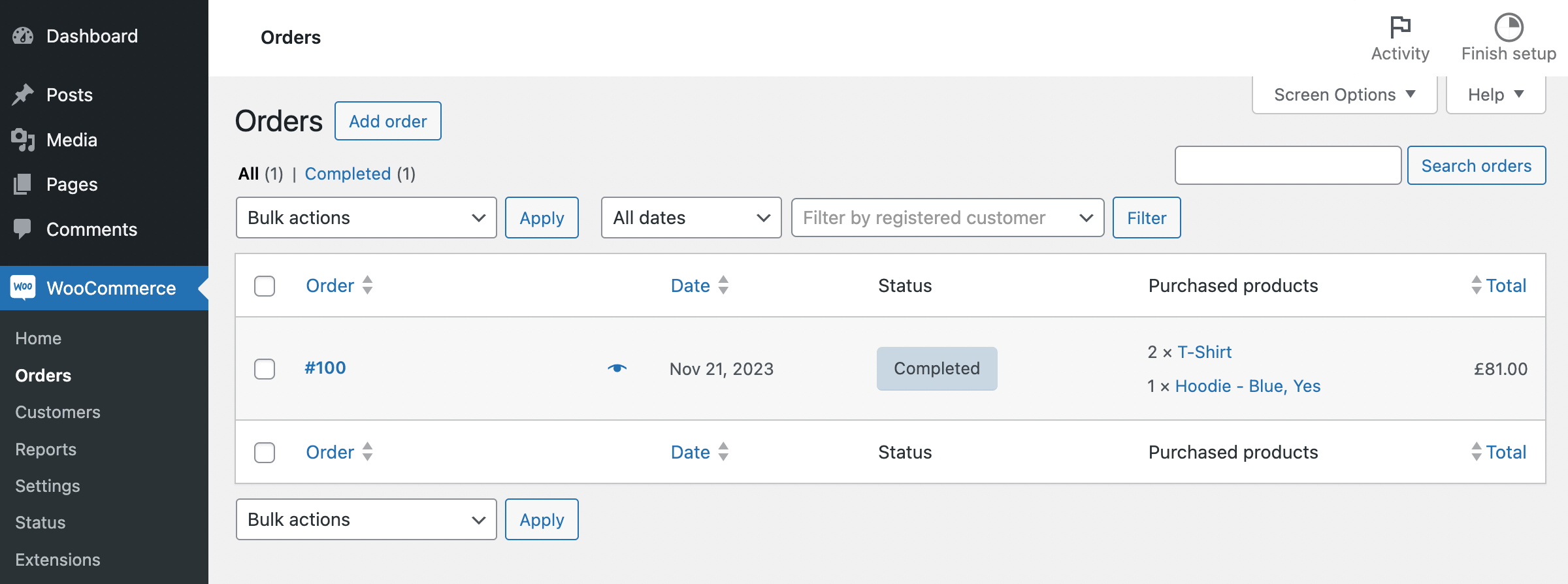
Example 1: Display Purchased Items in Order List
This example shows how to display a summary of items purchased directly in the main order list, supporting both CPT and HPOS modes.
// Register the column
add_filter( 'manage_edit-shop_order_columns', 'wprs_order_items_column' );
add_filter( 'manage_woocommerce_page_wc-orders_columns', 'wprs_order_items_column' );

function wprs_order_items_column( $columns ) {
	$columns[ 'order_products' ] = 'Purchased Products';
	return $columns;
}

// Populate the column
add_action( 'manage_shop_order_posts_custom_column', 'wprs_populate_order_items_column', 25, 2 );
add_action( 'manage_woocommerce_page_wc-orders_custom_column', 'wprs_populate_order_items_column', 25, 2 );

function wprs_populate_order_items_column( $column_name, $order_or_id ) {
	if ( 'order_products' !== $column_name ) return;

	$order = $order_or_id instanceof WC_Order ? $order_or_id : wc_get_order( $order_or_id );
	$items = $order->get_items();

	foreach ( $items as $item ) {
		echo $item->get_quantity() . ' x ' . $item->get_name() . '<br/>';
	}
}
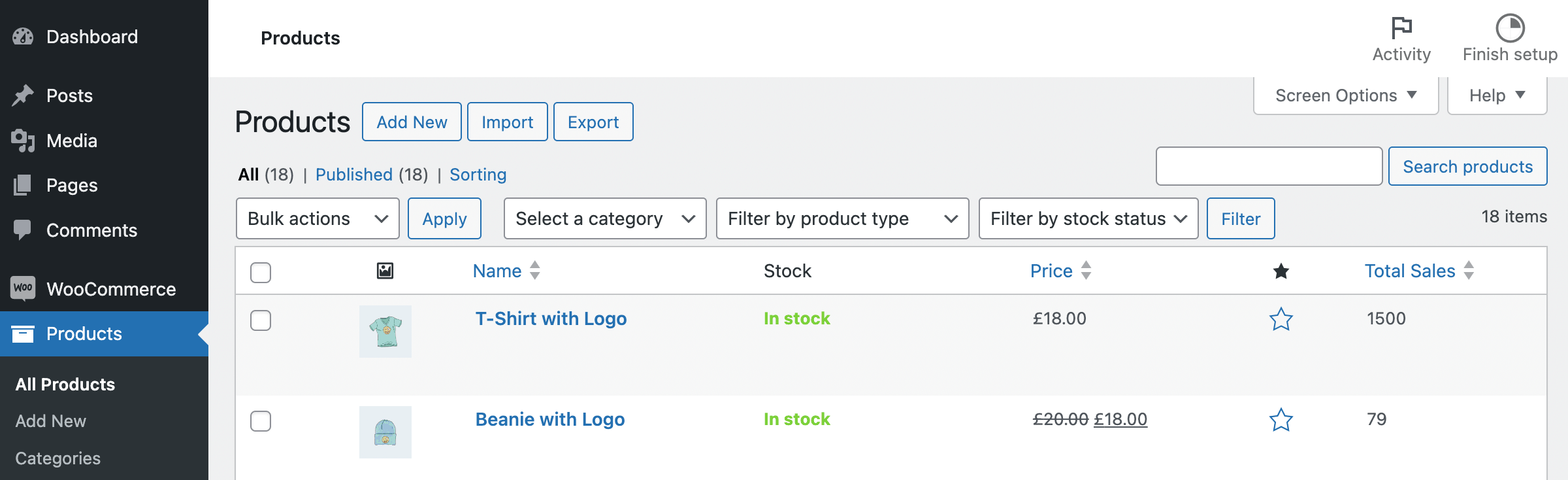
Example 2: Sortable “Total Sales” Column for Products
Adding a sortable column requires an extra step: registering the column as sortable and handling the query logic.
// Make column sortable
add_filter( 'manage_edit-product_sortable_columns', 'wprs_sort_total_sales' );
function wprs_sort_total_sales( $sortable_columns ) {
	$sortable_columns[ 'total_sales' ] = 'total_sales_qty';
	return $sortable_columns;
}

// Handle sorting logic
add_action( 'pre_get_posts', function( $query ) {
	if ( ! is_admin() || $query->get( 'orderby' ) !== 'total_sales_qty' ) return;

	$query->set( 'meta_key', 'total_sales' );
	$query->set( 'orderby', 'meta_value_num' );
} );
Example 3: Billing Address in User Table
Finally, you can pull WooCommerce customer data into the standard WordPress user list.
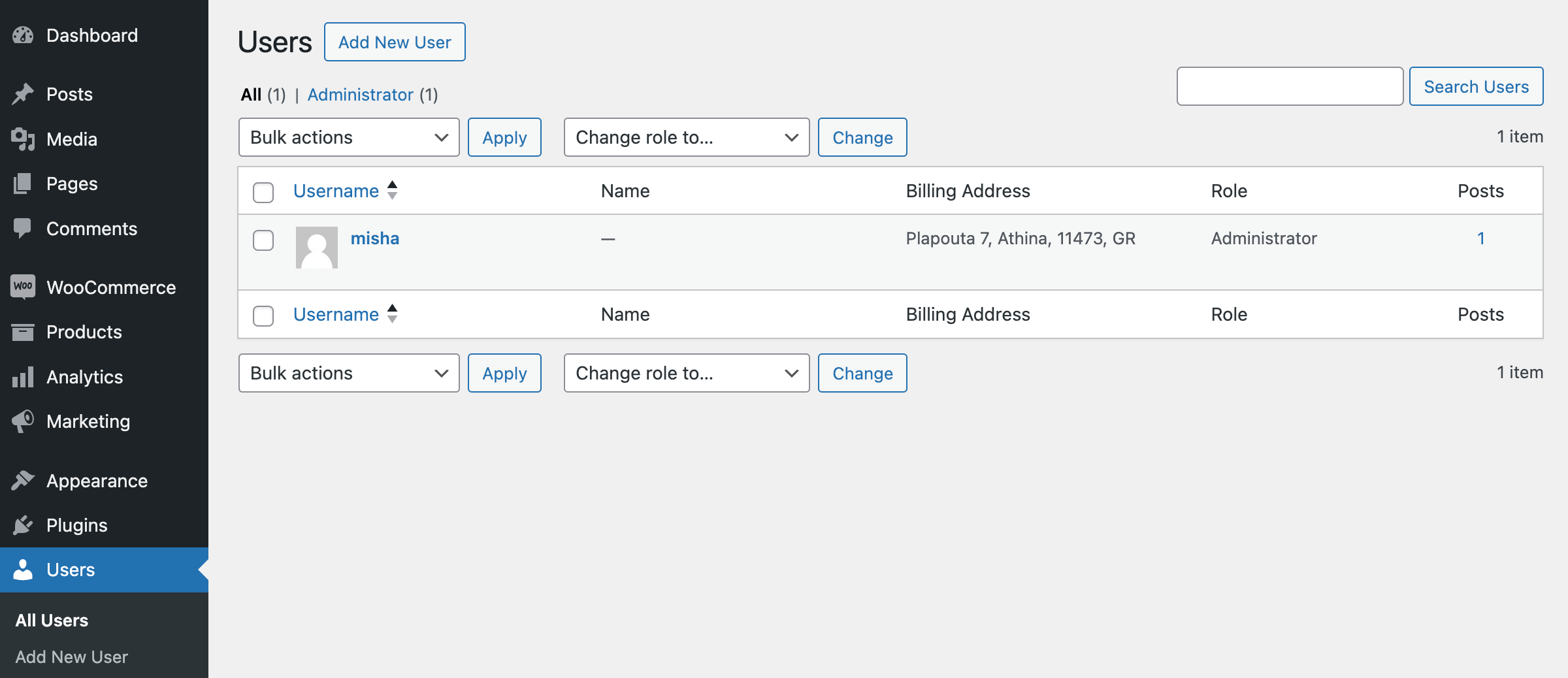
add_filter( 'manage_users_custom_column', 'wprs_show_user_billing', 10, 3 );
function wprs_show_user_billing( $val, $column_name, $user_id ) {
	if ( 'billing_address' !== $column_name ) return $val;

	$city    = get_user_meta( $user_id, 'billing_city', true );
	$country = get_user_meta( $user_id, 'billing_country', true );

	return $city . ', ' . $country;
}
By customizing these list tables, you can create a more efficient administrative workflow, providing key information at a glance without needing to click into individual orders or products.