When developing a WooCommerce store, you often need to store additional information beyond the default product fields. While you can add basic custom fields to existing tabs, creating a dedicated custom tab is a cleaner solution when you have multiple related fields. In this guide, we’ll cover how to add both custom fields to existing tabs and create entirely new tabs within the WooCommerce Product Data metabox.
1. Adding a Custom Tab to the Product Data Metabox
First, we use the woocommerce_product_data_tabs filter to register a new tab. In the example below, we add an “Additional Info” tab.
add_filter('woocommerce_product_data_tabs', function ($tabs)
{
    $tabs[ 'additional_info' ] = [
        'label'    => __('Additional Info', 'txtdomain'),
        'target'   => 'additional_product_data',
        'class'    => ['hide_if_external'],
        'priority' => 25,
    ];

    return $tabs;
});
2. Defining the Custom Tab Content and Fields
Next, we use the woocommerce_product_data_panels action to define the HTML content and input fields for our new tab. Crucially, the id of the outer container must match the target value defined in the previous step.
add_action('woocommerce_product_data_panels', function ()
{
    ?>
    <div id="additional_product_data" class="panel woocommerce_options_panel hidden"><?php

    // Text Input
    woocommerce_wp_text_input([
        'id'            => '_dummy_text_input',
        'label'         => __('Custom Text field', 'txtdomain'),
        'wrapper_class' => 'show_if_simple',
    ]);

    // Checkbox
    woocommerce_wp_checkbox([
        'id'            => '_dummy_checkbox',
        'label'         => __('Custom Checkbox', 'txtdomain'),
        'wrapper_class' => 'hide_if_grouped',
    ]);

    // Number Input
    woocommerce_wp_text_input([
        'id'                => '_dummy_number_input',
        'label'             => __('Custom Number field', 'txtdomain'),
        'type'              => 'number',
        'custom_attributes' => [
            'step' => '1',
            'min'  => '0',
        ],
    ]);

    ?></div><?php
});
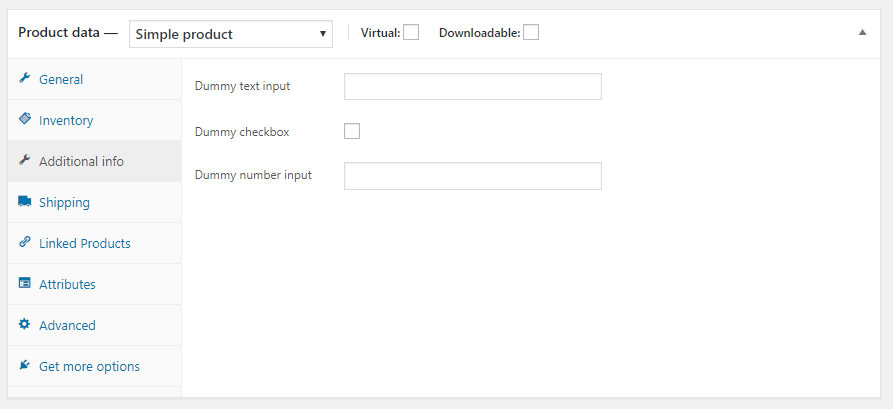
The resulting interface will look like the screenshot below, with your new tab appearing in the vertical navigation and containing your custom inputs.
3. Saving Custom Field Data
To ensure the data is preserved when a product is saved or updated, we hook into the woocommerce_process_product_meta action.
add_action('woocommerce_process_product_meta', function ($post_id)
{
    $product = wc_get_product($post_id);

    // Save Text Field
    $product->update_meta_data('_dummy_text_input', sanitize_text_field($_POST[ '_dummy_text_input' ]));

    // Save Checkbox
    $dummy_checkbox = isset($_POST[ '_dummy_checkbox' ]) ? 'yes' : 'no';
    $product->update_meta_data('_dummy_checkbox', $dummy_checkbox);

    // Save Number Field
    $product->update_meta_data('_dummy_number_input', sanitize_text_field($_POST[ '_dummy_number_input' ]));

    $product->save();
});
By following these steps, you can programmatically extend any WooCommerce product page with the exact fields you need. If you prefer a no-code approach or require more complex field types, plugins like WC Fields Factory offer alternative solutions for managing custom product metadata.