In the default WooCommerce templates, the cart and checkout pages include a form that allows users to manually enter coupon codes. From a user experience perspective, this coupon field can sometimes distract potential customers, causing them to abandon the checkout process to go search for discount codes elsewhere.
However, offering discounts remains a vital strategy for encouraging purchases and rewarding loyal customers. The best compromise is to apply the coupon automatically when a customer visits a specific URL. This way, you can simplify the checkout process, reduce friction, and ultimately improve conversion rates.
In this tutorial, we will learn how to set up auto-applied coupons in WooCommerce, ensuring a seamless and efficient shopping experience for both you and your customers.
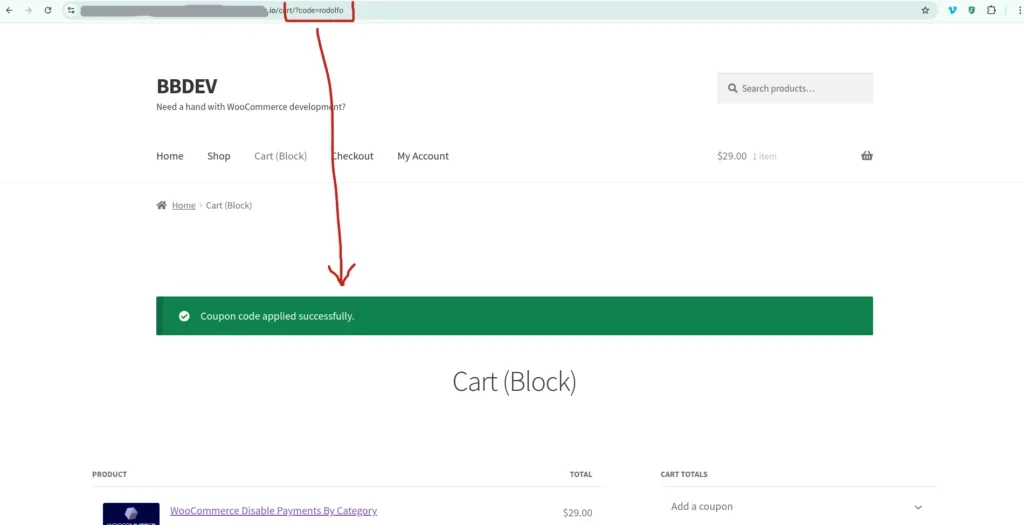
In the screenshot above, the URL contains a code parameter, whose value is the coupon code. Using the code snippet below, the coupon code will be automatically applied to the cart without any manual action from the user!
Programmatically Applying WooCommerce Coupons via URL Parameters
There are two things to keep in mind.
First, we must determine the URL parameter to use. In the code snippet below, we use code. You can change this to anything you like. Then, you need to include the coupon code in this parameter, for example: example.com/?code=xyz
Of course, you need to create the coupon in WooCommerce first before you can add it to the URL. Depending on your marketing strategy, consider whether to use random codes or meaningful ones. Once you’ve created the coupon, if you don’t want users to combine it with other offers, make sure to check the “Individual use only” box in the coupon usage restrictions (“Check this box if the coupon cannot be used in conjunction with other coupons“).
Additionally, the code below is divided into two parts, but the result is the same. The only difference is that one function works when the cart is not empty (wprs_add_coupon_to_session), while the other function triggers when an item is added to the cart (wprs_add_coupon_to_cart).
function wprs_add_coupon_to_session()
{
    if (empty($_GET['code'])) return;
    if ( ! WC()->session || (WC()->session && ! WC()->session->has_session())) {
        WC()->session->set_customer_session_cookie(true);
    }
    $coupon_code = esc_attr($_GET['code']);
    WC()->session->set('coupon_code', $coupon_code);
    if (WC()->cart && ! WC()->cart->has_discount($coupon_code)) {
        WC()->cart->calculate_totals();
        WC()->cart->add_discount($coupon_code);
        WC()->session->__unset('coupon_code');
    }
}

add_action('woocommerce_add_to_cart', 'wprs_add_coupon_to_cart');

function wprs_add_coupon_to_cart()
{
    $coupon_code = WC()->session ? WC()->session->get('coupon_code') : false;
    if ( ! $coupon_code || empty($coupon_code)) return;
    if (WC()->cart && ! WC()->cart->has_discount($coupon_code)) {
        WC()->cart->calculate_totals();
        WC()->cart->add_discount($coupon_code);
        WC()->session->__unset('coupon_code');
    }
}
Add the code above to your theme’s functions.php file or a suitable location in a plugin to enable auto-applying coupons via URL. If you have a better implementation, feel free to share it in the comments!