Modern WordPress posts have long evolved beyond simple text; they are now part of a comprehensive page management system. Whether you use visual editors like Elementor or the built-in Gutenberg editor, you can achieve rich page effects and functionality within WordPress posts or pages.
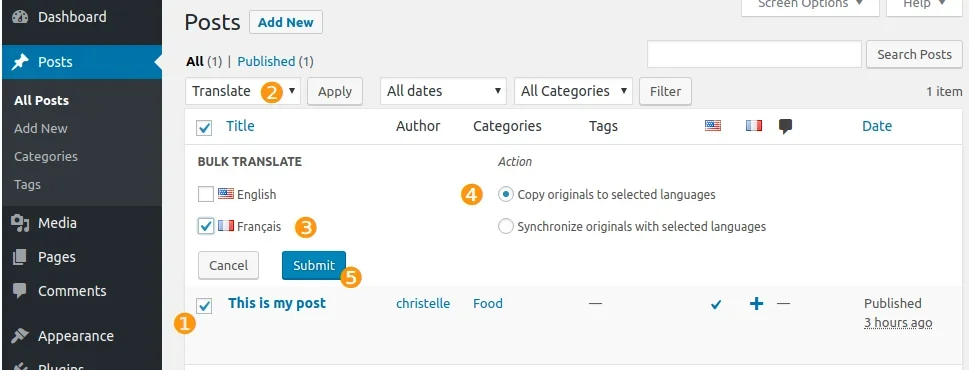
For a multilingual site, adding pages created with visual editors to other languages can lead to a lot of repetitive work if you have to recreate them manually. Polylang Pro includes a “Bulk Translate” feature that allows us to quickly copy or sync posts and pages to other languages in bulk, as shown below:
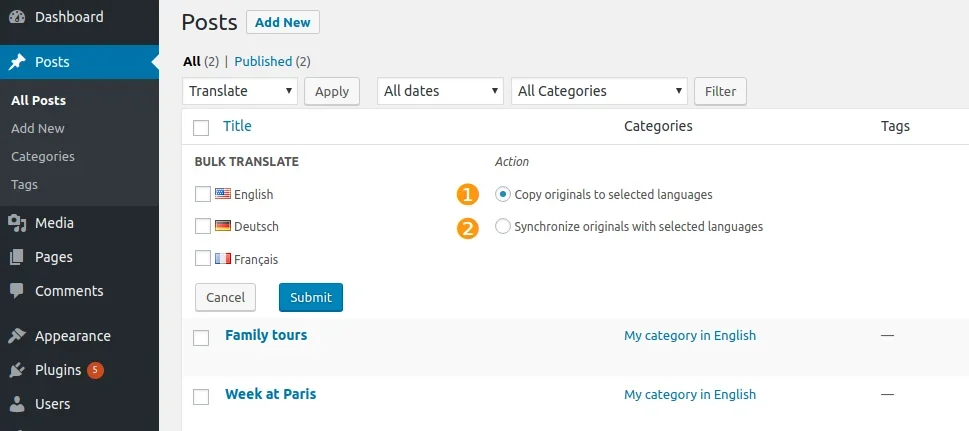
❶ The “Copy content from original to selected languages” option allows you to translate posts into other languages in bulk. It copies all post content, including the title, content (text, media, galleries), and excerpt, into the chosen languages.
❷ The “Sync content from original with selected languages” option allows you to bulk sync the original post with other languages. This means the newly translated content will stay synchronized with the original. As explained in the post synchronization documentation, both the translated and original posts will have an active synchronization icon in the “Languages” meta tab.
This tool works for posts, pages, media (except for the sync option), and custom post types. If you need to handle WooCommerce products, you’ll need the Polylang for WooCommerce plugin to add product support.
Bulk Translating Posts with Pre-translated Taxonomies
While the example below focuses on posts, the bulk translation tool works the same way for pages, media, and custom post types (like products).
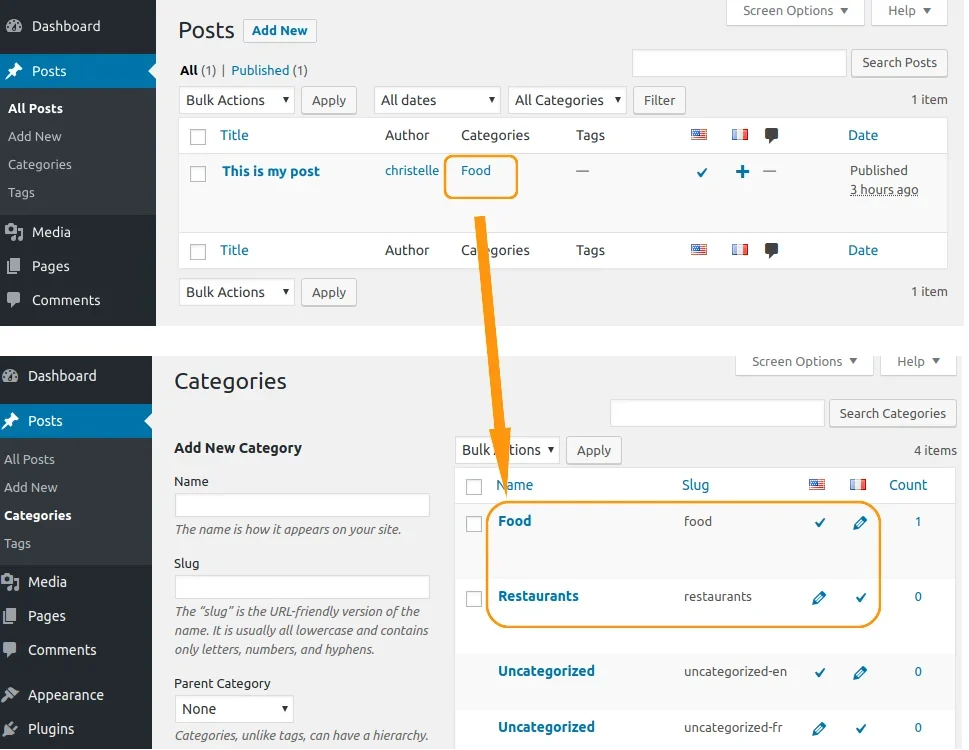
Suppose you decide to translate an English post into French. As shown below, my English post has a translated category named “Food,” which has a French translation named “Restaurants”:
To translate this English post into another language, follow these steps:
❶ Select the checkboxes for the relevant posts.
❷ Choose “Bulk Translate” from the actions menu; this will open the bulk translation meta box.
❸ Select the languages you want to translate into.
❹ Choose either “Copy content from original to selected languages” or “Sync content from original with selected languages.”
Then, click the “Submit” button.
After clicking “Submit,” you’ll see a success message ❻. You’ll now have a new French translation for the post ❼ and its corresponding French category ❽, as illustrated here:
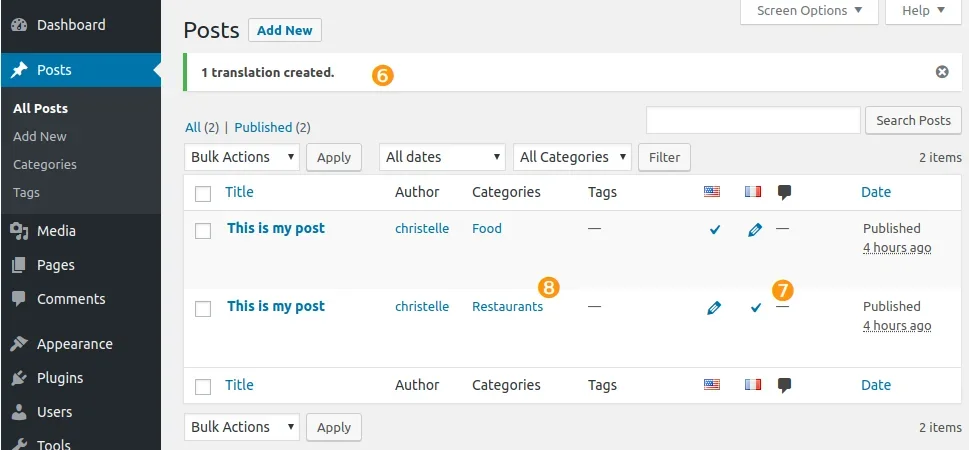
Note: If you select “Sync content from original with selected languages,” the synchronization feature will be activated for the new translation.
2. Bulk Translating Posts with Untranslated Taxonomies
In this next example, you’ll see that if a category translation doesn’t yet exist, Polylang will create it automatically. Suppose you decide to translate another English post with an untranslated category:
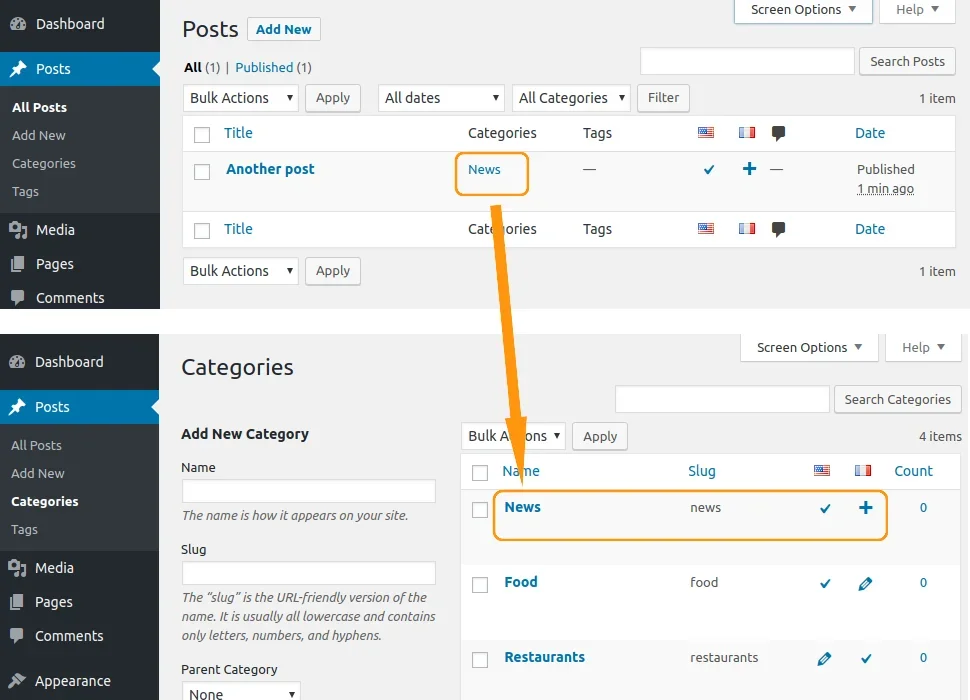
To translate this post, follow the same instructions as before. After bulk translating the post, you’ll have a new French translation post and a new French category. Polylang actually creates the “News” French translation category on the fly, as shown below. You can later manually translate the title of this newly created category.
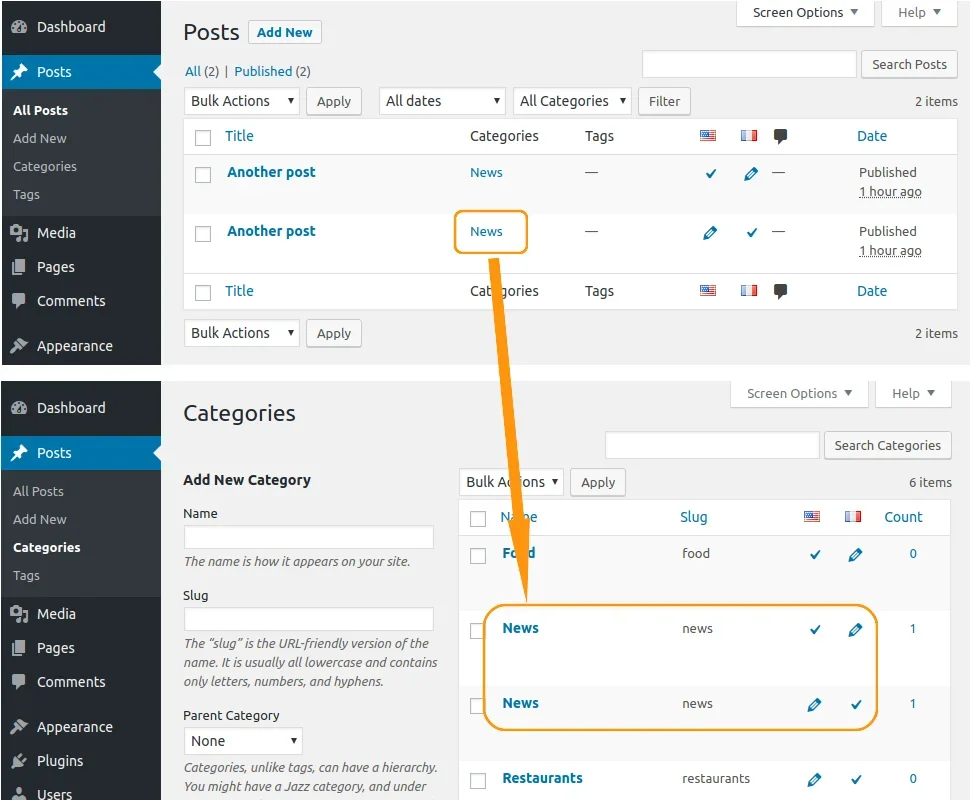
The same applies to media: if the translation doesn’t exist, Polylang will create it automatically.
3. Bulk Translating Products
If you’re using Polylang for WooCommerce alongside Polylang Pro, you can also bulk copy your products from here:
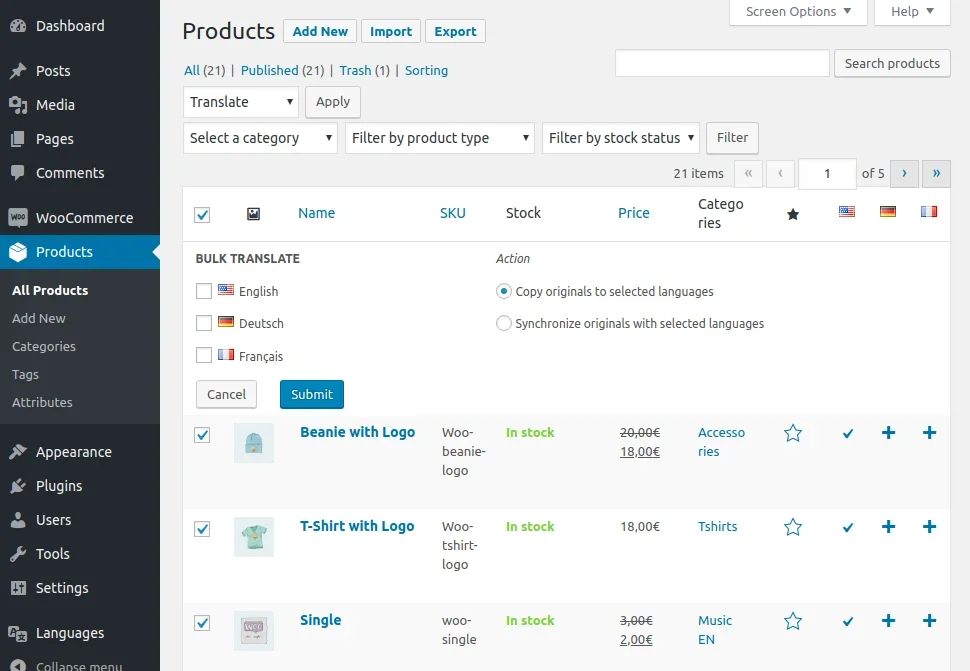
Note that if your product categories and attributes haven’t been translated yet, Polylang will automatically copy them into the other languages as well.
Polylang’s bulk translation is a very convenient feature, but since it’s somewhat tucked away in the interface, some users aren’t aware of it. The goal of this guide is to provide a helpful reference. In addition to Polylang Pro’s bulk translation, we previously covered how to use a post duplicator plugin to quickly copy posts to other languages.