Media Library folders are a feature that has always been missing in WordPress. For users who like to keep everything categorized and tidy, putting all media together can be frustrating. Not only is it inconvenient to search for files, but it also easily leads to repeated media uploads, wasting server space. Today, I will show you how to add folder selection when uploading media files to the WordPress Media Library, as shown in the images below.
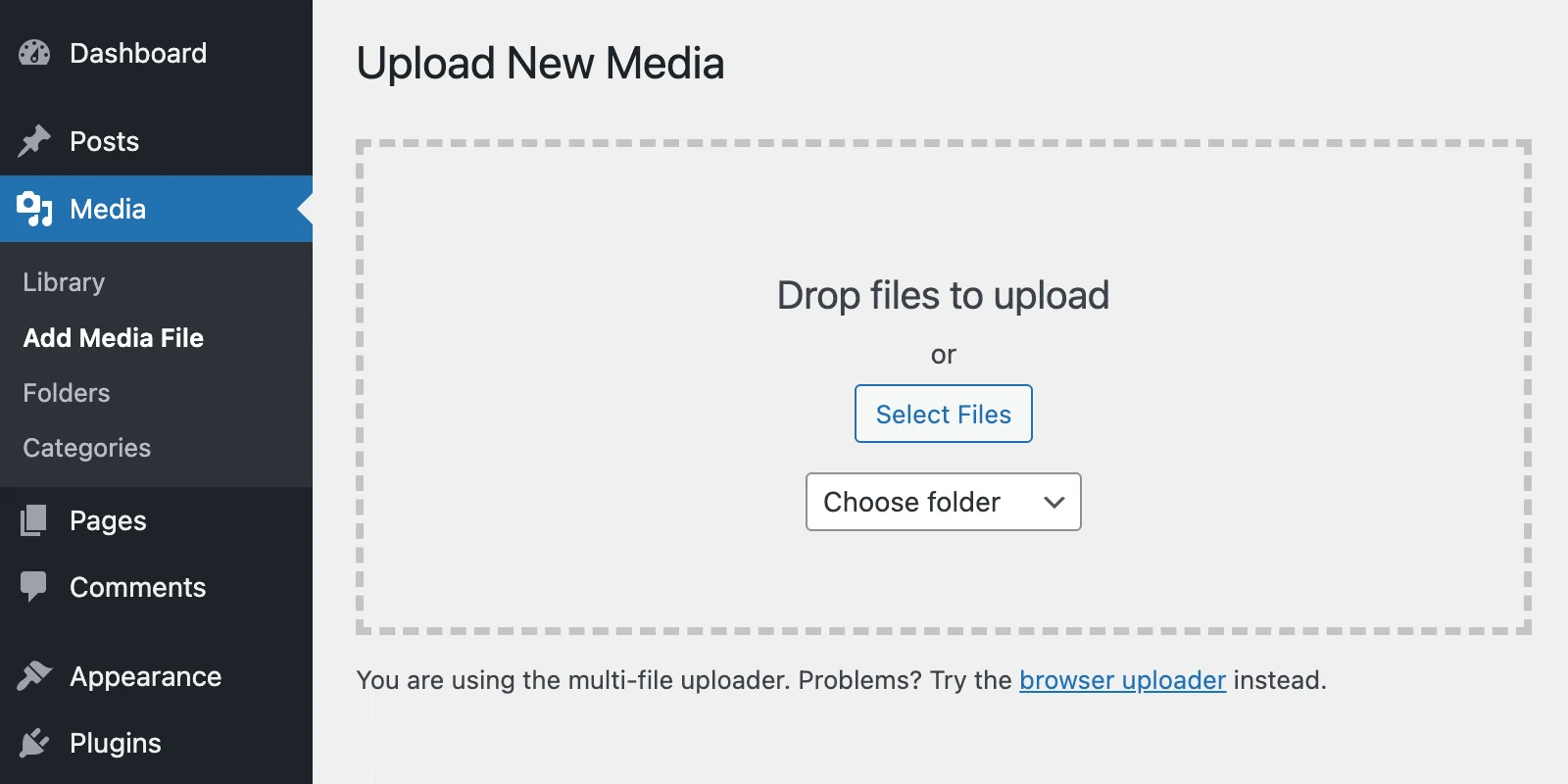
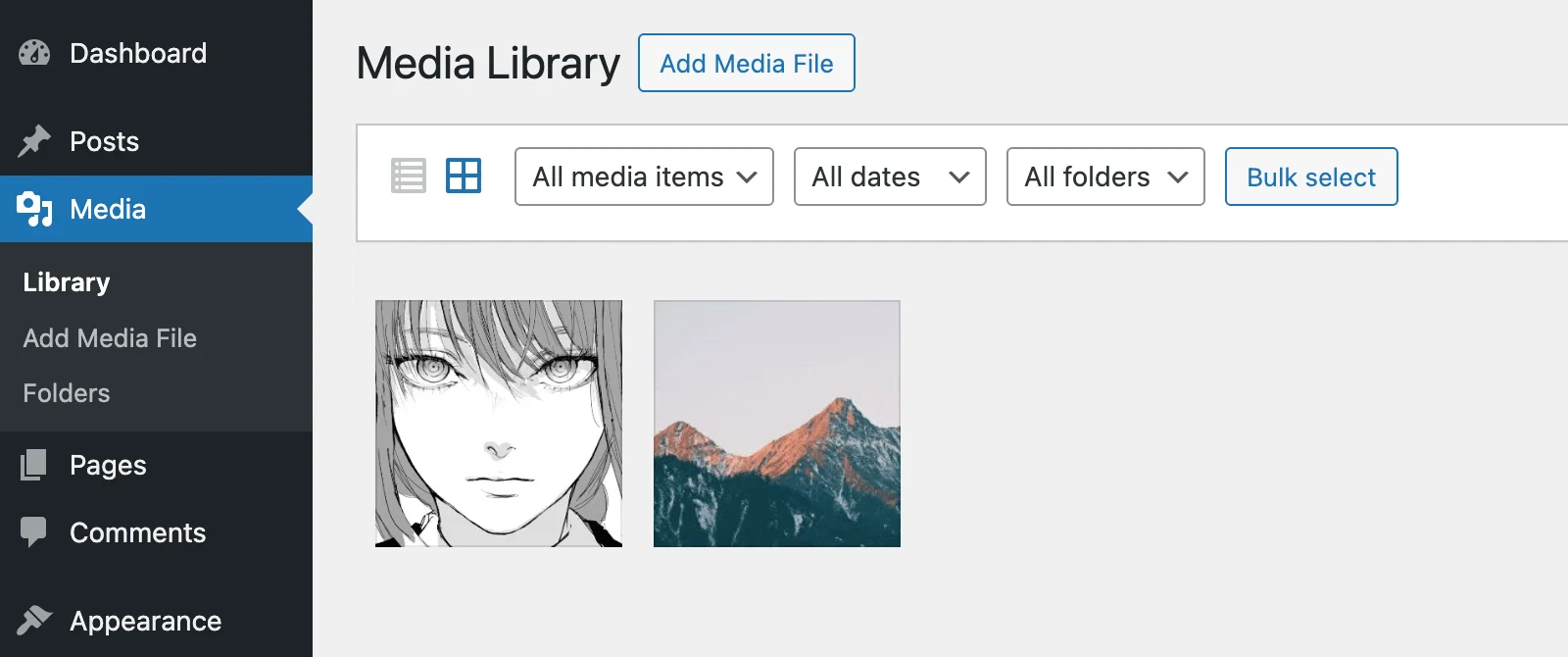
How to Add Media Library Folders on a Website
Currently, there are two main options:
- We can create a custom table in the WordPress database and use it to build the folder structure.
- Or, we can register a taxonomy for the
attachmentpost type and use it for folders.
In my opinion, creating a new database table for media folders doesn’t make much sense because the taxonomy tables already hold all the data we need: name, title, parent, count, and we can use term_group to display folders in a custom order.
In addition, if you choose a custom database table, you will need to develop an interface to manage the folders, which would bring a lot of unnecessary trouble.
Registering a Taxonomy for Attachments
Great, we’ve decided to use a custom taxonomy for the folder structure on the site. This means it’s time to use the register_taxonomy() function here. Also, don’t forget to wrap it inside the init hook.
register_taxonomy(
	'folders',
	array( 'attachment' ),
	array(
		'hierarchical' => true,
		'labels' => array(
			'name'           => 'Folders',
			'singular_name'  => 'Folder',
			'search_items'   => 'Search folders',
			'all_items'      => 'All folders',
			'parent_item'    => 'Parent folder',
			'edit_item'      => 'Edit folder',
			'update_item'    => 'Update folder',
			'add_new_item'   => 'Add new folder',
			'new_item_name'  => 'New folder name',
			'menu_name'      => 'Folders',
		),
		'show_ui' => true,
		'show_admin_column' => true,
		'query_var' => true,
		'rewrite' => false,
		'update_count_callback' => 'wprs_update_folder_attachment_count',
	)
);
Most of the parameters for the register_taxonomy() function depend on whether you want to use the standard taxonomy management interface to manage Media Library folders.
For example, if you decide to display folders in a custom way, you can skip the entire labels argument, set show_ui to false (or even set public to false), and so on.
In addition to this, we also need to do one of the following:
- Use the
update_count_callbackparameter to modify the standard_update_post_term_countfunction. - Or, use the
update_post_term_count_statuseshook directly to allow calculating theinheritstatus when counting the total number of attachments in a folder.
In WordPress, by default, the number of attachments in taxonomy terms only correctly counts attachments attached to posts.
Here is the update_count_callback method:
function wprs_update_folder_attachment_count( $terms, $taxonomy ) {
	global $wpdb;
	foreach ( (array) $terms as $term_id ) {
		$count = 0;

		$count += (int) $wpdb->get_var(
			$wpdb->prepare(
				"
				SELECT COUNT(*)
				FROM $wpdb->term_relationships, $wpdb->posts p1
				WHERE p1.ID = $wpdb->term_relationships.object_id
				AND post_status = 'inherit'
				AND post_type = 'attachment'
				AND term_taxonomy_id = %d
				",
				$term_id
			)
		);

		do_action( 'edit_term_taxonomy', $term_id, $taxonomy->name );

		$wpdb->update(
			$wpdb->term_taxonomy,
			compact( 'count' ),
			array( 'term_taxonomy_id' => $term_id )
		);

		do_action( 'edited_term_taxonomy', $term, $taxonomy->name );
	}
}
Interestingly, shortly after creating this snippet, I discovered that we can use another standard WordPress callback function, _update_generic_term_count, which seems to work perfectly for attachment taxonomies.
'update_count_callback' => '_update_generic_term_count',Anyway, here is also the update_post_term_count_statuses method:
add_filter( 'update_post_term_count_statuses', function( $statuses, $taxonomy ) {

	if( 'folders' === $taxonomy->name ) {
		$statuses[] = 'inherit';
		$statuses = array_unique( $statuses );
	}
	return $statuses;

}, 25, 2 );
Adding, Renaming, or Deleting Media Library Folders Like Regular WordPress Terms
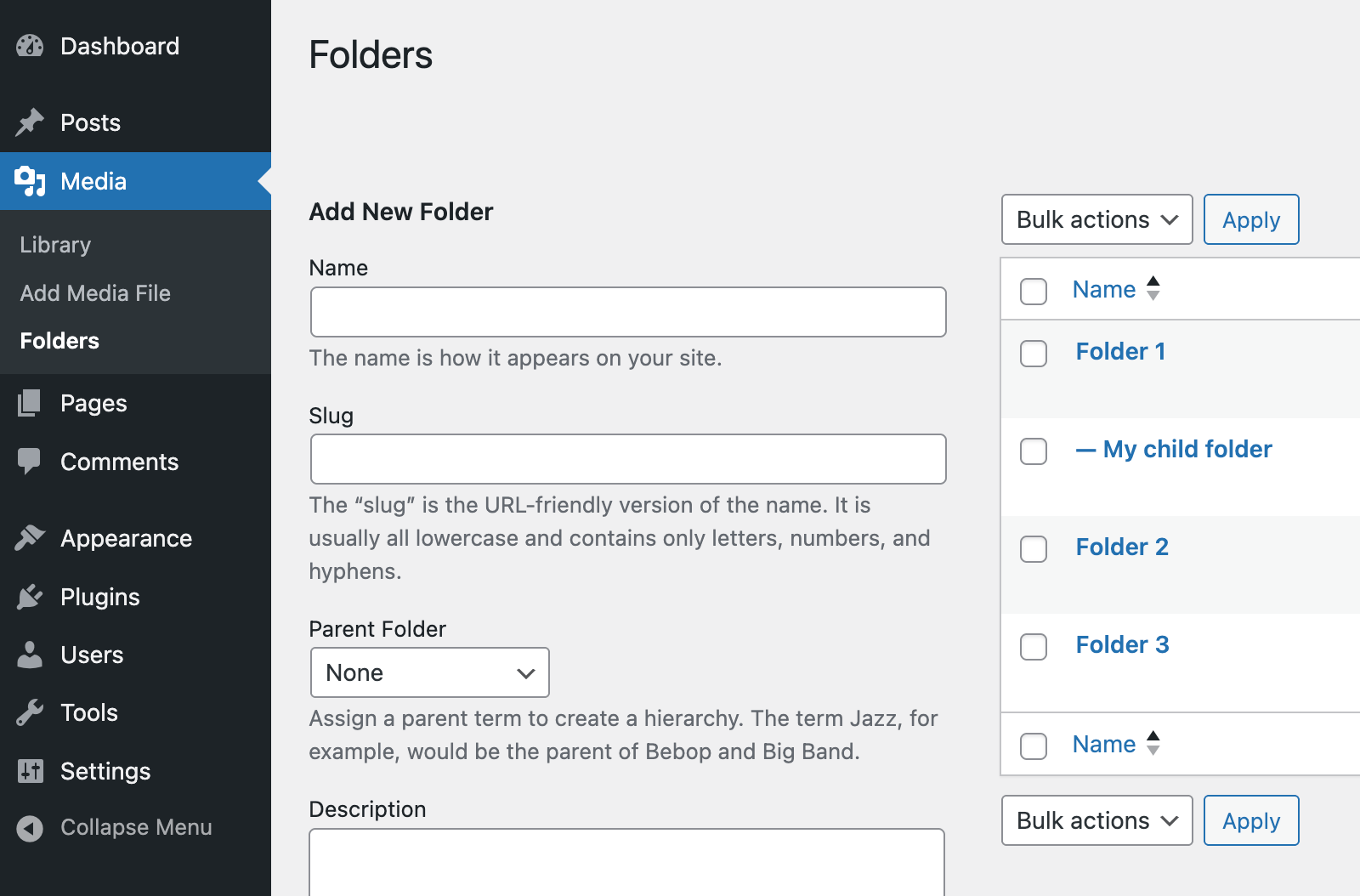
To be honest, there doesn’t seem to be much specific content to write here. You just need to go to Media > Folders, and you can edit WordPress Media Library folders just like you would edit regular taxonomy terms:
Selecting a Folder When Uploading Media
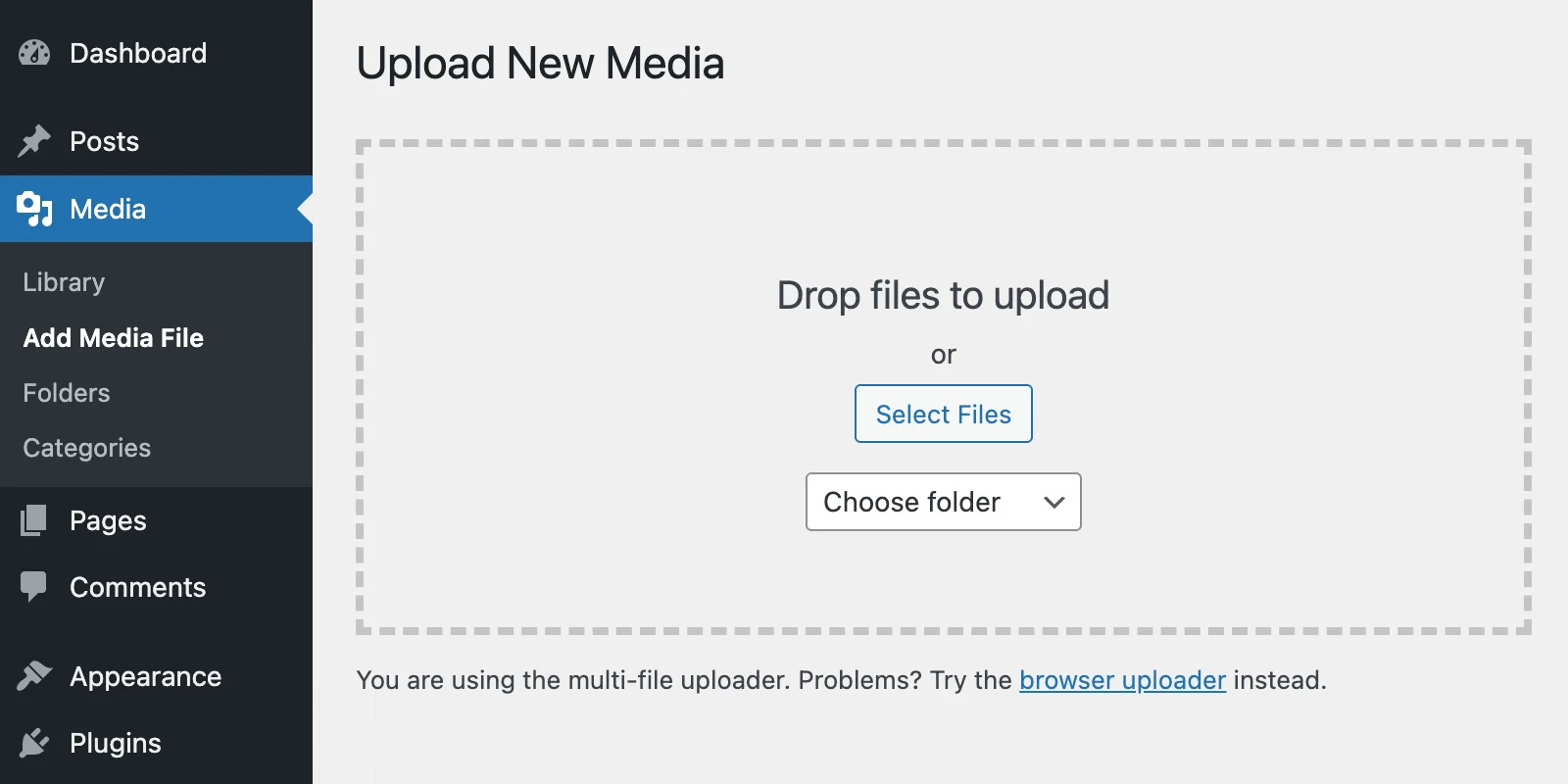
Okay, the simple part is over. Now for something more interesting. We’ll use JavaScript to heavily customize the WordPress Plupload uploader and the media modal wp.media.
This is the result we should get:
Let’s start with the PHP snippet and the pre-upload-ui action hook:
add_action( 'pre-upload-ui', 'wprs_select_folder' );
function wprs_select_folder() {

	wp_dropdown_categories( array(
		'hide_empty'       => 0,
		'hide_if_empty'    => false,
		'taxonomy'         => 'folders',
		'name'             => 'folder_id',
		'id'               => 'folders',
		'orderby'          => 'name',
		'hierarchical'     => true,
		'show_option_none' => 'Choose folder',
	) );

}
The JavaScript code will vary depending on the page where we are currently performing the folder selection.
Media > Add New Page:
if( $( 'body.wp-admin' ).hasClass( 'media-new-php' ) && 'object' == typeof window.uploader ) {
	window.uploader.bind( 'BeforeUpload', function( up ) {
		const settings = up.settings.multipart_params;
		settings.folder_id = $( '#folder_id' ).val()
	})
}
Inside the WordPress media modal window, when editing a post, it’s not limited to this:
if( 'function' == typeof wp.Uploader ) {
	$.extend( wp.Uploader.prototype, {
		init: function() {

			let selectedFolder = -1;

			// Register change event on folder dropdown
			$( 'body' ).on( 'change', '#folder_id', function() {
				selectedFolder = $(this).val()
			} )

			this.uploader && this.uploader.bind( 'BeforeUpload', function( up, file ) {
				up.settings.multipart_params = up.settings.multipart_params || {}
				up.settings.multipart_params.folder_id = selectedFolder
			})
		}
	})
}
One more thing: unless you run this code within a setTimeout() function (with any time interval), it’s likely the code above won’t be triggered correctly.
Now it’s time to handle the folder_id parameter when uploading the attachment. Fortunately, this part is easy and can be implemented via the WordPress hook add_attachment.
add_action( 'add_attachment', 'wprs_add_attachment_to_folder' );

function wprs_add_attachment_to_folder( $attachment_id ) {

	if(
		! isset( $_POST[ '_wpnonce' ] )
		|| ! wp_verify_nonce( $_POST[ '_wpnonce' ], 'media-form' )
	) {
		return;
	}

	$folder_id = ! empty( $_POST[ 'folder_id' ] ) ? (int) $_POST[ 'folder_id' ] : 0;
	if( ! $folder_id ) {
		return;
	}

	wp_set_object_terms( $attachment_id, $folder_id, 'folders' );

}
Don’t forget to verify the nonce. It’s easy because the $action value is the same in both places.
Changing the Folder When Editing Media
There are three different scenarios here:
- When editing a media file from the Media Library’s “List view”, the Media Library folders will display like a custom taxonomy in the classic editor. No action is needed here; it works out of the box.
- When editing a media file from the “Grid view”, the folder structure won’t display correctly by default. Only one field is shown, which isn’t ideal. This is where most of our work is needed.
- You can create bulk actions at any time to add or remove media files from specific Media Library folders.
Our goal now is to display the Media Library folder structure as shown in the screenshot below:
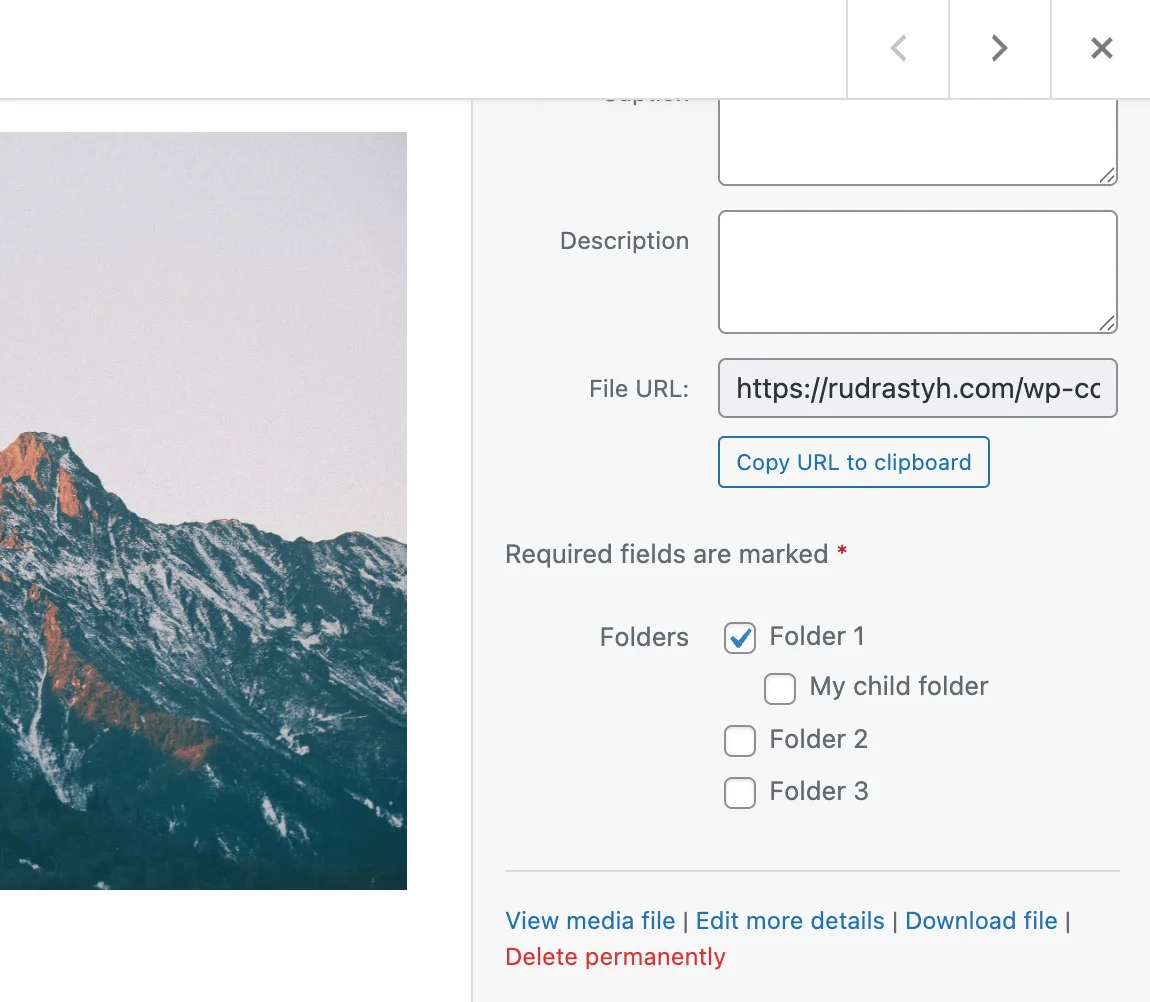
Good news — this section doesn’t use JavaScript. The PHP snippet is as follows:
add_filter( 'attachment_fields_to_edit', 'wprs_edit_attachment_fields', 25, 2 );
function wprs_edit_attachment_fields( $form_fields, $post ) {

	// Prepare an array for new folder fields here
	$folder_fields = array(
		'label' => 'Folders',
		'show_in_edit' => false,
		'input' => 'html',
		'value' => '',
	);

	$taxonomy_name = 'folders';

	// Get the assigned media library folders from cache
	$terms = get_the_terms( $post->ID, $taxonomy_name );
	if( $terms ) {
		$folder_fields[ 'value' ]  = join( ', ', wp_list_pluck( $terms, 'slug' ) );
	}

	ob_start();

	wp_terms_checklist(
		$post->ID,
		array(
			'taxonomy' => $taxonomy_name,
			'checked_ontop' => false,
			'walker' => new Rudr_Folders_Walker()
		)
	);

	$html = '<ul class="term-list">' . ob_get_contents() . '</ul>';

	ob_end_clean();

	$folder_fields[ 'html' ] = $html;

	$form_fields[ $taxonomy_name ] = $folder_fields;

	return $form_fields;
}

class Rudr_Folders_Walker extends Walker {

	var $db_fields = array(
		'parent' => 'parent',
		'id'     => 'term_id',
	);

	function start_lvl( &$output, $depth = 0, $args = array() ) {
		$indent  = str_repeat( "	", $depth );
		$output .= "$indent<ul class='children'>
";
	}

	function end_lvl( &$output, $depth = 0, $args = array() ) {
		$indent  = str_repeat( "	", $depth );
		$output .= "$indent</ul>
";
	}

	function start_el( &$output, $term, $depth = 0, $args = array(), $id = 0 ) {

		$output .= sprintf(
			"
<li id='%s-%s'><label class='selectit'><input value='%s' type='checkbox' name='%s' id='%s' %s %s /> %s</label>",
			$term->taxonomy,
			$term->term_id,
			$term->slug,
			"tax_input[{$term->taxonomy}][{$term->slug}]",
			"in-{$term->taxonomy}-{$term->term_id}",
			checked( in_array( $term->term_id, $args[ 'selected_cats' ] ), true, false ),
			disabled( empty( $args[ 'disabled' ] ), false, false ),
			esc_html( $term->name )
		);

	}

	function end_el( &$output, $term, $depth = 0, $args = array() ) {
		$output .= "</li>
";
	}

}
Are folder checkboxes saved correctly? Yes, but there’s a catch.
The problem is that WordPress expects the folder field value to be a comma-separated string, but we are providing an array. There are different ways to solve this. For instance, you can use the hook below to change the wp_ajax_save_attachment_compat() function to a custom one:
add_filter('wp_ajax_save-attachment-compat', 'custom_save_attachment_compat', 0);Alternatively, we can use JavaScript to ensure WordPress receives the custom taxonomy (folder) term string separated by commas.
Almost forgot, here’s a little CSS:
.compat-field-folders .term-list {
    margin-top: 5px;
}

.compat-field-folders .children {
    margin: 5px 0 0 20px;
}

.compat-field-folders .field input[type=checkbox] {
    margin-top: 0;
}
Creating a Filter to Show Media in a Specific Folder
If you think we can easily achieve this using the restrict_manage_posts action, you’re half-right, because it all depends on whether “Grid” or “List” view is being used.
In “List” view, using the restrict_manage_posts action hook is enough. Our code snippet will look like this:
add_action( 'restrict_manage_posts', 'wprs_list_view_filter' );

function wprs_list_view_filter() {
	global $typenow;

	if( 'attachment' !== $typenow ) {
		return;
	}

	$selected = isset( $_GET[ 'folders' ] ) ? $_GET[ 'folders' ] : false;
	wp_dropdown_categories(
		array(
			'show_option_all' =>  'All folders',
			'taxonomy'        =>  'folders',
			'name'            =>  'folders',
			'orderby'         =>  'name',
			'selected'        =>  $selected,
			'hierarchical'    =>  true,
			'value_field'     => 'slug',
			'depth'           =>  3,
			'hide_empty'      =>  true,
		)
	);

}
In “Grid” view, the solution is much more complex:
(function(){

	const MediaLibraryTaxonomyFilter = wp.media.view.AttachmentFilters.extend({
		id: 'rudr-grid-taxonomy-filter',

		createFilters: function() {
			const filters = {}

			_.each( FolderTaxonomyTerms.terms || {}, function( value, index ) {
				filters[ value.term_id ] = {
					text: value.name,
					props: {
						folders: value.slug,
					}
				}
			})
			filters.all = {
				text:  'All folders',
				props: {
					folders: ''
				},
				priority: 10
			}
			this.filters = filters
		}
	})

	const AttachmentsBrowser = wp.media.view.AttachmentsBrowser;
	wp.media.view.AttachmentsBrowser = AttachmentsBrowser.extend({
		createToolbar: function() {
			AttachmentsBrowser.prototype.createToolbar.call( this )
			this.toolbar.set(
				'MediaLibraryTaxonomyFilter',
				new MediaLibraryTaxonomyFilter({
					controller: this.controller,
					model:      this.collection.props,
					priority: -75
				}).render()
			)
		}
	})

})()
If you’re wondering what FolderTaxonomyTerms is — it’s just a folder object I printed using wp_localize_script() and get_terms().
And here is the result:
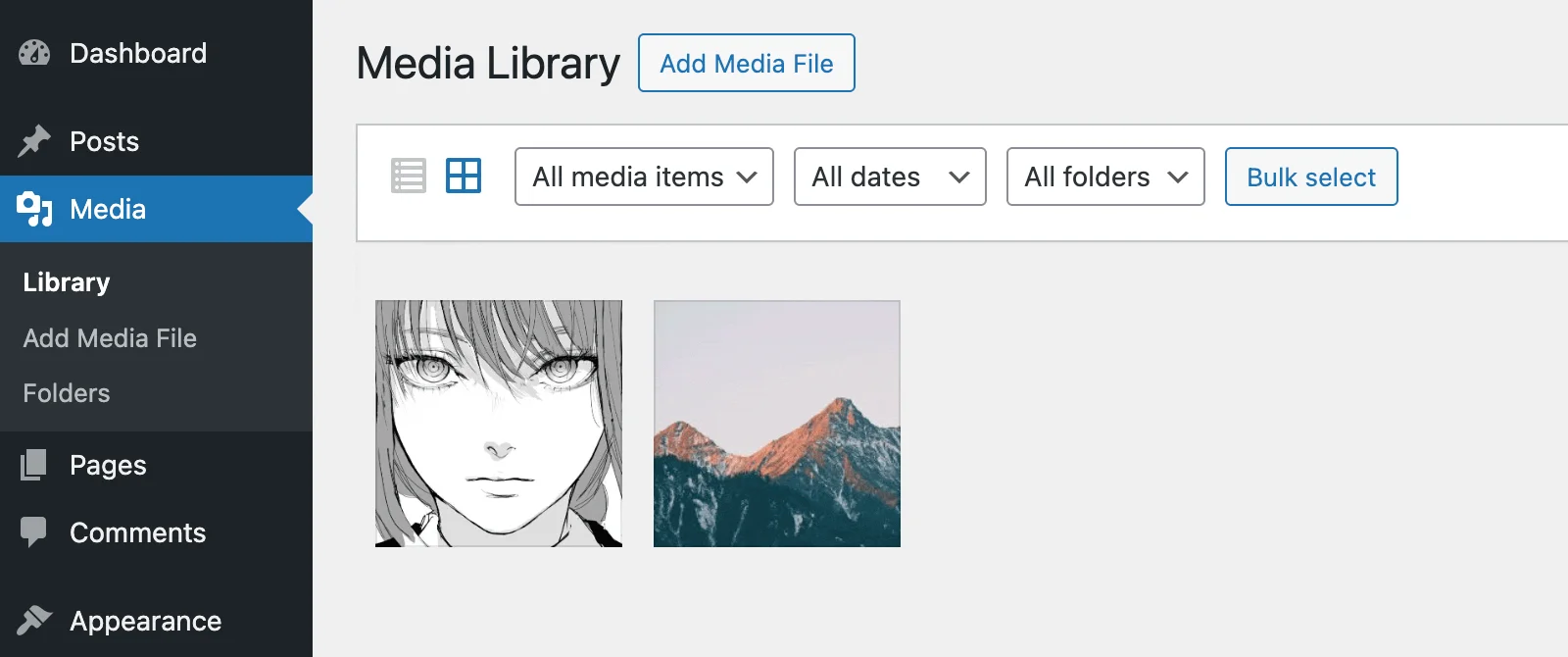
With this code, the filter will not only appear on the Media > Library page but also in the media modal when you want to insert an image into a post.