WordPress 4.3 introduced visual editor shortcuts that let us add headings, ordered lists, unordered lists, blockquotes, and other elements by typing a few simple characters. These shortcuts reduce mouse work and make it easier to stay focused on writing.
However, not everyone likes this feature. WordPress did not provide a built-in option to turn it off, so the only way was to disable it with code.
What are visual editor shortcuts and how do they work?
Visual editor shortcuts are similar to Markdown formatting patterns. For example, # represents an h1 heading, and ## represents an h2 heading. The usage pattern is similar to Markdown, but with one important difference: WordPress converts those patterns into HTML directly inside the editor, so what gets saved to the database is HTML rather than Markdown text.
WordPress visual editor shortcuts support the following Markdown-like patterns, and they are easy to use:
- Start an unordered list with
*or-, then press Space. - Start an ordered list with
1.or1), then press Space. - Use
##then press Enter to create anh2,###for anh3, and so on. - Start with
>, then press Enter to turn the line into a blockquote.
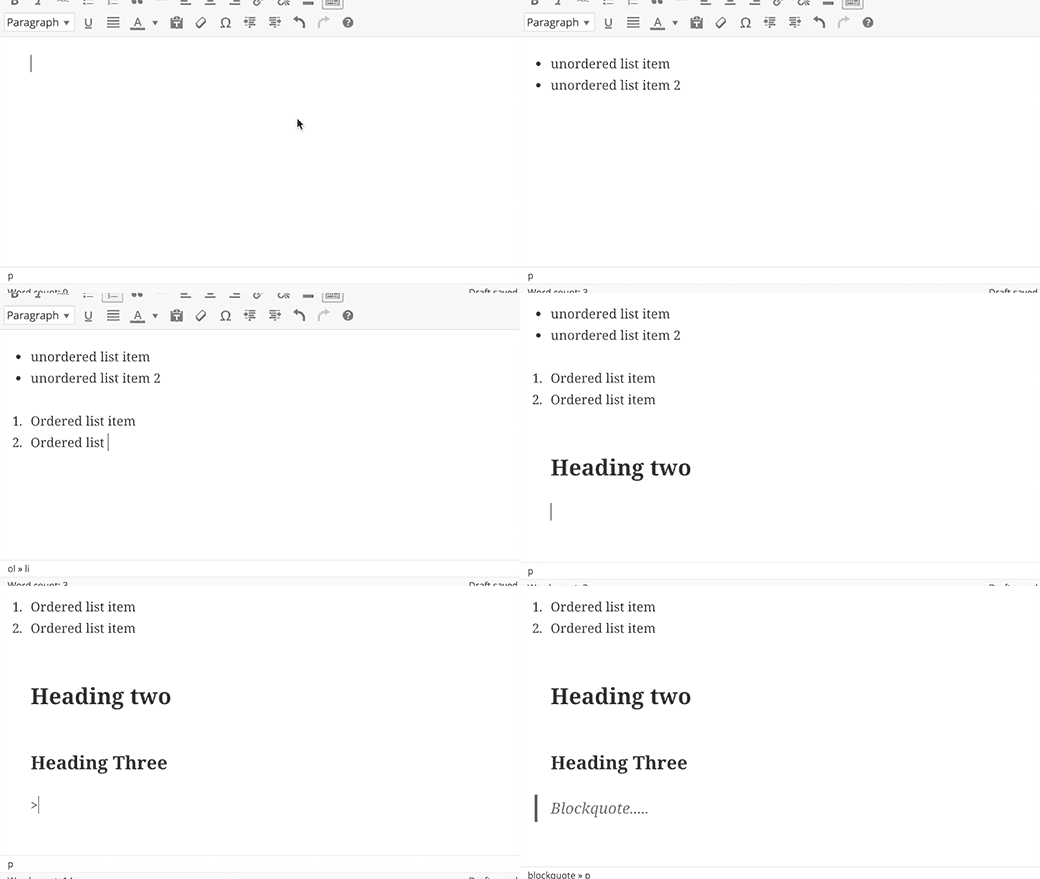
How to disable visual editor shortcuts
Since these shortcuts are useful, why would anyone want to disable them? Usually it comes down to habit. Not everyone wants to learn a new writing workflow, even when the feature itself is good.
If you do need to disable the visual editor shortcuts, use the following code. Copy it into your theme’s functions.php file.
function disable_mce_wptextpattern( $opt ) {

	if ( isset( $opt['plugins'] ) && $opt['plugins'] ) {
		$opt['plugins'] = explode( ',', $opt['plugins'] );
		$opt['plugins'] = array_diff( $opt['plugins'] , array( 'wptextpattern' ) );
		$opt['plugins'] = implode( ',', $opt['plugins'] );
	}

	return $opt;
}

add_filter( 'tiny_mce_before_init', 'disable_mce_wptextpattern' );
For people who write in WordPress often, this feature is genuinely convenient. Unless you have a specific reason to turn it off, it is worth learning and getting used to, because it can improve writing efficiency quite a bit.

![How to Remove the if(!isset($GLOBALS[…])) Malware Code from WordPress Themes](https://wphrefs.com/wp-content/uploads/2026/03/featured__ivmc4a7.webp)