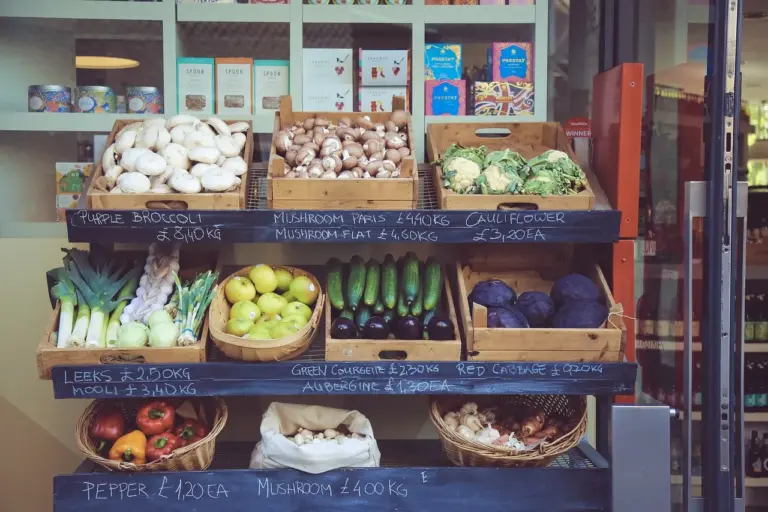
In WooCommerce stores, variation products are normally displayed together as options under a main product. Sometimes, for ease of operation or better visibility, we might want to display variation products as individual, standalone products. WooCommerce does not provide such an option by default. In this article, I will introduce how to achieve this functionality programmatically.
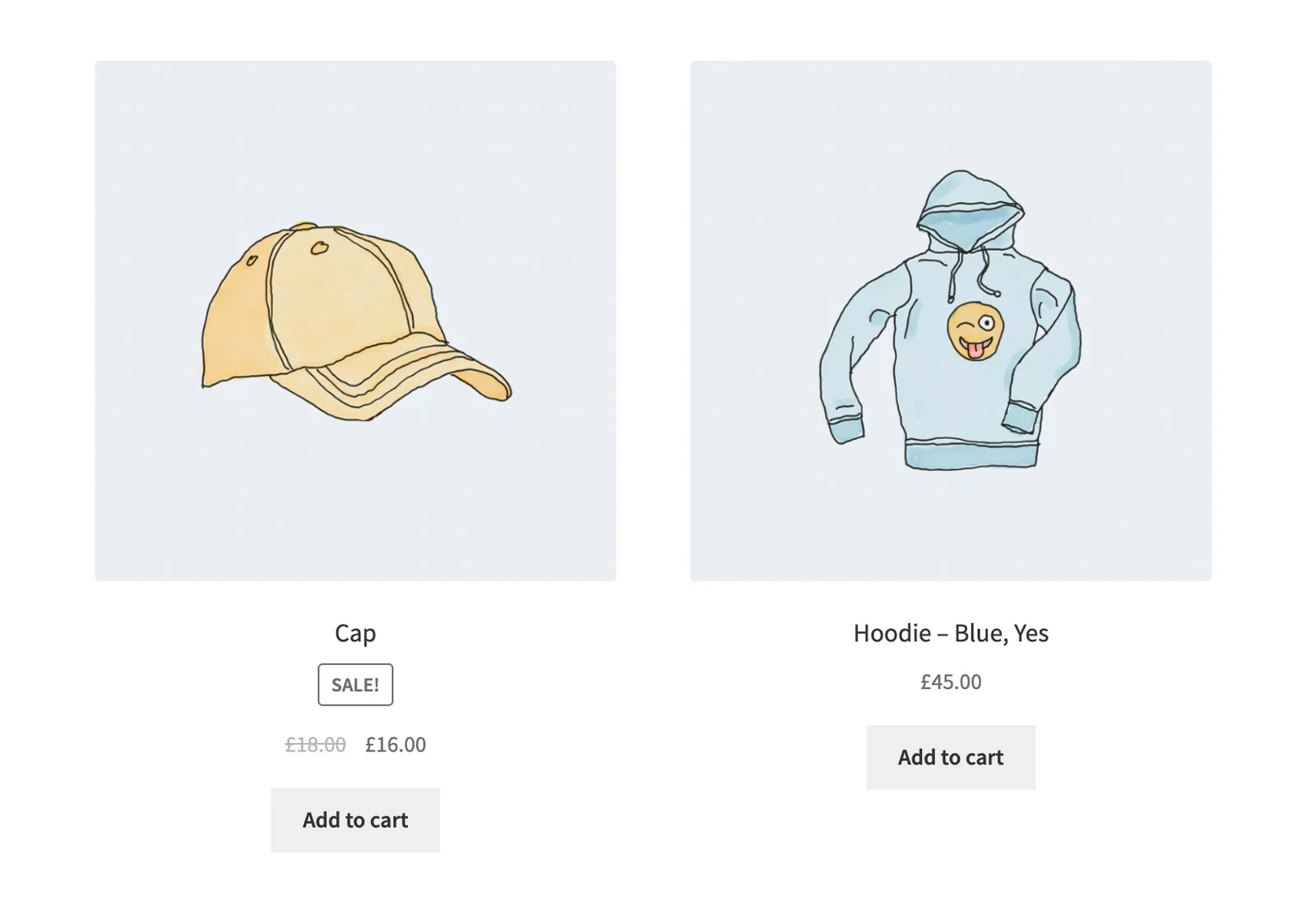
Programmatically Display Variations as Single Products on Shop and Archive Pages
Product Query
To be honest, this is much simpler than you might imagine — we only need to use the standard WooCommerce woocommerce_product_query action hook, which is somewhat similar to pre_get_posts.
/**
 * Display variations as single products in WooCommerce
 */
add_action( 'woocommerce_product_query', function( $query ) {
    $query->set( 'post_type', array( 'product', 'product_variation' ) );
}, 25 );
WooCommerce product pages are already fully compatible with variations, and the WC_Product_Variation PHP class extends the WC_Product class. In other words, simply using the above code snippet in your store is enough to display variations as individual products:
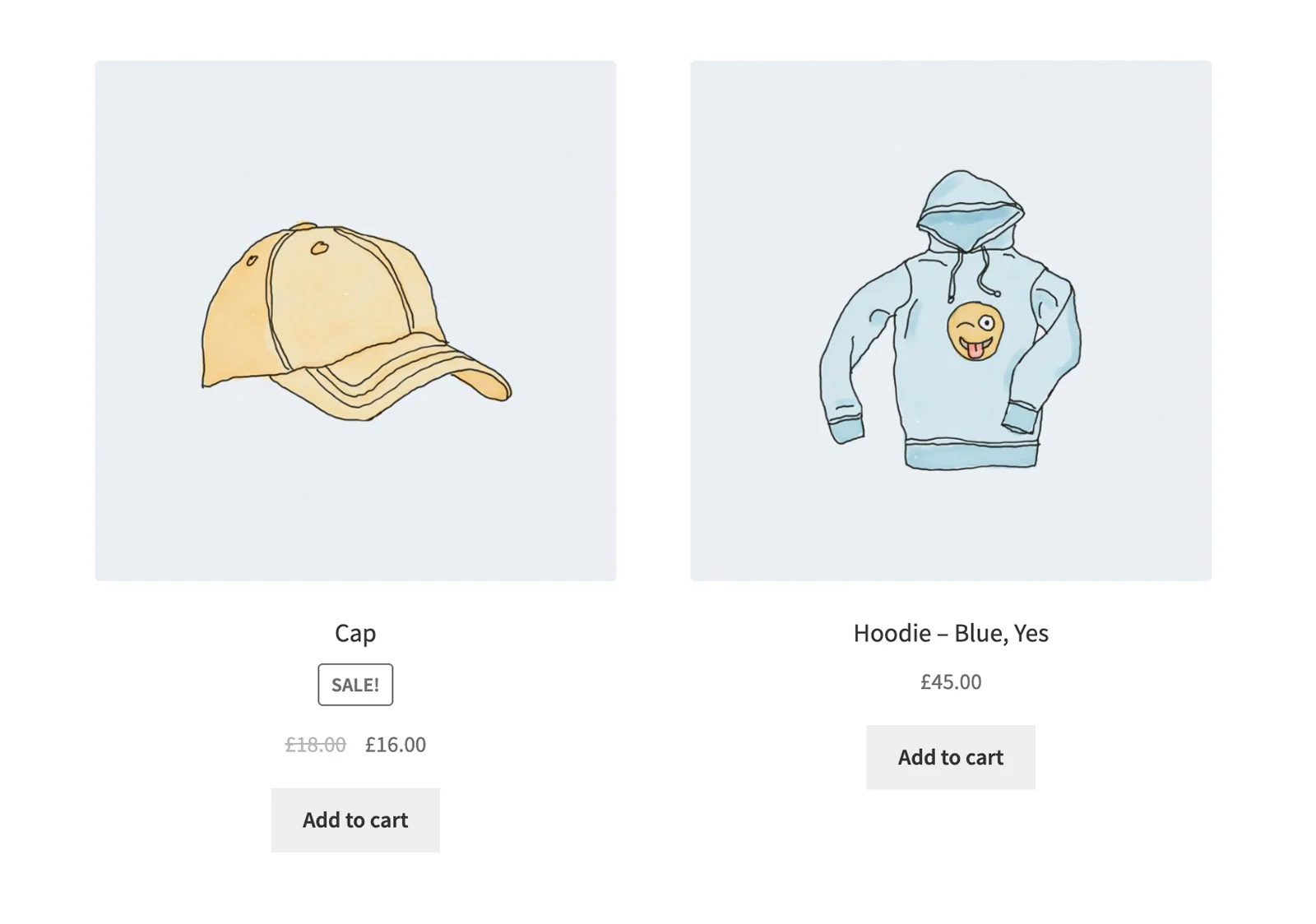 The “Hoodie-Blue,Yes” product is a variation.
Using pre_get_posts (Not Recommended)
Beyond that, can we use the pre_get_posts action hook to implement this requirement? Theoretically yes, but I recommend avoiding it because we have a dedicated WooCommerce action hook. Additionally, when using the pre_get_posts hook, it will be triggered everywhere, even in the WordPress admin dashboard.
Does this mean variations will also start appearing as individual products in the admin panel? Of course not. You will only get errors and empty table rows, as shown in the screenshot:
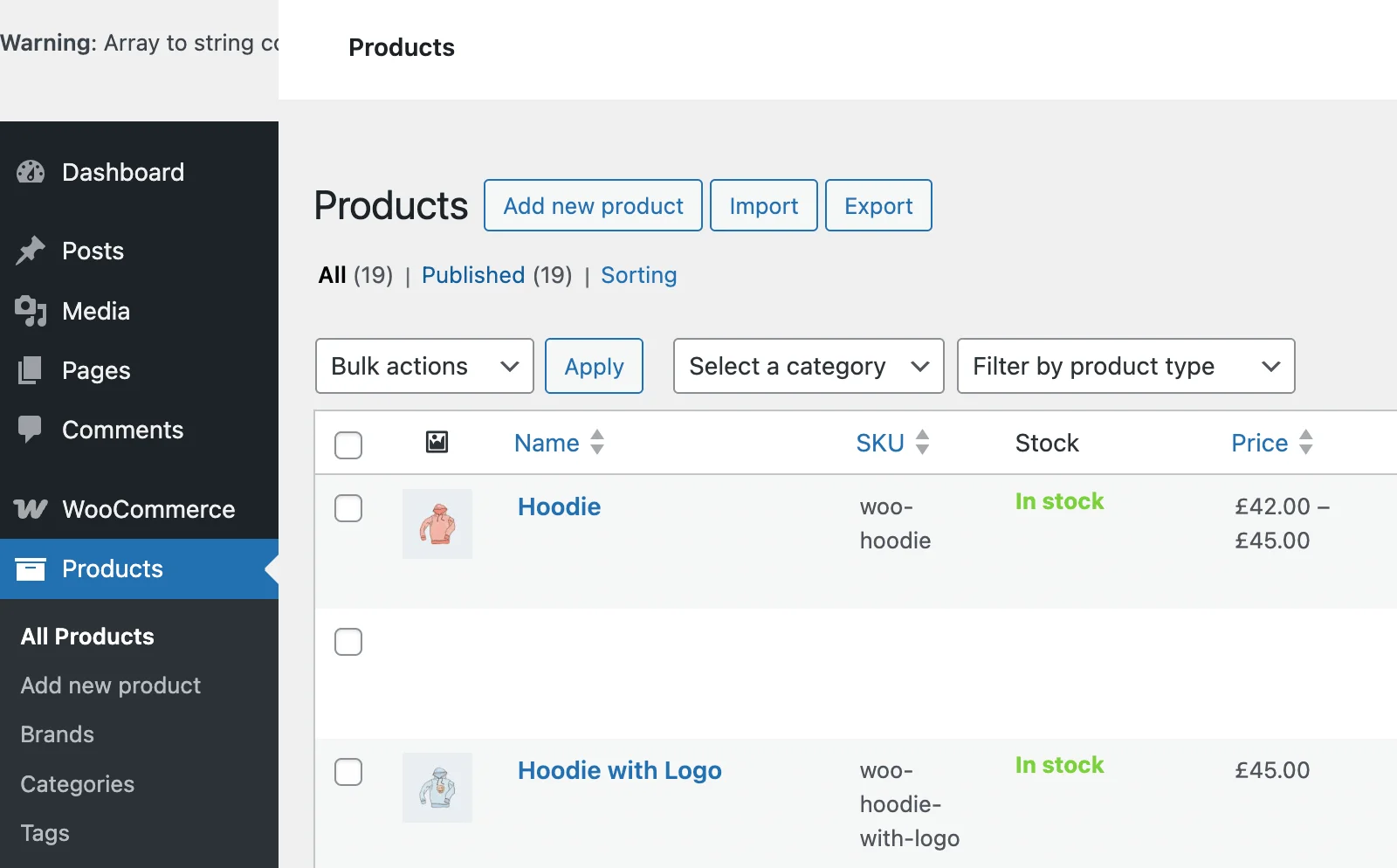
However, we can add some conditions to solve this problem:
add_action( 'pre_get_posts', 'wprs_variations_as_single_products', 25 );
function wprs_variations_as_single_products( $query ) {

	// First, check if we are in the admin dashboard
	if( is_admin() ) {
		return;
	}

	// Second, specify the pages where variations should be displayed as single products
	if( is_shop() || is_product_category() || is_product_tag() ) {
		$query->set( 'post_type', array( 'product', 'product_variation' ) );
	}

}
Using woocommerce_shortcode_products_query in Shortcodes
In some themes, developers still use the [products] shortcode to call products. Queries for these shortcodes are not covered by the woocommerce_product_query hook, so we need to use woocommerce_shortcode_products_query additionally:
add_filter( 'woocommerce_shortcode_products_query', function( $query_args, $atts ) {
    $query_args[ 'post_type' ] = array( 'product', 'product_variation' );
    return $query_args;
}, 25, 2 );
Hiding Variable Products from the Product Loop (Excluding Variations)
Now there is one more question: Since we are now displaying variation products in the product loop just like normal products, why do we still need to display their parent variable products?
For example, you can see that while displaying “Hoodie-Blue,Yes”, we are still showing the “Hoodie” parent product. I think it makes perfect sense to exclude them from the loop now, right?
Fortunately, we can easily do this by modifying the Tax_Query value in the woocommerce_product_query hook callback, because the product type is just a taxonomy product_type, and we need to exclude products with the variable term.
add_action( 'woocommerce_product_query', function( $query ) {

	$query->set( 'post_type', array( 'product', 'product_variation' ) );

	// Let's exclude variable products now
	$tax_query = $query->get( 'tax_query' );
	$tax_query[] = array(
 		'taxonomy' => 'product_type',
		'field'    => 'slug',
		'terms'    => 'variable',
		'operator' => 'NOT IN',
 	);
	$query->set( 'tax_query', $tax_query );

}, 25 );
If for some reason you don’t want to modify the tax_query in the WooCommerce product query, you have another choice — you can filter out variable products through the specific custom field _variations. Therefore, we only need to modify the Meta_Query value in the WooCommerce product loop.
add_filter( 'woocommerce_product_query_meta_query', function( $meta_query ) {
	$meta_query[] = array(
		'key' => '_variations',
		'compare' => 'NOT EXISTS',
	);
	return $meta_query;
} );
In this article, we introduced how to display product variations as single products through WooCommerce or WordPress action hooks. For sites with a limited number of products, this can enrich product display and make it more convenient for users to add products to their carts.