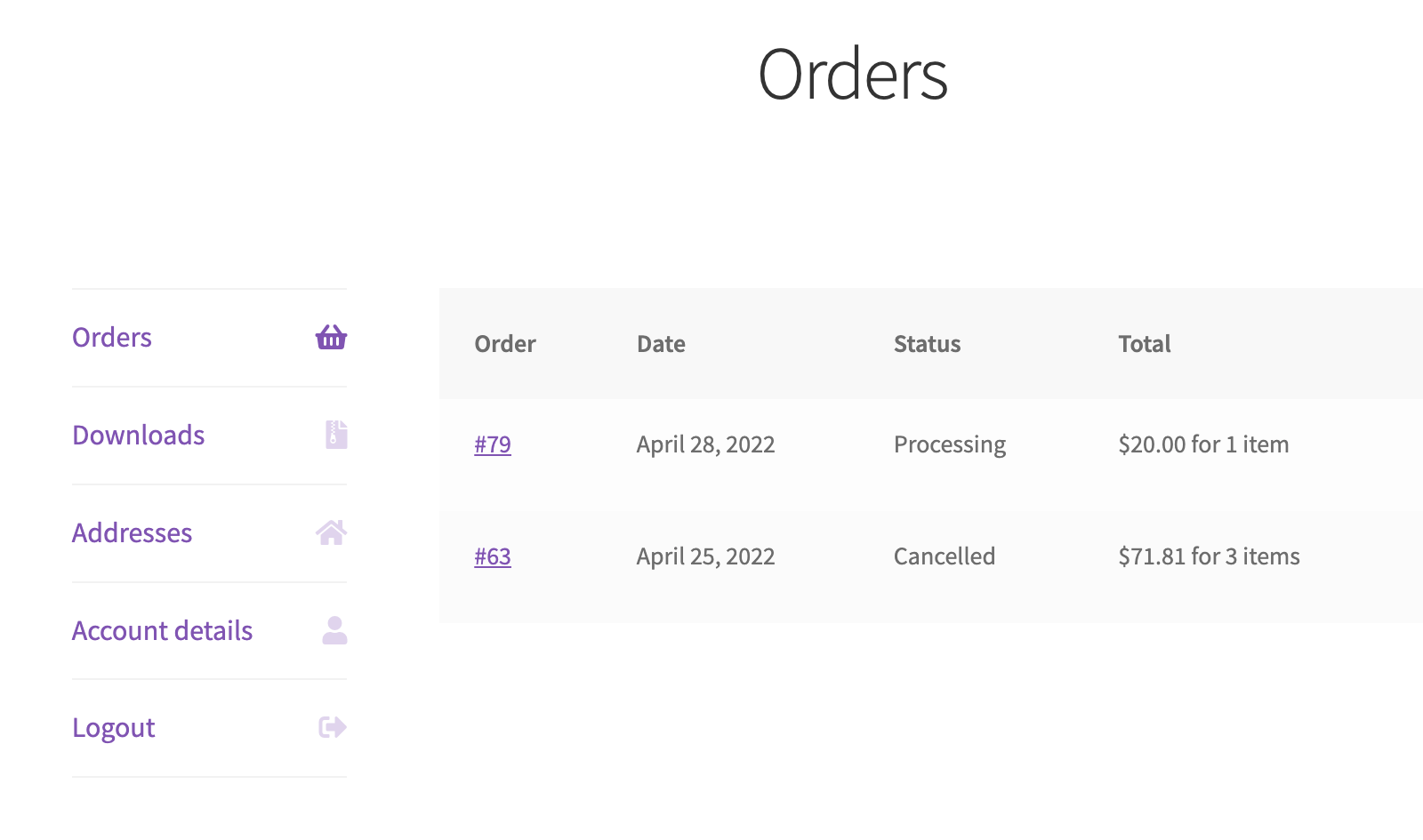
By default, the WooCommerce “My Account” page features a “Dashboard” tab. While functional, it often feels redundant because it usually just displays a few links to other sections that are already present in the account sidebar. To create a cleaner, more direct user experience, many store owners prefer to remove this tab and have users land directly on their most relevant data, such as their Order list.
Step 1: Removing the Dashboard Menu Item
The first step is to hide the “Dashboard” link from the account navigation menu. We can achieve this using the woocommerce_account_menu_items filter hook.
add_filter( 'woocommerce_account_menu_items', 'wprs_remove_my_account_dashboard' );
function wprs_remove_my_account_dashboard( $menu_links ){
	unset( $menu_links['dashboard'] );
	return $menu_links;
}
Step 2: Redirecting to the Orders Page
Simply removing the menu item isn’t enough. If a user clicks a generic “My Account” link (which typically points to the base URL of the account page), they will still land on the dashboard content, but without a corresponding active menu item. To fix this, we need to redirect the base account URL to a specific endpoint, like “Orders”.
add_action( 'template_redirect', 'wprs_redirect_my_account_dashboard' );
function wprs_redirect_my_account_dashboard() {
	if ( is_account_page() && empty( WC()->query->get_current_endpoint() ) ) {
		wp_safe_redirect( wc_get_account_endpoint_url( 'orders' ) );
		exit;
	}
}
Why use template_redirect?
- is_account_page(): This ensures the logic only runs on WooCommerce account pages.
- empty( WC()->query->get_current_endpoint() ): This is crucial. It checks if the user is on the “root” account page (the dashboard). Without this check, you would create an infinite redirect loop because every sub-page (like orders or addresses) is technically also an account page.
With these two simple code snippets, your customers will now land straight on their order history whenever they visit their account area, providing a much more streamlined and useful interface.