Product grouping is a common but effective strategy for increasing sales. When we wander through a supermarket, we can quickly notice that related or complementary products are placed very close together on the shelves (for example, salad dressing and bulk vegetables are right next to each other). This makes it easier for customers to find the products they need and pick up one or two extra items. WooCommerce Grouped Products can help you achieve this same goal on your website.
This strategy allows you to offer customers multiple related products on a single page. Here, customers can buy them together as a group. They can conveniently purchase everything they might need, while you gain extra revenue.
In this article, I will introduce you to how to use WooCommerce grouped products. It will cover plugins you might want to use, a tutorial on how to implement product grouping, and more. First, I will detail its features.
What are WooCommerce Grouped Products?
Grouped products are essentially a combination of various products from your product catalog that are similar to or complementary to the main product.
For example, printers, USB accessories, and other items that pair well with computers and laptops. Grouping these types of products together might mean a three-in-one offer of a laptop, a premium external mouse, and a printer.
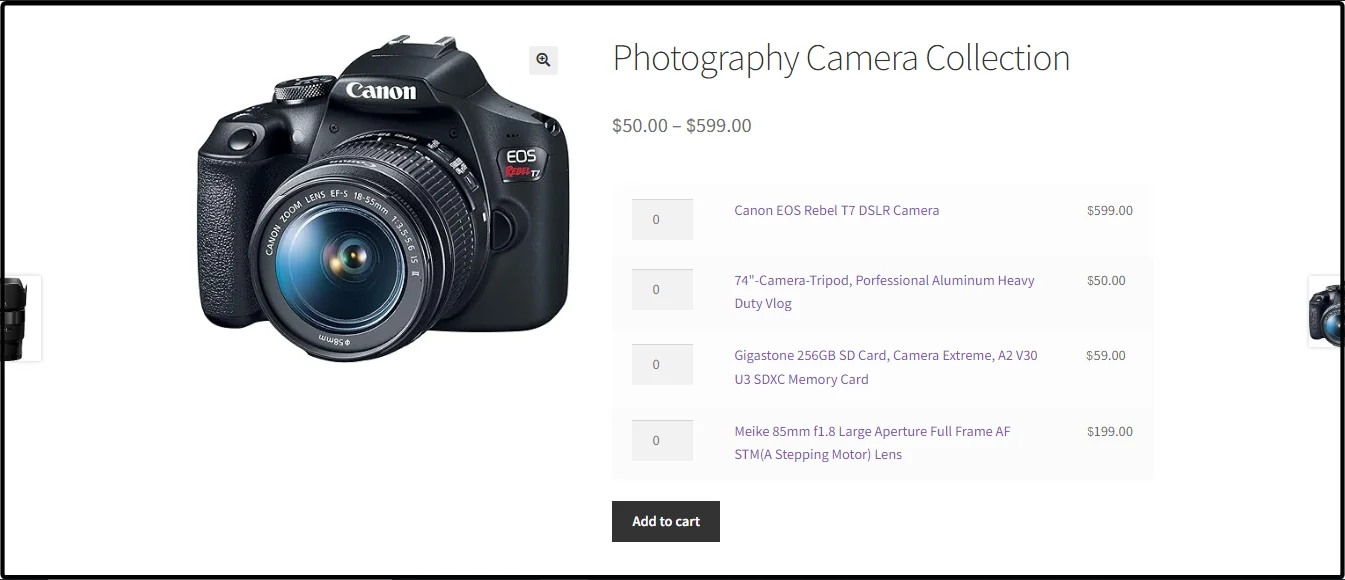
Customers can independently decide whether to add the entire combination or just part of it to their cart, as well as the quantity they want to order for each product. In essence, grouped products are not about selling products together as a single unit, but rather about displaying related products together to provide buyers with choices.
When and Why to Use Grouped Products?
The reason to use WooCommerce grouped products is simple: because it works. Research shows that how online products are displayed can influence purchasing decisions. This impulse trigger can help you gain more sales from your setup, especially among shoppers looking for a more complete purchase.
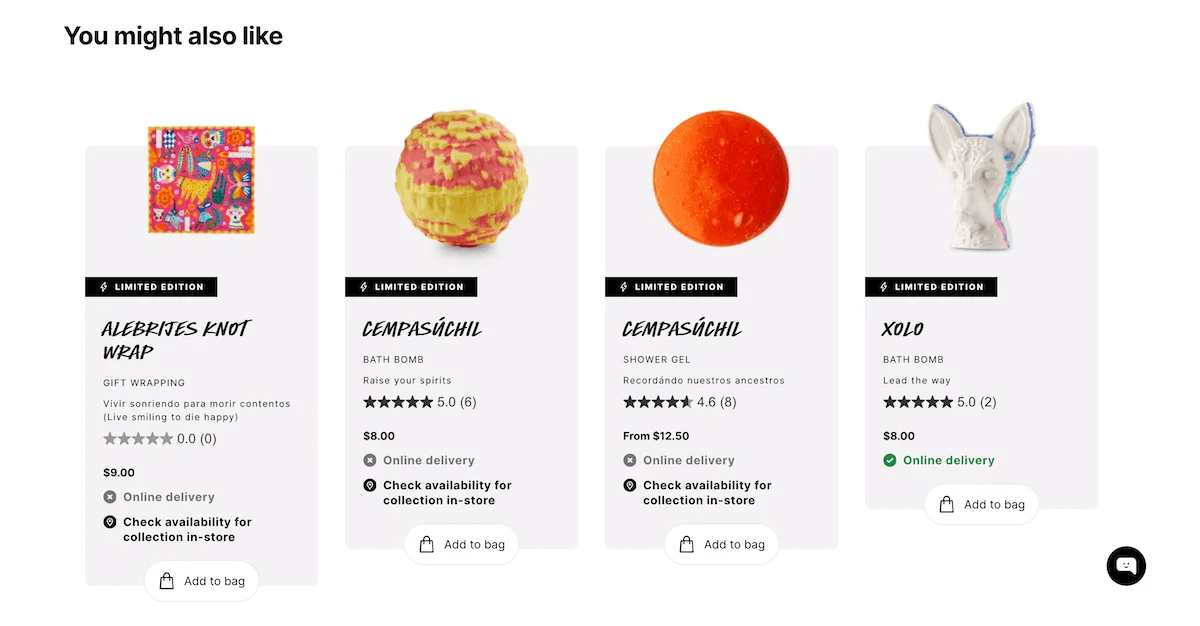 For instance, the screenshot above is from the Lush cosmetics website, where product pages display related items and provide customers with the option to add them to their shopping cart.
Additionally, there are many other reasons to use WooCommerce grouped products:
- You have related products to sell: For example, you can choose to offer five different T-shirts as a grouped product, as this can entice customers to buy bundled products.
- Offering customizable sets or product series: Gift baskets are very effective in this regard. You might consider offering a service where customers can combine various related products into a gift box.
Using the grouped method provides customers with more choices and improves their shopping experience:
- Users don’t need to browse multiple pages to find products, and they can add multiple items to their cart on a single screen.
- They make it easier to perform up-selling for promotions or seasonal offers. For example, you can create a holiday group that brings together items with the same theme.
- From a technical perspective, WooCommerce grouped products implement Search Engine Optimization (SEO) through internal links.
Overall, this strategy encourages customers to buy multiple items at once, potentially at a discount. However, offering a discount is not a necessary condition for grouped products. Next, I want to talk about this issue before continuing, as it’s an important distinction.
Grouped Products vs. Product Bundles
This can cause some confusion, but grouping and bundling are two different things. Here is a brief overview of the differences:
- Product Bundles refer to combining multiple products together and offering them to customers as a single bundle product. This often involves a discount for the entire package. For example, you might get free batteries when buying a flashlight.
- In contrast, Grouped Products do not force users to buy specific items within the group.
The difference between the two is subtle: grouping is just a product relationship where each product in the group has its own unique price. Bundling “forces” product options and quantities into a transaction, usually providing a discount.
Bundling has many benefits, such as reducing excess inventory or promoting old products alongside new ones, but we won’t delve too deeply into that model here.
A Quick Comparison of Different WooCommerce Product Types
WooCommerce has many different product types, so understanding their differences is very important. This way, you can correctly decide which type is best for your specific use case.
Here are the more common product types in WooCommerce:
| Feature | Simple Product | Variable Product | Grouped Product |
|---|---|---|---|
| Product Options | No variation options | Multiple variation options | No variation options, but groups multiple products |
| Example | A single product, like a book or T-shirt | A T-shirt with different sizes and colors | A kitchen set including utensils, cutting board, and knife |
| SKU | Only one SKU for the entire product | Each variation can have its own SKU | A single SKU for the entire grouped product |
| Price | A fixed price for the product | Prices may vary across variations | Prices of individual products in the group may vary |
| Inventory | Manage for the entire product | Manage inventory for each variation | Each grouped product can have its own inventory status |
| Complexity | Simple and straightforward | More complex due to variations | Moderately complex due to grouping |
As you can see, there are clear scenarios for using different WooCommerce product types. However, for beginners, distinguishing and using these types isn’t always easy, which is where WordPress plugins come in handy.
5 Plugins to Help You Build WooCommerce Grouped Products
WooCommerce grouped products are a “native” feature of the e-commerce platform. I’ll show you how to implement this shortly, but using plugins can help you achieve this faster and with more powerful features.
Here, I’ll introduce five different plugins. After that, I’ll teach you how to create product groups manually.
1. Product Bundles for WooCommerce
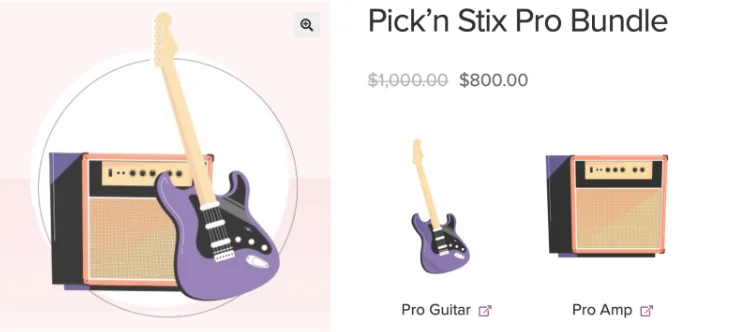
Product Bundles for WooCommerce is an “official” extension that gives you more room to create product groups. If needed, you can customize pricing, and if you want customers to choose freely, you can even offer other product recommendations.
On a technical level, it has a built-in notification system to alert you to low inventory levels in each group. It even provides analytics to help you understand the impact of your product grouping.
Pricing: $79.00 annually.
2. WooCommerce Product Options

WooCommerce Product Options is another product grouping-related plugin, although its focus is more on providing custom options for products rather than just grouping them.
Besides its default features, it can provide product groups in a flexible and expansive way. Customers can customize according to their own needs before finalizing their purchase.
Pricing: $99 annually for a single site.
3. WPC Product Bundles for WooCommerce
WPC Product Bundles for WooCommerce allows you to combine various products into groups or bundles, and its core features are free.
The plugin uses a drag-and-drop interface to build product groups and lets you set default quantities for each item included. I really like this feature because it saves customers from having to make too many decisions. These subtle buying barriers are exactly what WooCommerce grouped products can help solve.
It provides basic customization options, with one setting you might use often: the location of the grouping dialog — which can be above or below the add-to-cart button, hidden, or opened in a new tab.
Pricing: Core features of both plugins are free; premium single-site licenses start at $28.
4. Product Bundle Builder for WooCommerce
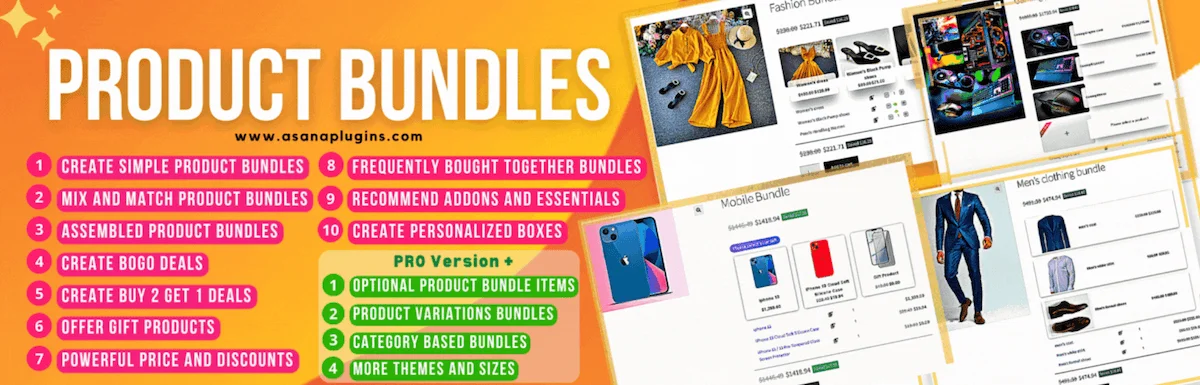
Product Bundle Builder for WooCommerce is another free plugin for implementing product grouping. You can add individual products and variations, dynamic bundles, groups, and more. These advanced types of product groupings can significantly change your sales figures.
For example, composite product grouping can work very well as a sales strategy. While maybe slightly outside the focus of this article, I really like that you can provide customers with a way to “build” assembled products, like a computer.
Pricing: Core functions are free; the premium version for a single site is $60.
5. Composite Products for WooCommerce
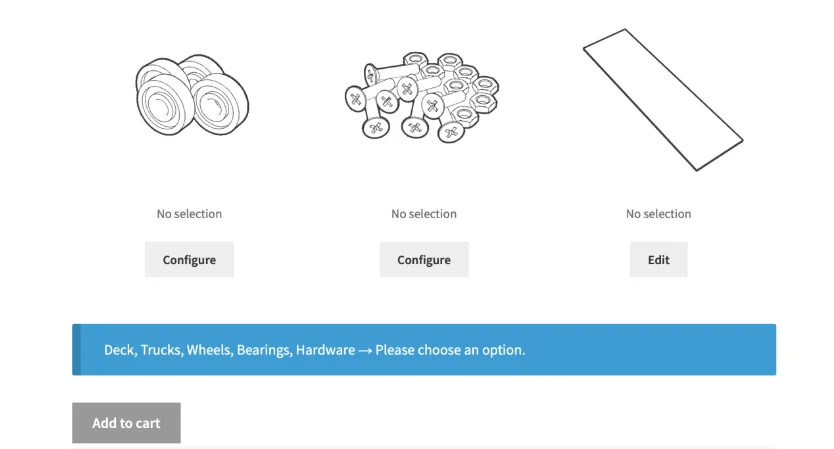
Speaking of composite products, the WooCommerce development team has a dedicated plugin specifically for this goal. Composite Products for WooCommerce offers multiple grouping options with a focus on “kits.” This could be building a computer to personal specs, buying custom jewelry, or creating your own custom bicycle.
When building product combinations, you can perform deep customizations. For example, you can completely change the “flow” of a purchase — which is vital for maximizing sales and the user experience (UX). Overall, this is one of my favorite WooCommerce product grouping plugins.
Pricing: $149 annually for a single site license.
Step-by-Step Guide to Setting Up WooCommerce Grouped Products
The plugins above help us set up product groups, but let’s see how to use the default WooCommerce features to achieve this. First, you can only group existing products in your store. If any product you want to add to a group isn’t already live in your WooCommerce store, you’ll need to add it first.
1. Add Your Individual WooCommerce Products
To add products, go to the Products > Add New page in your WordPress dashboard:
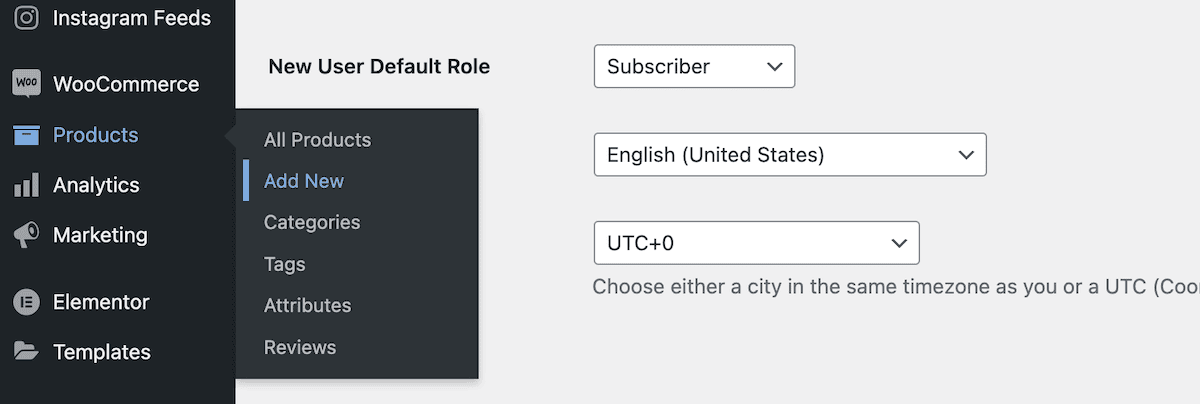
Here, fill in the product name and description, and add a product image. If you have several images, it’s best to create a dedicated gallery.
Scroll down to the Product Data meta box and set the product type to Simple Product. Next, enter the product price and select the appropriate Product Category on the right side of the screen:
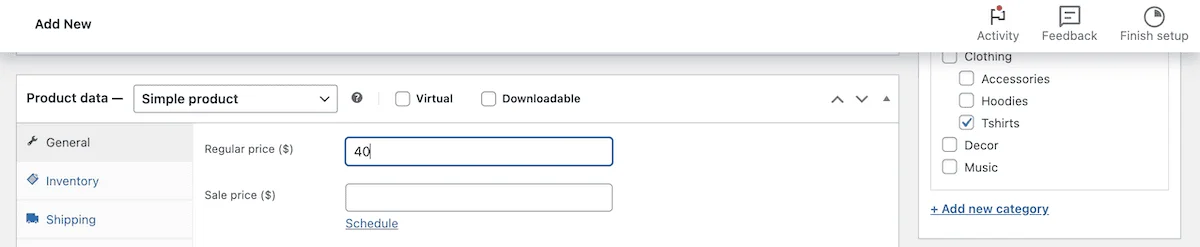
You can fill in any other details here. Once done, click Publish or Schedule to finalize the changes. Each product you want to add to a group needs its own separate product page. Once you have these, you can start setting up the group.
2. Create a Grouped Product and Add Individual Products
To create a WooCommerce grouped product, go to the Products > Add New page again. This time, fill in the details for the group itself. My example will use a product group for a hat, bag, and T-shirt:
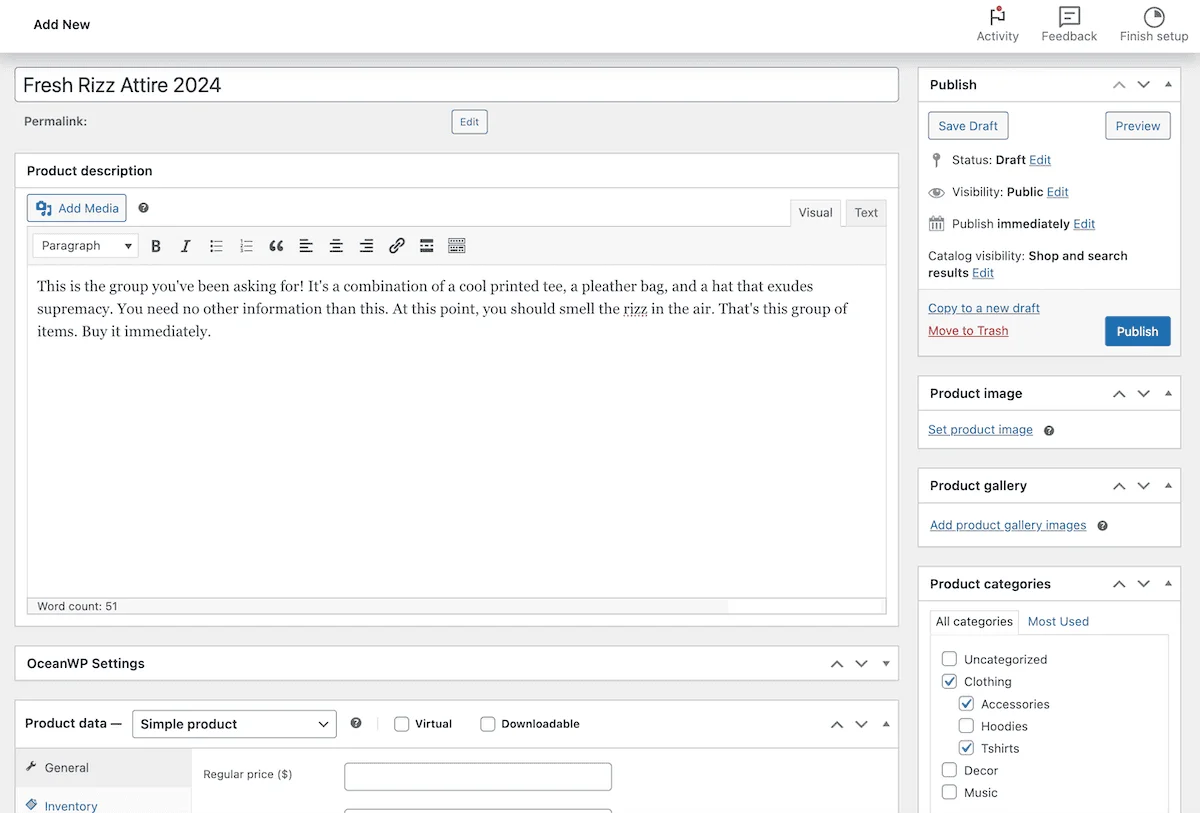
As for images, you can use images from existing products or upload new ones. Scroll to the Product Data meta box, click the dropdown menu, and select Grouped product:
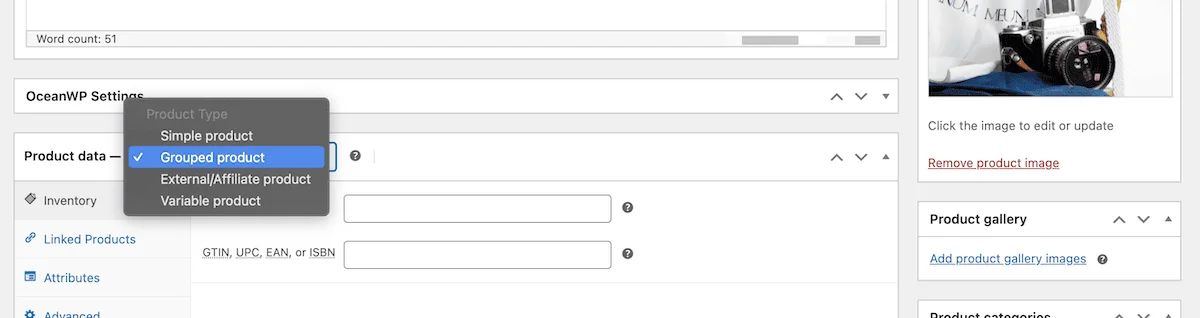
This will add a Linked Products section to the meta choices. You can add products belonging to this group here. To add a product, look for it by typing its name in the search box:
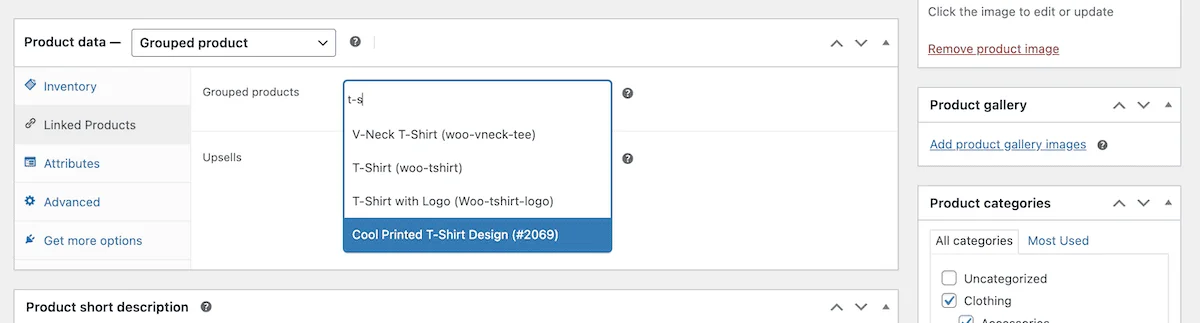
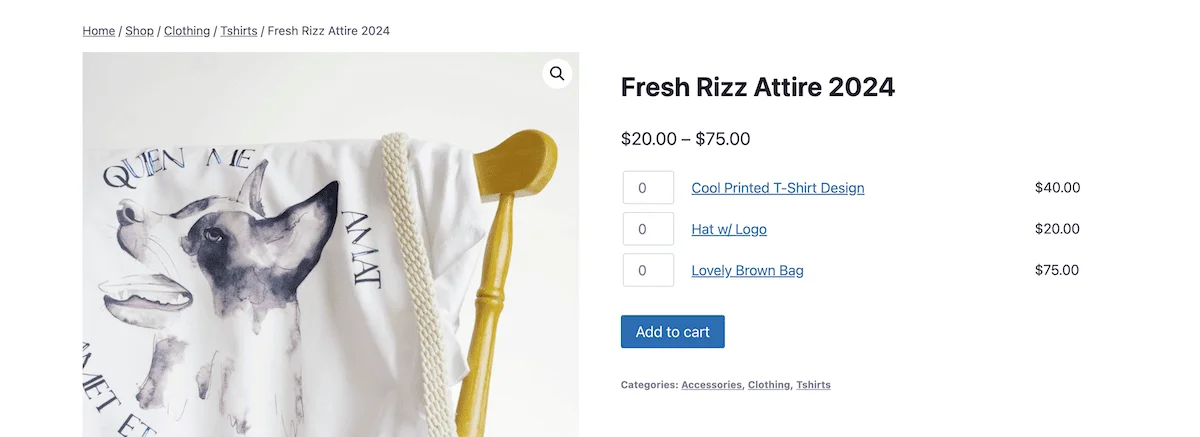
You can also add an SKU, attributes, and other data for the grouped product here. Once finished, click Publish to save the changes. If you go to the front end, you’ll see the WooCommerce grouped product page along with the individual products within that group:
Using the Default Method or Plugins to Add Product Groups?
Setting up WooCommerce grouped products is one of the easiest tasks on the e-commerce platform. Even without plugins, you can add a new group in minutes. If you only have a few product groups to add, using the default WooCommerce grouped products is sufficient to get the job done, which also avoids adding too many plugins that might slow down your site.
However, with the right plugin, you can customize groups according to your needs. The plugin method often provides higher customizability and a faster way to add items compared to the default method. If you need to add a significant number of product groups, managing them through a plugin is a wise choice.
How will you use WooCommerce composite products, and which plugin’s look do you prefer? Feel free to share your thoughts in the comment section below!