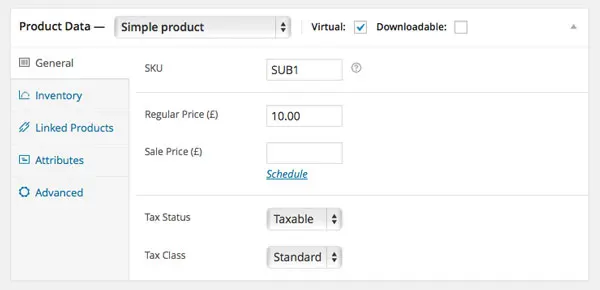
In WooCommerce, when a user selects a product variation on a single product page, several elements like the main image, price, and gallery are automatically updated. These changes are driven by JavaScript. By tapping into the specific JS events provided by WooCommerce, we can trigger our own custom functionality immediately after a selection is made.
Core JavaScript Events for Variations
When a user interacts with variation dropdowns, WooCommerce triggers two primary events that you can listen to:
- show_variation: Triggered when all required attributes are selected and a specific variation is found and displayed.
- woocommerce_variation_select_change: Triggered every time any attribute selection changes, even if a final variation hasn’t been determined yet.
For most customization needs, show_variation is the most useful event because it provides the full variation data object.
$( '.single_variation_wrap' ).on( 'show_variation', function( event, variation ) {
	console.log( variation );
});
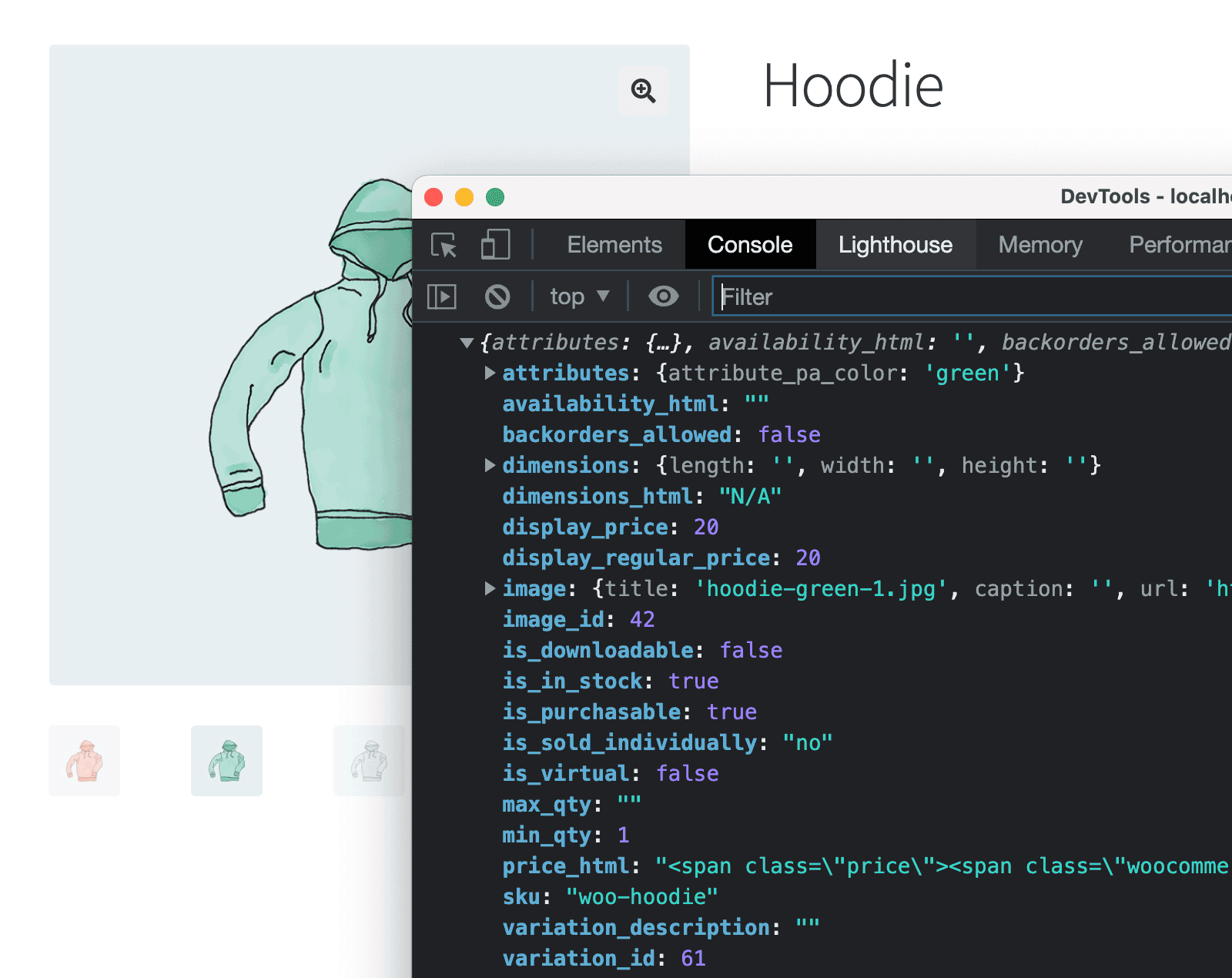
The variation object contains a wealth of information, including the variation_id, attributes, display price, and image source. You can inspect this object in your browser console to see all available properties.
Practical Example: Dynamically Changing UI Colors
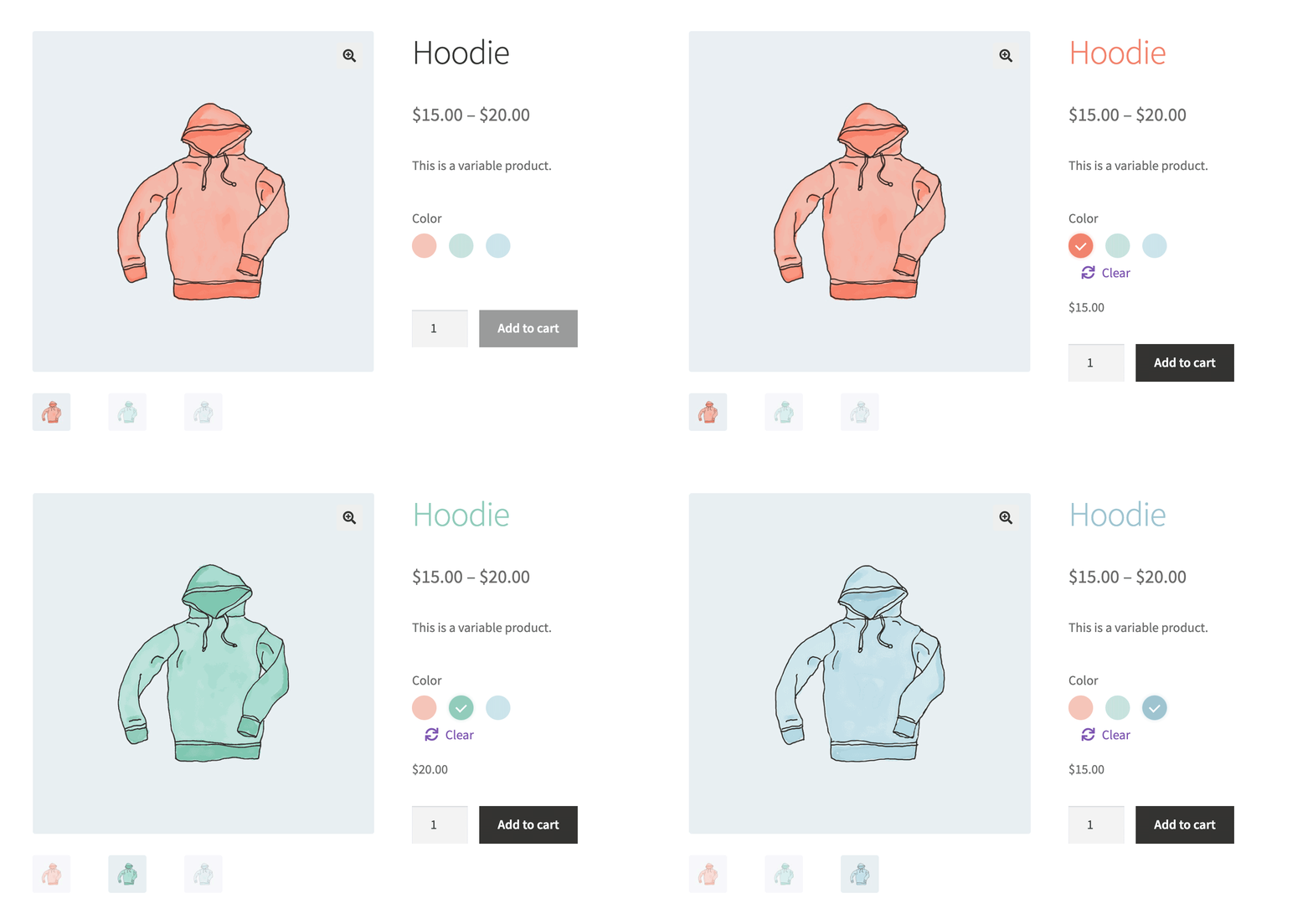
In this example, we will change the color of the product title based on the selected color attribute. This provides immediate visual feedback to the customer.
Here is the implementation code:
jQuery( function( $ ) {
	$( '.single_variation_wrap' ).on( 'show_variation', function( event, variation ) {
		if( 'green' === variation.attributes.attribute_pa_color ) {
			$( 'h1.product_title' ).css( { color : '#94c8b7' });
		}
		if( 'red' === variation.attributes.attribute_pa_color ) {
			$( 'h1.product_title' ).css( { color : '#eb846f' });
		}
		if( 'blue' === variation.attributes.attribute_pa_color ) {
			$( 'h1.product_title' ).css( { color : '#9cc2d1' });
		}
	} );
} );
By leveraging these JS events, you can create a highly interactive and responsive shopping experience, providing customers with more clarity and engagement as they configure their products.