Sometimes you need to upload larger files to a WordPress site, but WordPress reports a message such as Maximum upload file size: 2 MB. The server may have enough disk space, yet larger files still cannot be uploaded.

In most cases that limit does not come from WordPress itself. It usually comes from PHP or the web server, which apply conservative defaults for security and performance reasons.
Increase the maximum upload size allowed by PHP
Most PHP upload limits are controlled through php.ini, so the first step is to find that file and adjust the relevant settings.
Find the php.ini file
Run the following command on the server to locate the active PHP configuration file:
php -i | grep 'php.ini'The output will include the loaded configuration file path. In the example below, /usr/local/etc/php/7.3/php.ini is the file that needs to be edited.
Loaded Configuration File => /usr/local/etc/php/7.3/php.iniEdit that file and add or change these values:
upload_max_filesize = 128M
post_max_size = 128M
memory_limit 256M
max_execution_time 300
max_input_time 300
These settings control different parts of the upload process:
upload_max_filesize— the maximum size of a single uploaded file.post_max_size— the maximum size of the entire POST request.memory_limit— the amount of memory a PHP process can use.max_execution_time— the maximum script execution time.max_input_time— the maximum amount of time spent parsing input data.
The two settings that matter most for file size are upload_max_filesize and post_max_size. The others help prevent uploads from consuming too much memory or running for too long, which can contribute to site slowdowns.
If your server allows PHP-FPM settings through .user.ini, you can place the same values there instead.
After saving the changes, restart PHP-FPM, refresh the upload screen, and check whether the maximum upload size now shows the larger value.
Increase the limit through .htaccess on Apache
If the site runs on Apache and supports .htaccess, the same values can often be set there instead of editing php.ini.
php_value upload_max_filesize 128M
php_value post_max_size 128M
php_value memory_limit 256M
php_value max_execution_time 300
php_value max_input_time 300
Can ini_set() remove the upload size limit?
It is natural to ask whether ini_set() can be used to change upload_max_filesize and post_max_size at runtime.
Unfortunately that does not work. Those settings are not the kind of PHP directives that can be changed with ini_set(), so they need to be configured at the server or PHP runtime level instead.
Increase the maximum allowed upload size from the network admin in multisite
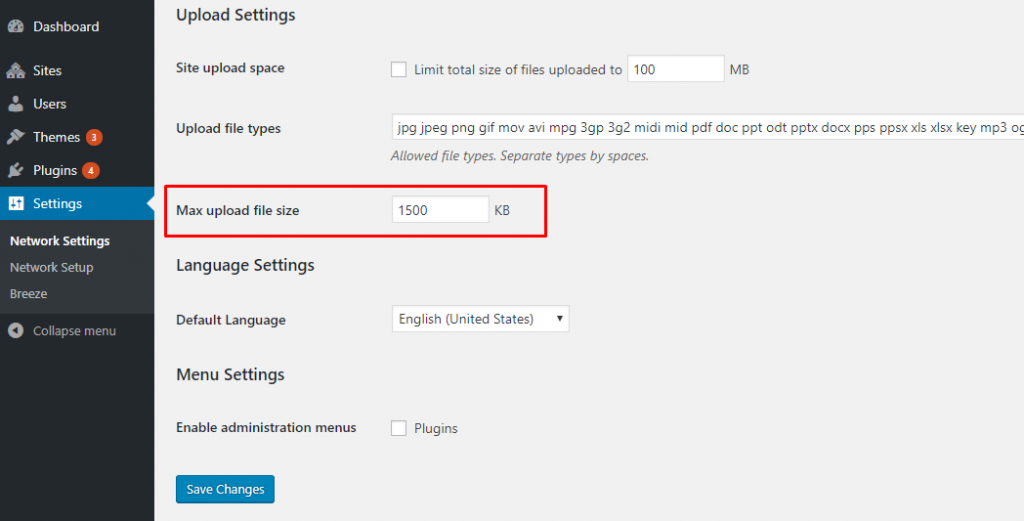
On WordPress multisite, even after the PHP settings are fixed, the visible upload limit may still stay the same. That is because multisite also has its own network-level upload size setting. Increase that value in the network admin. Note that the unit shown there is KB.
Remove Nginx’s request body size limit
After increasing the PHP limits, WordPress may show a larger maximum size, but large uploads can still fail with a generic upload error. That usually means Nginx is rejecting the request body before PHP gets the file.
http {
    client_max_body_size 128m;
}
Restart PHP-FPM and Nginx so the changes take effect
Once the configuration is updated, restart PHP-FPM and reload Nginx:
service php-fpm restart
service nginx reload
Unless you truly need very large uploads, avoid raising these limits too far. Huge uploads can affect server performance and page load speed. If you only need to move a large file once, FTP is often the better option.