Forgetting a WordPress administrator password is common, especially when you have not logged in for a long time. Fortunately, WordPress gives you several different ways to recover or reset it.
1. Ask another administrator to change the password
If the site has another administrator account, this is the easiest and safest option.
Steps:
- In the WordPress dashboard, go to Users → All Users.
- Find your username in the list and open the edit screen.
- Scroll to the New Password section and click Generate Password.
- Use the generated password or replace it with your own strong password.
- Click Update Profile.
2. Recover the password through email
If you still remember your username or the email address registered on the site, try the built-in WordPress password recovery flow. If the server cannot send mail, this method will not work; in that case, use one of the other reset methods below and consider configuring SMTP in WordPress for future use.
Steps:
- Open the WordPress login screen, for example
http://yoursite.com/wordpress/wp-login.php. - Click the Lost your password? link.
- Enter your username or registration email address.
- Open the email message and click the password reset link.
- Set a new password and save it.
3. Set a new password from the MySQL command line
If you can log in to the server over SSH, you can reset the password directly from MySQL.
Step 1: log in to MySQL.
mysql -u root -p;Step 2: switch to the WordPress database.
use wordpress_comStep 3: update the password. The string stored in user_pass is the encrypted password value. In the example below, that hash corresponds to the plain-text password 123456.
UPDATE wp_users SET user_pass = $1$rSziHLDY$399k.JuJsy.oHVp5lquJC. WHERE ID = 1;4. Modify the password in phpMyAdmin
If phpMyAdmin is installed on the server and you can access it, you can update the password there as well.
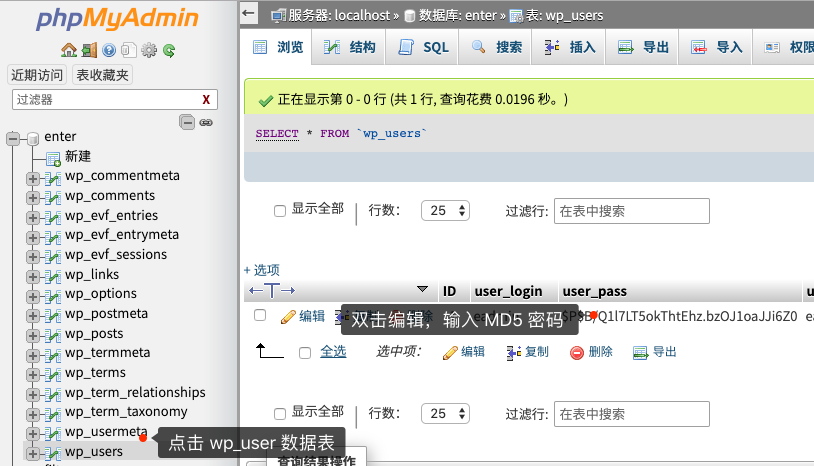
Steps:
- Log in to phpMyAdmin and open the database used by the WordPress site.
- Find the user you want to change in the
wp_userstable. - Double-click the
user_passfield and enter an encrypted password value. - Save the changes and then sign in to WordPress with the new password.
6. Reset the password through FTP
If you have FTP access, you can temporarily reset the password with wp_set_password().
Steps:
- Use FTP to download the theme’s
functions.phpfile. - Add the following code immediately after the opening
<?phptag. Here,123456is the new password and1is the administrator user ID.
wp_set_password( '123456', 1 );- Upload the modified file and refresh the site. The administrator password will be reset immediately.
- After you log in successfully, remove that code so the password is not reset on every page load.
7. Change the password with WP-CLI
WP-CLI is a command-line tool for managing WordPress sites.
Step 1: enter the site directory and list all users.
$ wp user listStep 2: find your user ID and update the password.
wp user update 1 --user_pass=$1$rSziHLDY$399k.JuJsy.oHVp5lquJC.In the command above, 1 is the administrator user ID, and the value after --user_pass= is the same encrypted WordPress password string used in the MySQL example.
Password management advice
For security reasons, use a strong password. Because strong passwords are hard to remember, a password manager such as the Chrome password manager, 1Password, or Enpass can save time and prevent future lockouts.
With these methods, you can usually recover a WordPress administrator account quickly and get back into the site safely.