
By default, WordPress users can log in to the backend on multiple computers at the same time, which may bring some security risks to your site. For example, if you log in to the WordPress backend on a public computer and forget to log out. If a user cannot log in on two computers at the same time, after you log in on your own computer, the login on the other computer will be logged out, thus solving this security risk. This article will introduce how to prevent a user from logging in on two computers at the same time in WordPress.

How does WordPress handle user sessions?
Before we begin, let’s take a brief look at how WordPress handles user sessions. Like many web applications, WordPress uses cookies to determine user login. These cookies do not contain the user’s password, only the username and a special key to indicate that you know the user’s password.
If you log into WordPress from a public computer and check “Remember Me”, anyone with access to that computer can log into your WordPress backend.
In another case, if your website has paid content, paying members can read some articles on the website. If the website allows different computers to be used to log in, these paying users can share their membership accounts and passwords with any number of friends, which will cause you some financial losses. Of course, these paying users cannot be blamed. If the website has such loopholes, users can take advantage of it.
The simplest way to solve the above two problems is to prohibit a user from logging in on two computers at the same time. There is a plug-in that can help us achieve this function.
Prevent one user from logging in on two computers at the same time
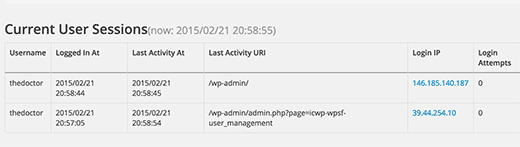
First install and activatePrevent Concurrent LoginsPlug-in, the plug-in does not provide any setting options, it can be used after installation and activation.
In order to verify whether the plug-in has taken effect, you can log in to the user backend with the same user on different browsers. When you log in on the second browser, you can log in successfully, which is no problem. Then switch to the first browser and click any link in the backend of the first browser. If a login window pops up, it means that the logged-in user of the first browser has been logged out and the plug-in has taken effect.
Think tank reminds:WordPress SecurityPlug-ins only help you increase the security of a certain aspect of your website. Don’t simply think that installing a plug-in means it is absolutely safe. The easiest way to enhance website security is to set a strong password and change it frequently.
If you find errors or different opinions in the article, please point them out in the comments.