
In versions after WordPress 3.0, developers can register custom post types into WordPress. This feature gives WordPress the wings of a CMS and makes it easier for plug-in developers to insert data into WordPress. However, there are some problems with the design of custom post types. The Hierarchy plug-in introduced today was developed to solve these problems.
A problem with user experience of custom article types
If you find custom post types difficult to understand, let’s put it another way:custom content type, it may be easier to understand. The reason why many users are confused about custom article types is because WordPressThe default article type is article, a bit like the question of which came first, the chicken or the egg. In the WordPress backend interface, custom article types and default articles are displayed side by side in the top menu. There is no obvious distinction on the interface about the affiliation between custom article types and articles or pages. It is difficult for users to judge where the custom article type appears in the frontend of the website, as shown below:
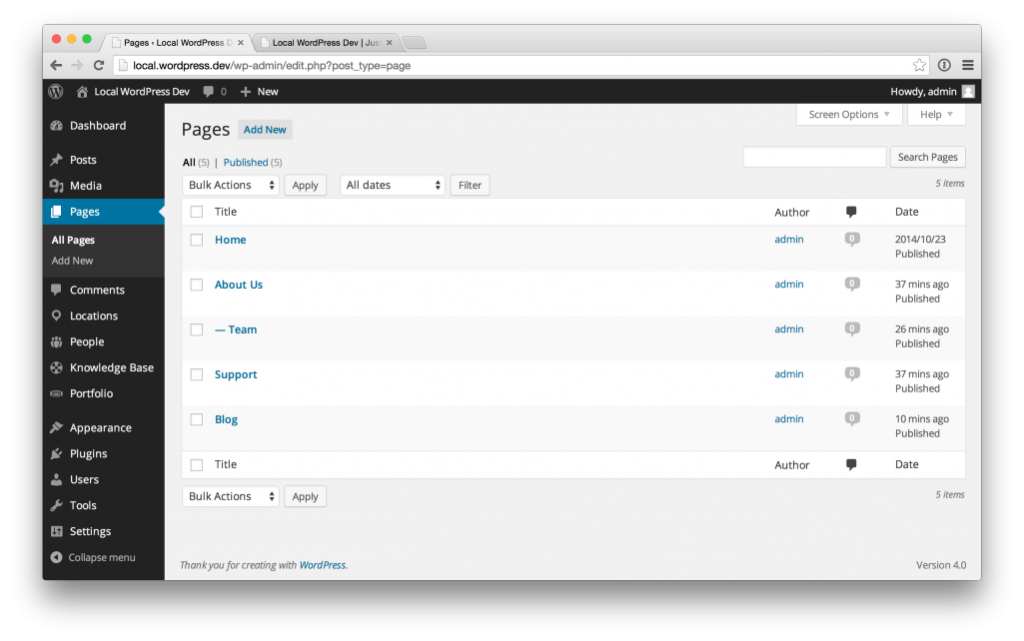
Display custom post types hierarchically using the Hierarchy plugin
The goal of the Hierarchy plug-in is to solve the user experience problem we mentioned above. The specific method is to move the management menu of the custom article type to the page list. In the picture below, the plug-in moves the Locations and Team article types to under the About Us page, because on the front end of the website, the content in these three article types is the content under the About Us page. Furthermore, the People article type is placed under Team, because Team is composed of several people. With this move, from the background, the content relationship of the entire website will be very clear.
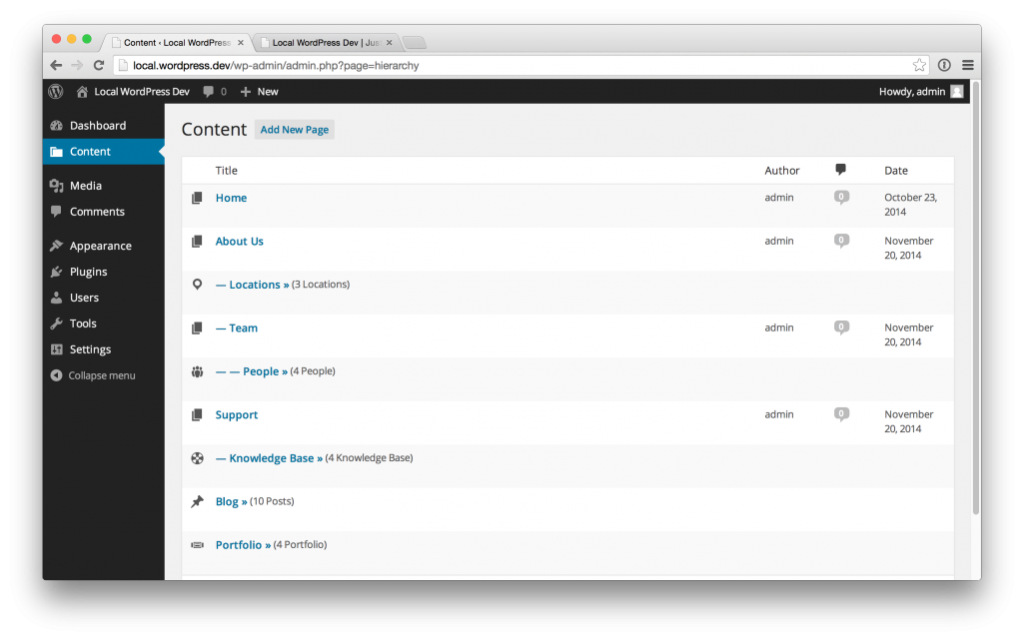
How to use the Hierarchy plugin
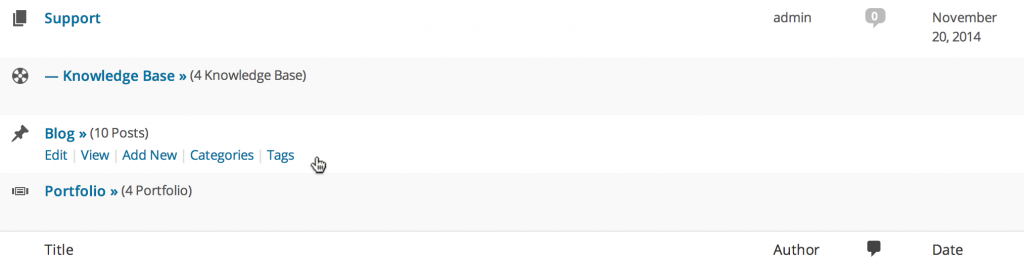
When the mouse slides over the custom article type at the bottom of the page, the operation links for the article type will appear, such as editing, adding, classification and tags as shown in the figure below. Click these links and the corresponding management interface will appear, which is the WordPress standard management interface for these content types.
What this plug-in does is to change the way the WordPress backend content structure is displayed, making them more in line with the user’s intuitive experience. No other changes have been made, so it can be used conveniently without worrying about damaging the website’s code or causing data loss. I believe we will see themes that support this plug-in appear soon.