In WordPress’s default data structure, we can register multiple post types and add custom fields to each of them. But there is no built-in way to connect different post types to each other. That limitation becomes a major obstacle when a project needs more complex content relationships. The Posts 2 Posts plugin removes that limitation and lets different post types be connected together. In this article, we will create a connection between posts and pages and then display those relationships in several ways.
Registering a connection
The first thing we need to do is register the connection. This adds a connection selector to the post editing screen. Put the following code in your theme’s functions.php file:
add_action( 'p2p_init', function () {
   p2p_register_connection_type( [
      'name'           => 'tests',
      'from'           => 'game',
      'to'             => 'question',
      'title'          => [
         'from' => '试题',
         'to'   => '考试',
      ],
      'from_labels'    => [
         'singular_name' => __( '考试', 'my-textdomain' ),
         'search_items'  => __( '搜索考试', 'my-textdomain' ),
         'not_found'     => __( '没有找到考试', 'my-textdomain' ),
         'create'        => __( '添加考试', 'my-textdomain' ),
      ],
      'to_labels'      => [
         'singular_name' => __( '试题', 'my-textdomain' ),
         'search_items'  => __( '搜索试题', 'my-textdomain' ),
         'not_found'     => __( '没有找到试题', 'my-textdomain' ),
         'create'        => __( '添加试题', 'my-textdomain' ),
      ],
      'admin_box'      => [
         'show'    => 'from',
         'context' => 'advanced',
      ],
      'sortable' => 'any',
      'admin_column'   => 'to',
      'admin_dropdown' => 'to',
   ] );
} );
Calling p2p_register_connection_type() directly inside functions.php will not work. As shown above, the function must be attached to the p2p_init action. After that, go to the content editing screen and add some connections.
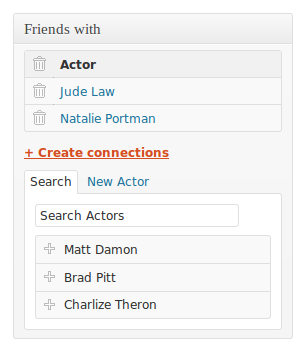
Displaying connected pages or posts
Once the connections exist, you will probably want to display them somewhere. On a single post page, we can use get_queried_object() to get the current post being displayed. The following code will display the pages connected to that post:
<?php
// 查找链接的页面
$connected = new WP_Query( array(
 'connected_type' => 'posts_to_pages',
 'connected_items' => get_queried_object(),
 'nopaging' => true,
) );

// 显示连接的页面
if ( $connected->have_posts() ) : ?>
  <h3>Related pages:</h3>
  <ul>
    <?php while ( $connected->have_posts() ) : $connected->the_post(); ?>
      <li><a href="<?php the_permalink(); ?>"><?php the_title(); ?></a></li>
    <?php endwhile; ?>
  </ul>

<?php
  wp_reset_postdata();
endif;
?>
We can also do the reverse and display the posts connected to the current page. The code is basically the same, except that it should be placed in a different template file.
- // In single.php
+ // In page.php

- <h3>相关页面:</h3>
+ <h3>相关文章:</h3>
Using get_queried_object()
The reason the same logic works in both cases is that we are relying on the special WordPress function get_queried_object(). This built-in function returns different types of objects depending on the current page:
- If you are on a single post page, it returns a post object.
- If you are on a page, it returns a page object.
- If you are on a category archive, it returns a category object.
A related function, get_queried_object_id(), returns only the object ID, but the core logic is the same.
Using get_posts()
The same thing can also be implemented with get_posts(). You just need to add one extra argument and set suppress_filters to false. For example:
<?php
// 查找相关文章
$connected = get_posts( array(
 'connected_type' => 'posts_to_pages',
 'connected_items' => get_queried_object(),
 'nopaging' => true,
 'suppress_filters' => false
) );
Displaying connections on archive pages
The examples above work on single-item pages. If you want to display a connection list for every item on an archive page, you can use the each_connected() function.