As the WordPress ecosystem continues to evolve, WordPress developers have more control than ever. Full Site Editing (FSE) offers all users the opportunity to create themes from scratch, especially when using the theme.json file.
Developers can also take full advantage of the theme.json file to perform granular customization of WordPress themes without complex programming logic or tedious manual CSS management.
In this tutorial, we will explore the role of the theme.json file and its relationship with Full Site Editing. By the end, regardless of your development skill level, you will understand how to leverage its features to create modern, high-performance websites.
Introducing the theme.json File
At its core, the theme.json file is a configuration file that defines the settings and styles of a WordPress theme. It uses JavaScript Object Notation (JSON), a structured data format using key-value pairs that are easy for humans to read and write.
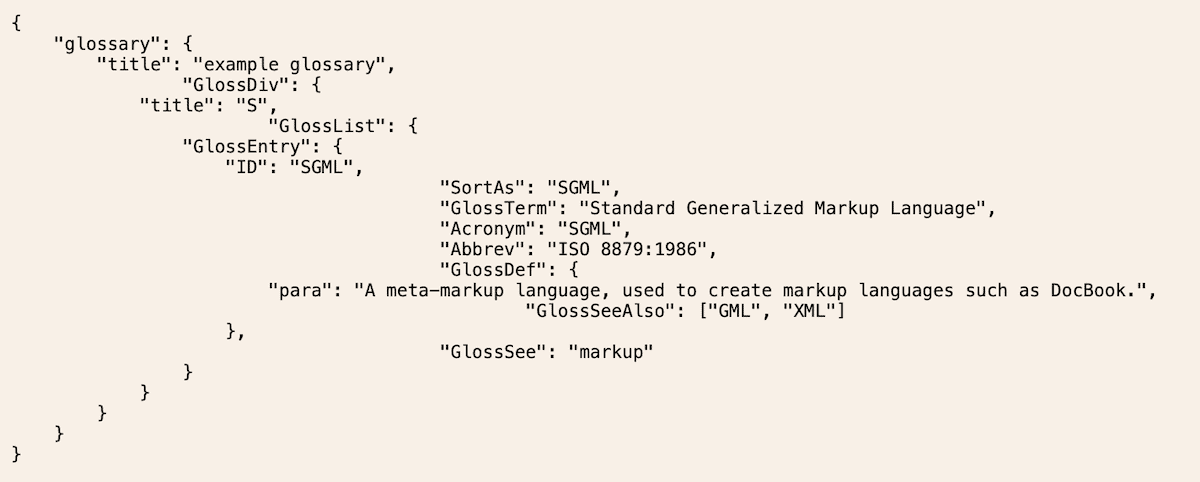
The theme.json file is the key to controlling various aspects of a theme, including color palettes, typography settings, layout options, individual block styles, custom CSS properties, and more. We will cover these aspects in detail throughout this article.
While these changes might sound iterative, theme.json is critical to the future of WordPress development, and we’ll explain why in the next section.
Why theme.json Matters for WordPress Theme Development
Typical methods for developing WordPress themes often revolved around editing PHP template files, managing logic in functions.php, and other technical tasks scattered across multiple files.
The theme.json file marks a significant shift in theme development for several reasons:
- Centralized Configuration: It provides a single, organized location to define theme settings and styles, reducing the need for disjointed CSS and PHP files.
- Better Performance: Centrally declaring styles and settings allows WordPress to generate more efficient CSS. Compared to using many frameworks like jQuery, this significantly improves performance.
- Enhanced Control: You have more control over the styling of the website and individual blocks than ever before, enabling even non-professional developers to participate in theme development.
- FSE Integration: As FSE continues to grow,
theme.jsonplays a crucial role in how themes, global styles, and the block editor interact.
Combining all these aspects leads to a standardized way of defining theme settings and styles. Using theme.json makes the WordPress themes you create more powerful, flexible, and user-friendly, and most importantly, aligns your work with the platform’s future direction.
Where to Find the theme.json File
First, you won’t find a theme.json file in “traditional” or “classic” themes. To use this file, you need a dedicated block theme. However, as long as you are running WordPress 5.8 or higher, you can create this file in any theme yourself.
The typical location for theme.json is wp-content/themes/[your-theme]/theme.json. If the file isn’t there, you can create it using your favorite code editor. We’ll discuss the content shortly.
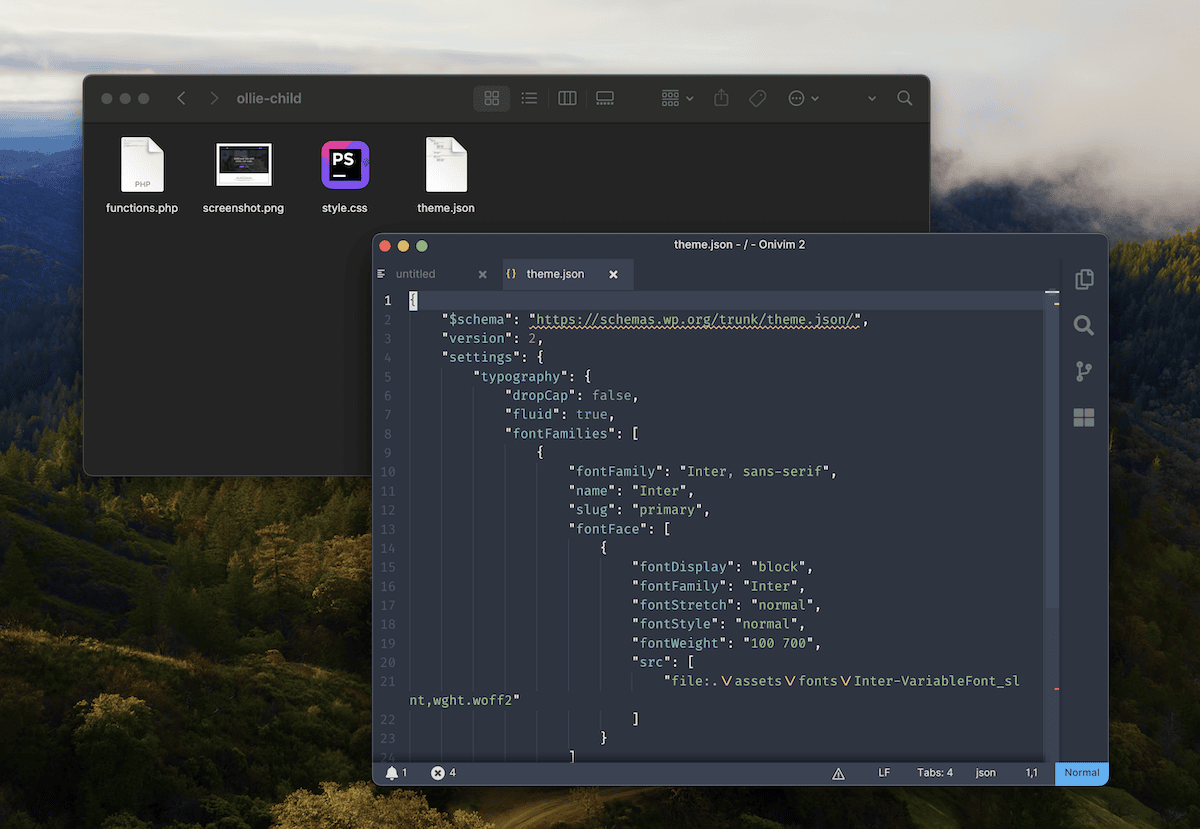
If you need to create a new file from scratch but want to understand the complexities before customizing your own, look at the default “Twenty Twenty-Four” theme.
As a block theme, it includes a theme.json file. In the next few sections, we’ll examine its structure.
Basic Skills for Using theme.json
Not everyone can just open a config file and start working; you still need some foundational knowledge to build and customize themes effectively:
- Basic JSON Knowledge: Familiarity with JSON syntax and structure is essential for reading and editing this file.
- CSS Understanding: Many
theme.jsonobjects and properties map directly to CSS properties. CSS skills are highly beneficial here. - WordPress Block Editor Knowledge: Understanding how blocks work and their customization options will assist in your builds.
While not strictly necessary, reaching a basic understanding of FSE concepts will help you leverage theme.json more effectively. You’ll also see how your edits impact the end-user “modifications.” In some cases, you might still need HTML and JavaScript to achieve specific goals.
Finally, we recommend a few technical enhancements:
- A Quality Code Editor: Choosing an editor that provides JSON syntax highlighting and validation will make your workflow much more pleasant.
- Local Development Environment: Tools like DevKinsta or Local allow you to quickly experiment and test changes without affecting a live site.
Understanding theme.json Structure and Hierarchy
The theme.json file has a specific structure and hierarchy, including some unique elements that require explanation.
Basic Structure
Given its JSON format, the entire file is wrapped in curly braces. Each object consists of key-value pairs, using double quotes for keys and values, with commas at the end of lines.
A minimum viable theme.json file requires at least version, settings, and styles objects:
{
    "version": 3,
    "settings": {
        // Global settings go here
    },
    "styles": {
        // Global styles go here
    }
}
While settings and styles are straightforward, version represents the API version matching how WordPress reads the file. The current API version is 3 (though version 2 is still common).
Most theme.json structures also include a schema for auto-completion and validation in code editors:
{
    "$schema": "https://schemas.wp.org/trunk/theme.json",
    "version": 3,
    "settings": {
    },
    "styles": {
    }
}
Hierarchy
The theme.json file follows a hierarchy similar to CSS. Crucially, your customizations in theme.json are not necessarily final; user configurations take precedence. Changes made in the Appearance > Editor UI can override theme.json settings on the frontend.
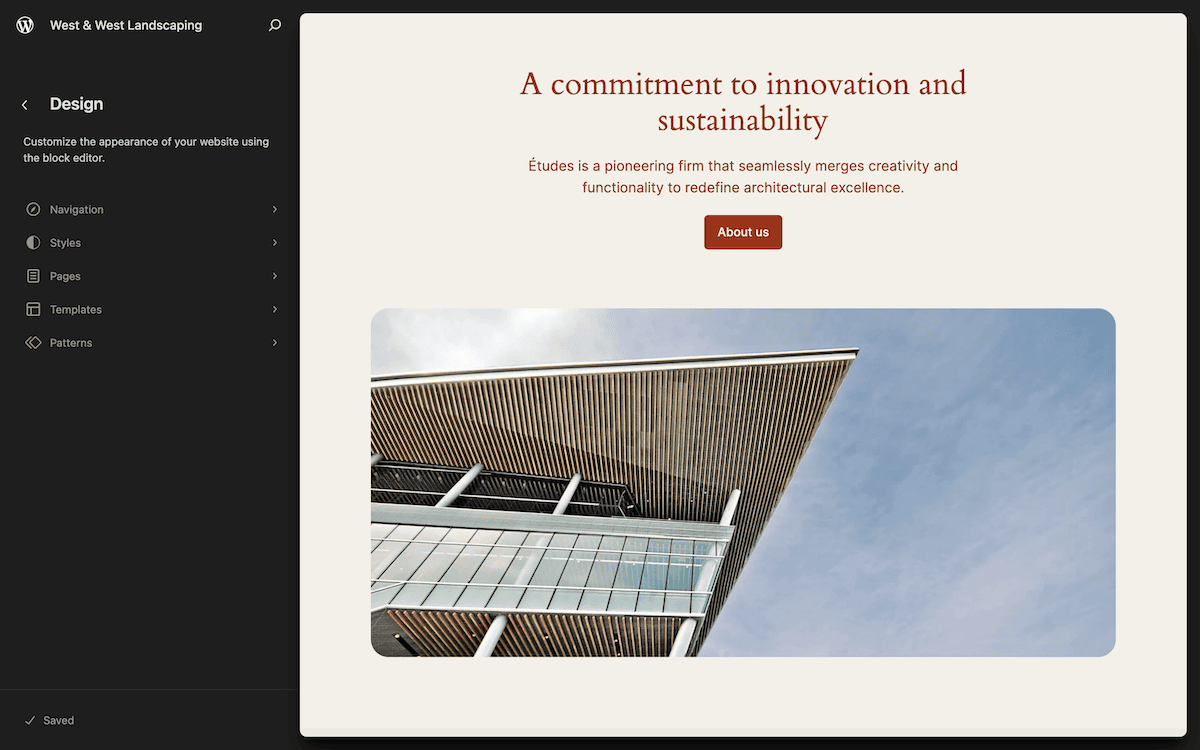
If you use a child theme, its theme.json will override the parent theme’s configuration, which itself overrides the WordPress defaults.
Block Syntax
If you look at the “Code Editor” view of a post or page in a block theme, you’ll see many HTML-comment-like markers. Block themes use HTML files with these block comments to define structures.
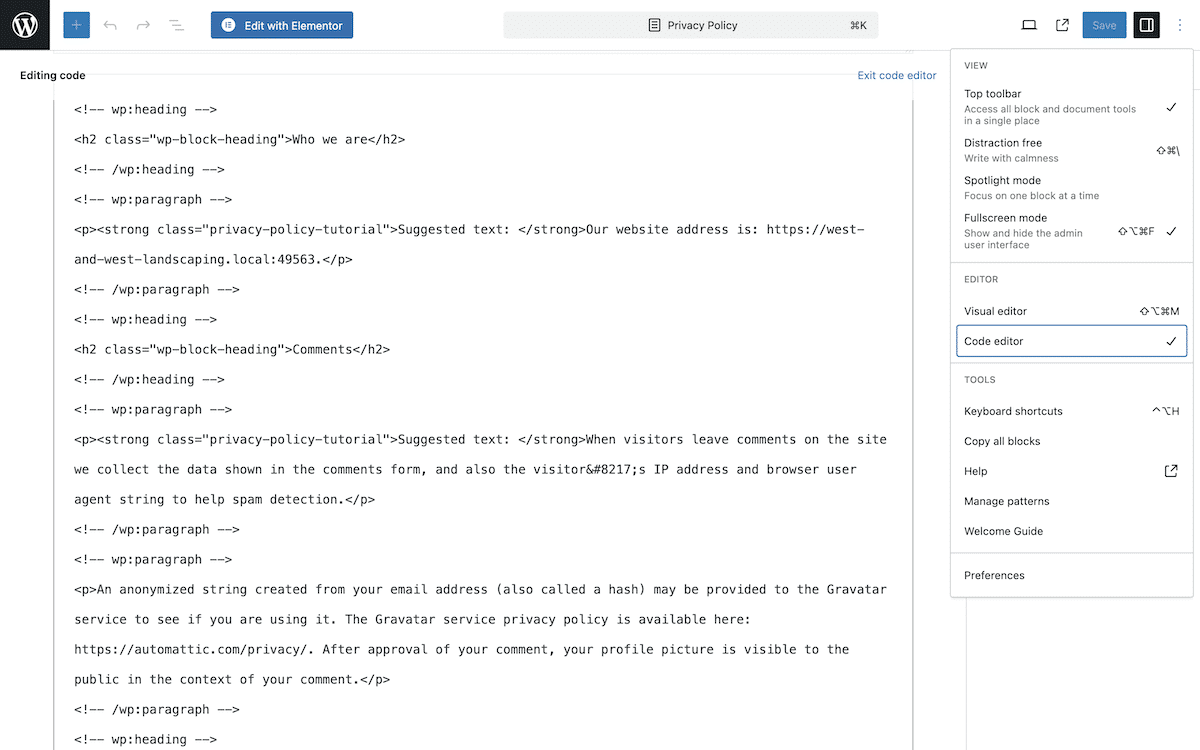
For example, a paragraph block is wrapped like this:
<!-- wp:paragraph -->
    <p>Content goes here!</p>
<!-- /wp:paragraph -->
Integrating theme.json with WordPress Full Site Editing
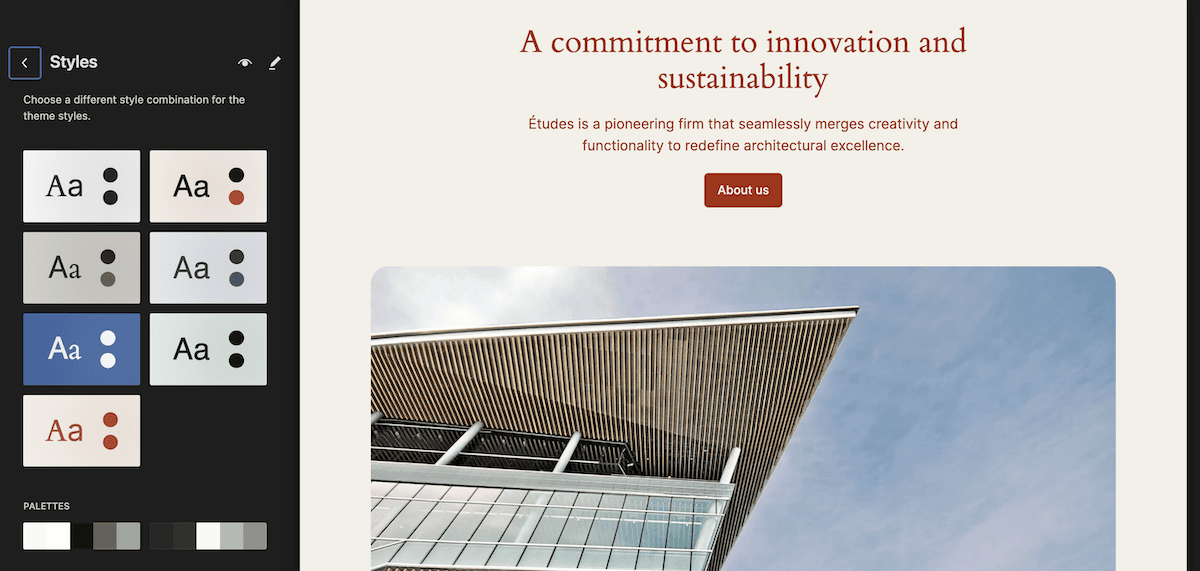
The “Global Styles” interface is essentially a visual representation of theme.json settings. When you modify settings in the sidebar, WordPress updates the corresponding values dynamically.
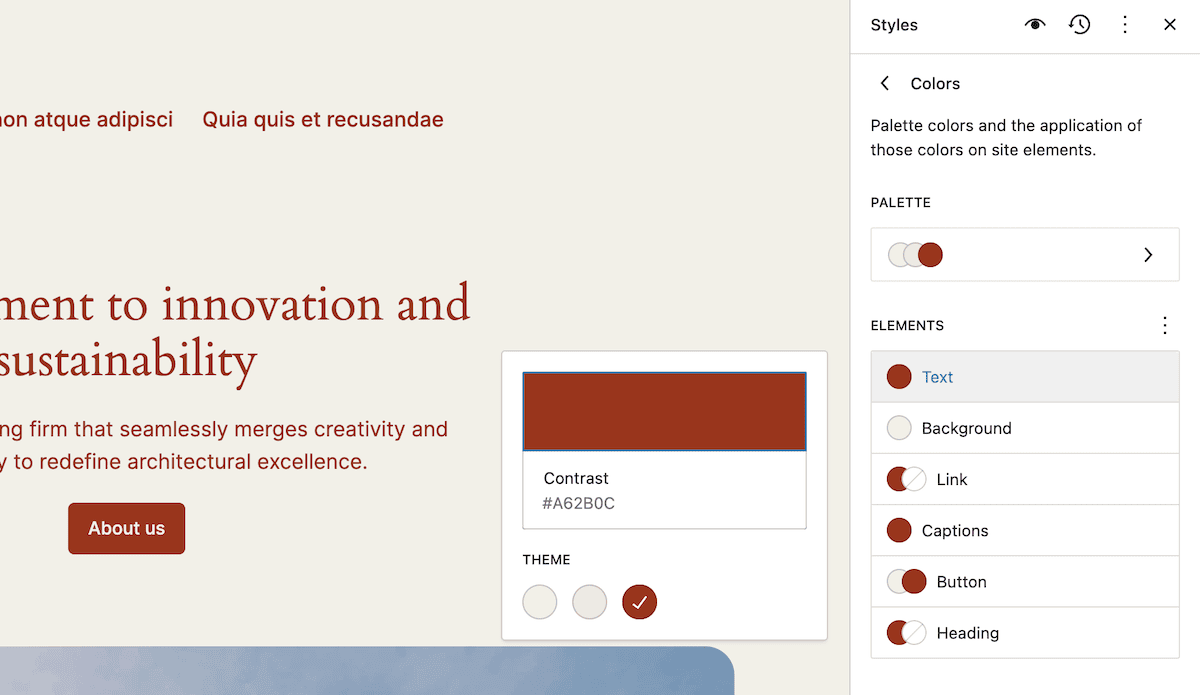
Using theme.json Properties
The settings property allows you to control which features are enabled in the editor. Common top-level properties include color, typography, spacing, and appearanceTools (which enables multiple tools at once).
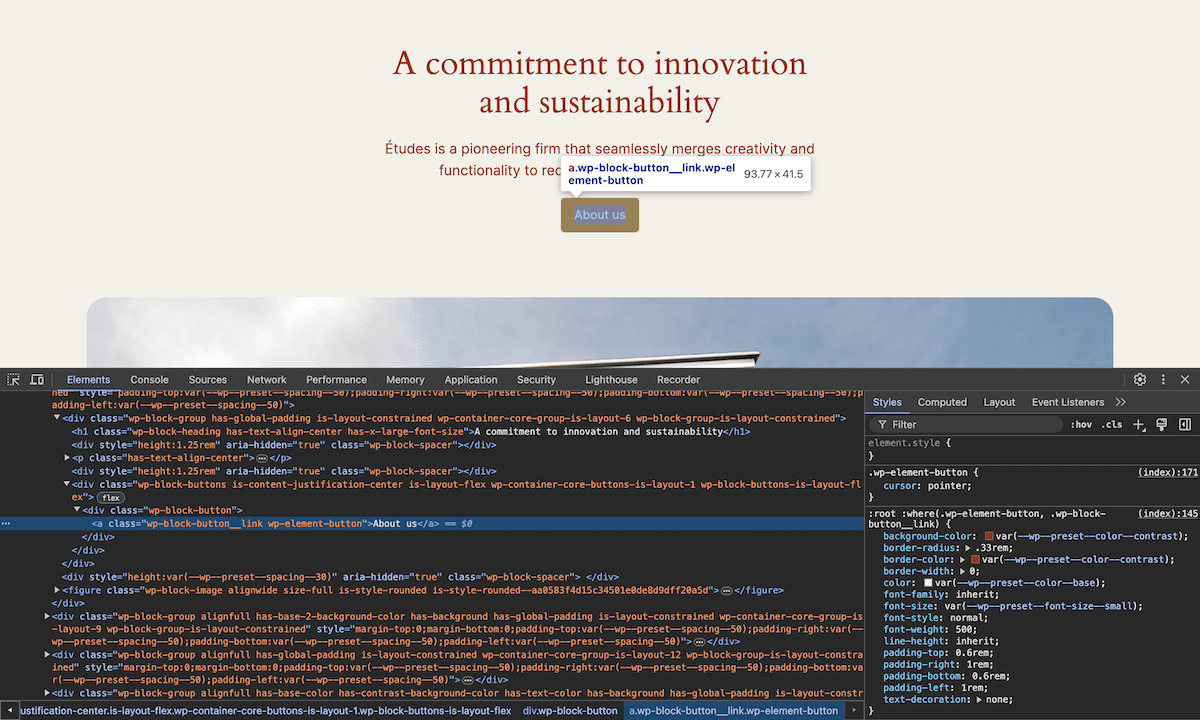
Styles and Variations
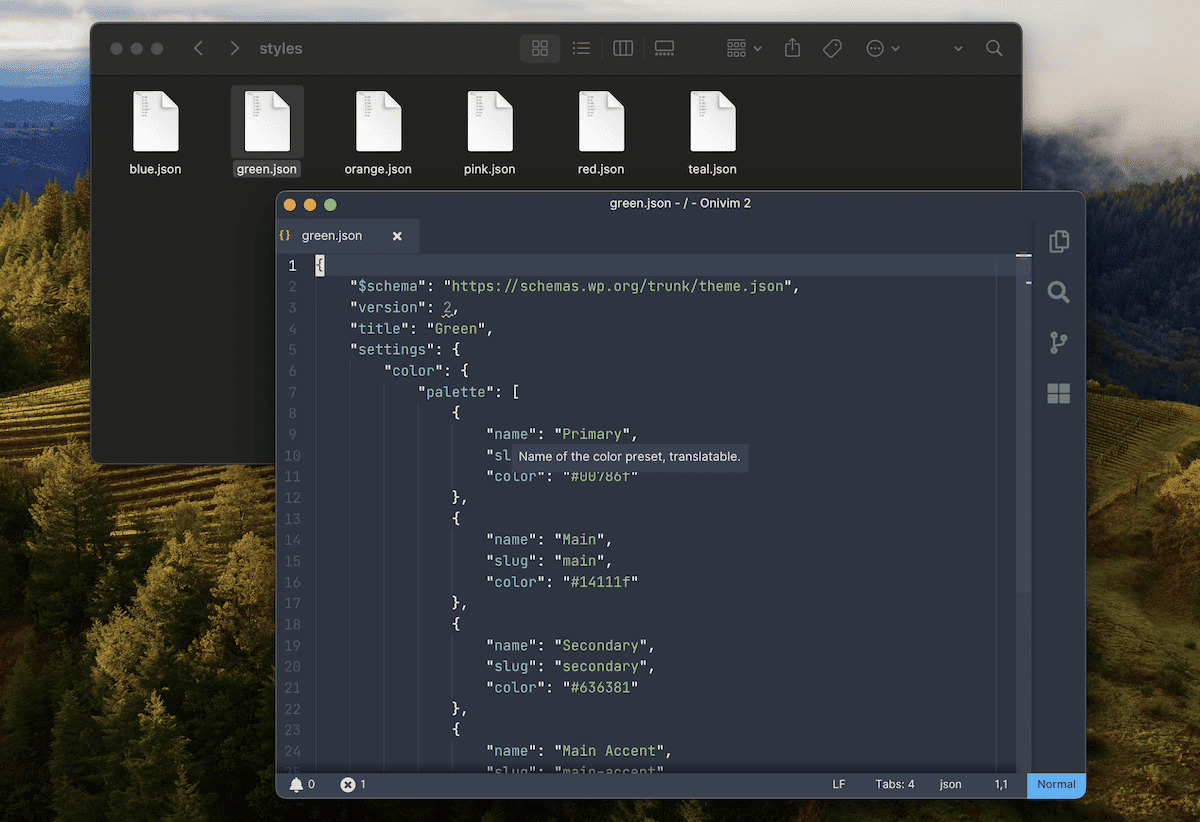
While settings defines availability, styles defines visual appearance. You can also create style variations by placing additional JSON files in a styles directory within your theme.
Custom Templates and Patterns
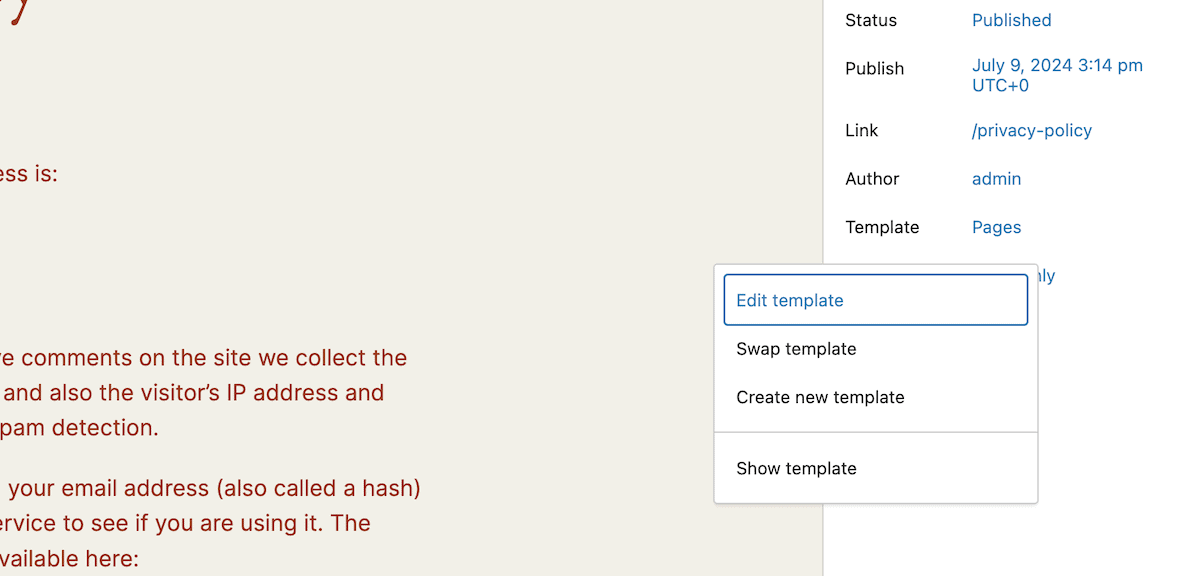
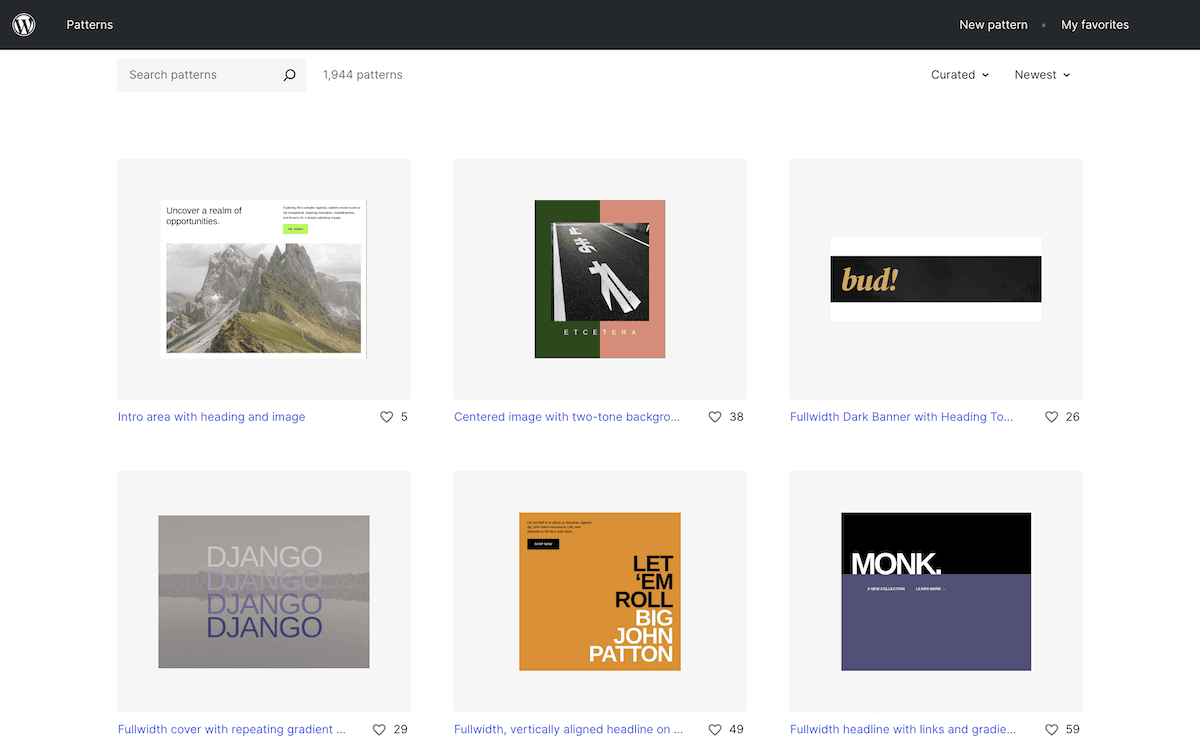
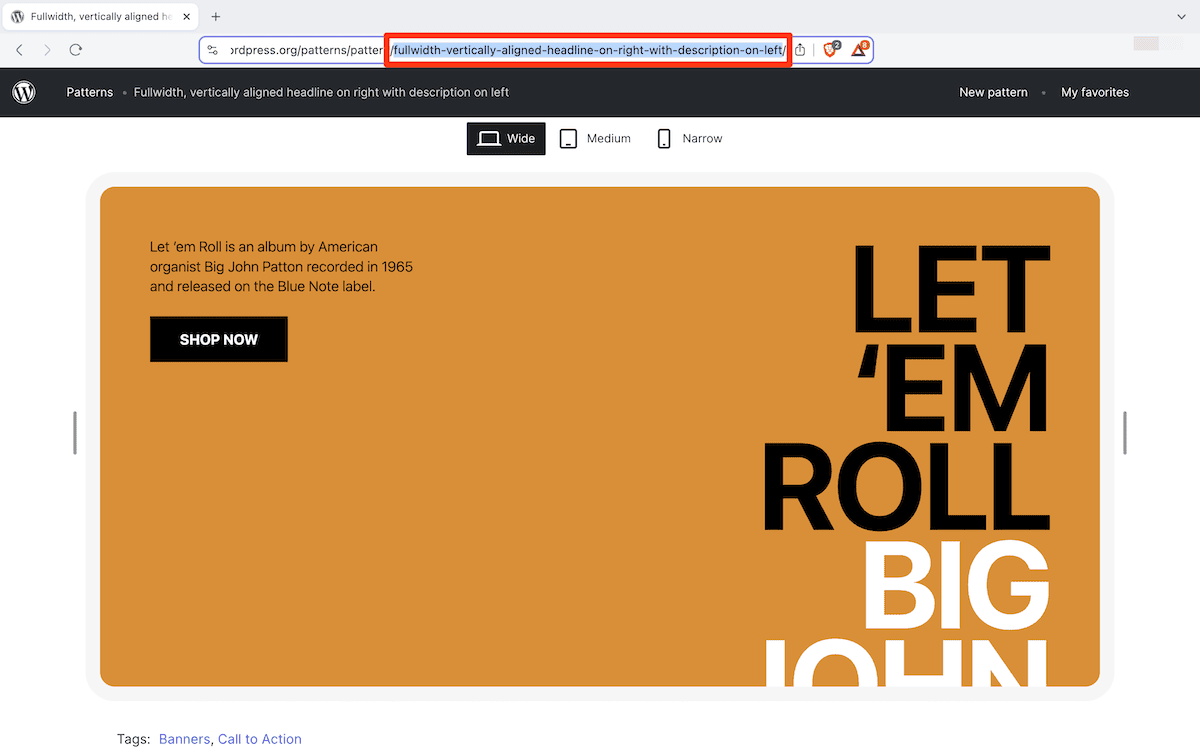
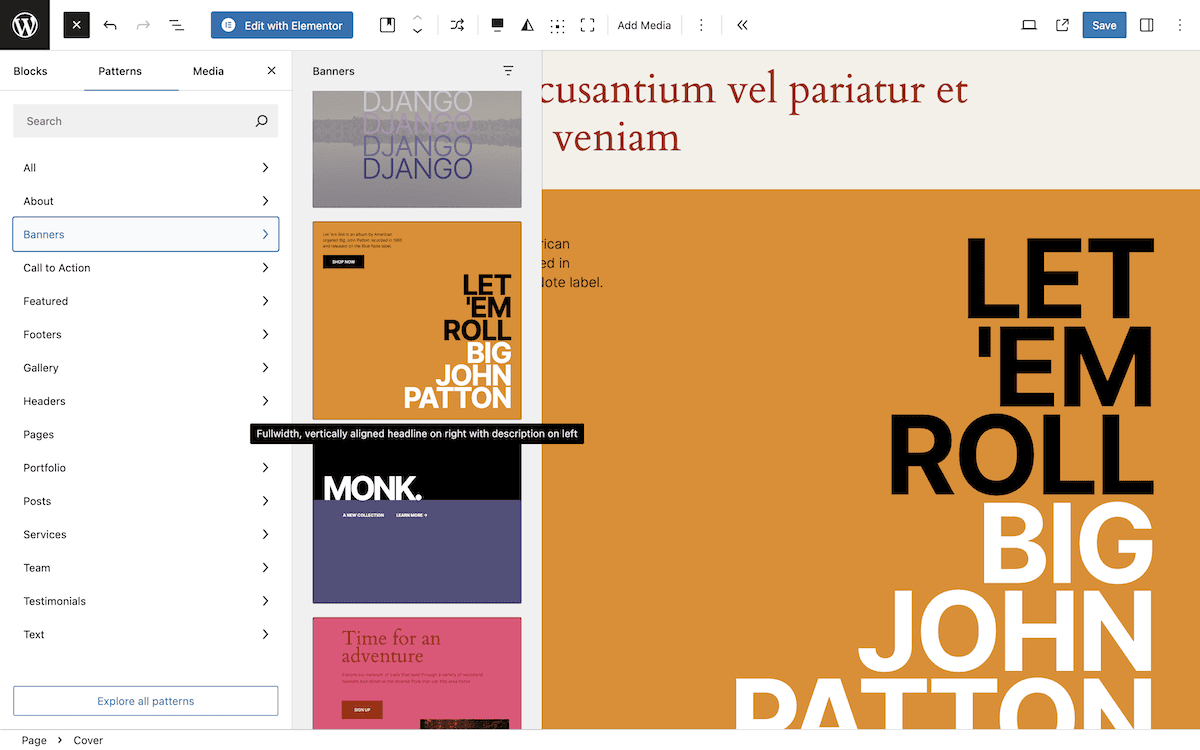
theme.json allows you to register custom templates and block patterns. Patterns registered here can be easily selected in the block editor’s pattern directory.
Conclusion
The theme.json configuration file is a revolutionary tool for WordPress development. It provides a centralized hub for settings and styles, enabling more maintainable and performant themes while bridging the gap between expert developers and those preferring visual editing.