Our WordPress development environments all run on Macs. The code in those environments is pushed to a remote Git repository every day, so code backup is not a big concern. The MySQL database is a different story. Even though a local development database is not as critical as a production database, backing it up regularly is still a very good habit.
Since we cannot back up a MySQL database simply by copying the raw database files, one of our engineers looked into ways to automate database dumps on macOS and found that Automator works quite well. The setup is simple enough that it is worth sharing here.
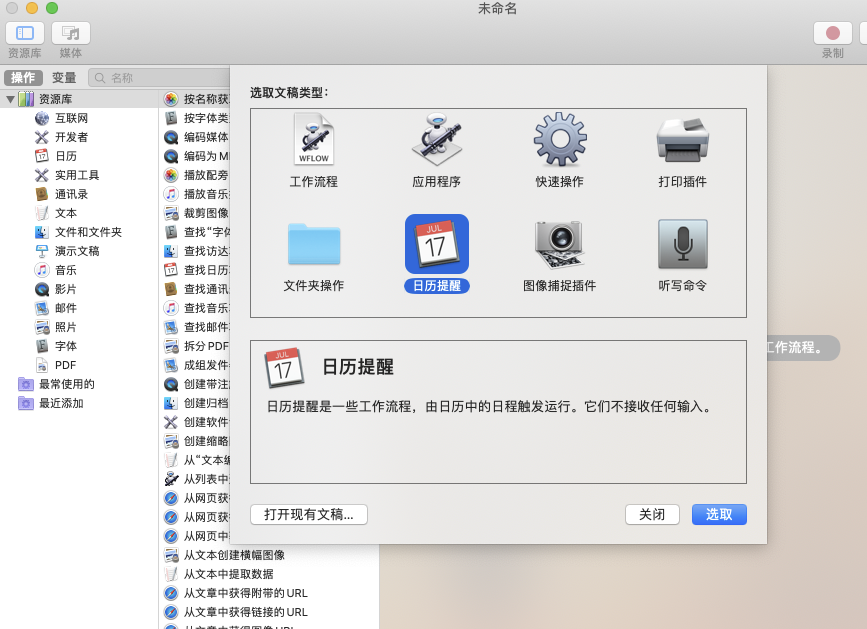
1. Open Automator and choose “Calendar Alarm” as the document type
That gives you a workflow that can be triggered by a calendar reminder instead of a one-time manual action.
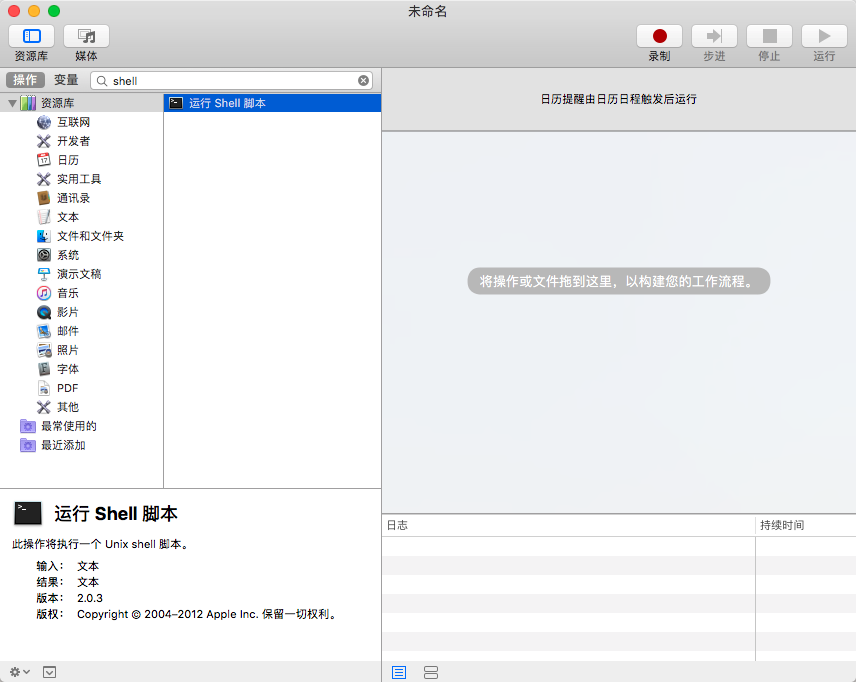
2. In the library, choose “Run Shell Script” and drag it into the workflow on the right
This is the action that will actually execute the backup script.
3. Edit the shell script that will perform the backup
Then enter the following script into the “Run Shell Script” editor, or save it as a .sh file, give the file execute permission, and enter the path to that file instead.
#!/bin/bash
MYSQL_USER="root" ## Database account
MYSQL_PASS="" # Database password
BACK_DATA=/Users/Amoslee/Dropbox/macdev # Directory used to store local backups, create it manually first
DBBakName=DB_$(date +"%Y%m%d").tar.gz
OldDB=Data_$(date -d -3day +"%Y%m%d").tar.gz

# Delete backups older than 3 days
rm -rf $BACK_DATA/$OldDB cd $BACK_DATA

# Export each database and compress it
for db in `/usr/local/bin/mysql -u$MYSQL_USER -p$MYSQL_PASS -B -N -e 'SHOW DATABASES' | xargs`; do
(/usr/local/bin/mysqldump -u$MYSQL_USER -p$MYSQL_PASS ${db} | gzip -9 - > ${db}.sql.gz)
done

tar zcf $BACK_DATA/$DBBakName $BACK_DATA/*.sql.gz
rm -rf $BACK_DATA/*.sql.gz echo -e "Thank you! all down"
If you have ever edited a VPS-to-Dropbox backup script, some of that may look familiar. This version was adapted from a similar script, so credit is due to the original author of that idea.
4. Set the schedule for when the script should run
Finally, click “File > Save,” then close Automator. The Calendar app will open automatically, and you can configure a recurring reminder there to define when the backup should run.
Once the schedule is in place, there is very little left to manage. Every day at the time you configured, macOS shows the calendar reminder and starts the database backup task automatically.