A fresh WordPress installation usually performs just fine. Then we install themes, plugins, widgets, and menus, and over time the site keeps growing. More content is published every day, more users leave comments, and before long the pages start to feel slower than they used to. At that point, it is time to start thinking seriously about WordPress performance optimization.
One obvious answer is to throw more hardware at the problem, but that is not always practical. A more interesting solution is to cache generated pages in memory. That is what the Cachify plugin is for. Cachify is a simple but effective WordPress caching plugin that can store static page output in the database, on disk, or in Memcached. When a user opens the same page again, the server can read the cached HTML directly from memory and send it immediately, which makes the page feel almost instant.
What Cachify does
Cachify improves page load time by saving posts, pages, and archive pages as static content. Depending on the environment, the static output can be stored in the WordPress database, on disk, in APC, or in Memcached. When the same page is requested again, WordPress can serve the cached version instead of querying the database and regenerating the full page.
That matters because the database is often the performance bottleneck in a typical WordPress application. If we can reduce database work to zero for repeat requests, the speed difference can be dramatic. Cachify only caches pages that users have actually visited, and it can automatically clear long-unused cache entries so the cache stays efficient.
Key features of the Cachify plugin
- Works with custom post types.
- Supports database, hard drive, APC, and Memcached cache methods.
- Lets you clear cache from the WordPress admin bar.
- Supports WordPress multisite.
- Can optionally compress HTML or JavaScript.
- Lets you exclude certain users or posts from caching.
- Supports both manual and automatic cache clearing.
- Provides automatic cache management.
- Includes a dashboard widget for checking cache status.
- Works with Apache and Nginx server setups.
- Can be extended through hooks and filters.
Use Memcached page caching with Nginx
Cachify can store cache in the database or on disk, but if raw speed is the goal, memory is the best place to keep it. That means using Nginx together with Memcached. Once Nginx and the Memcached service are available on the server, install and activate Cachify, then add a configuration like the following to your Nginx site configuration and restart Nginx.
location / {
    error_page 404 405 = @nocache;

    if ( $query_string ) {
        return 405;
    }
    if ( $request_method = POST ) {
        return 405;
    }
    if ( $request_uri ~ "/wp-" ) {
        return 405;
    }
    if ( $http_cookie ~ (wp-postpass|wordpress_logged_in|comment_author)_ ) {
        return 405;
    }

    default_type text/html;
    add_header X-Powered-By Cachify;
    set $memcached_key $host$uri;
    memcached_pass localhost:11211;
}

location @nocache {
    try_files $uri $uri/ /index.php?$args;
}
If you are using a panel such as BaoTa, you can usually paste the block above into the site’s rewrite or pseudo-static rules and replace the original rules there.
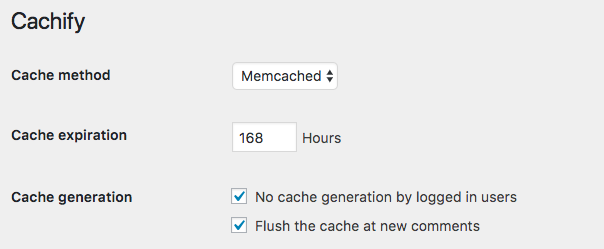
Then go to the Cachify settings screen in the WordPress dashboard, choose Memcached as the cache method, set the cache lifetime, and decide when the cache should be regenerated or cleared, for example whether logged-in users should bypass the cache and whether cache should be cleared after comments are posted.
After that, log out of the dashboard and refresh the front-end pages a few times. Even without looking at benchmark numbers, it is usually obvious that repeat page loads become much faster. If you want a more technical check, clear the cache, open browser dev tools, and compare the timings.
Some people worry that caching so many pages in memory will consume too much RAM. In practice, what gets cached is just the page HTML, not the images or videos. A single page of HTML is usually small. If a page takes around 1 MB, then even 1 GB of memory can hold a large number of cached pages. If your server only has something tiny like 128 MB of RAM, then the more realistic answer is that it is time to upgrade the server.