In WordPress, themes control the appearance of a site, and themes are composed of multiple templates. When we visit a page, WordPress retrieves content from the database and then, according to a specific priority order, displays that content in the corresponding template. That is how all kinds of WordPress pages are formed.
If you want to work in WordPress development, or even just make simple modifications to a WordPress theme, understanding WordPress template priority and loading rules is an indispensable first step.
Home Page Content Templates
WordPress lets us choose how the homepage is displayed from the Settings -> Reading screen. We can choose to show either the latest posts or a static page, as shown below.

front-page.php– Whether the homepage is set to show the latest posts or a static page, WordPress checks this template first.home.php– If the homepage is set to display the latest posts andfront-page.phpdoes not exist, this template is used.page.php– If the homepage is set to display a static page andfront-page.phpdoes not exist, WordPress looks for this template.index.php– If none of the templates above is found, WordPress falls back to this template.
Single Post, Page, and Custom Post Type Content Templates
Single posts, pages, and custom post type content pages are all essentially single content pages. Their template-loading rules follow the same pattern: from the most specific template to the most general one.
In template names, the parts wrapped in {} represent the corresponding post data:
{post-type}is the post type name, for examplesingle-product.php.{slug}is the post slug, for examplesingle-hello.php.{id}is the post ID, for examplesingle-1.php.
Priority Rules for Single Post and Custom Post Type Templates
single-{post-type}-{slug}.php.phpsingle-{post-type}.phpsingle-{slug}.phpsingle.phpsingular.php
Page Template Priority Rules
page--{slug}.phppage-{id}.phppage.phpsingle.phpsingular.phpindex.php
Taxonomy Archive Templates
Archive pages, also called listing pages, are lists of a group of content items. Just like single content templates, archive templates are also loaded from the most specific option to the most general one.
In template names, the parts inside {} refer to the archive data:
{taxonomy}is the custom taxonomy name. For example, intaxonomy-product_cat.php,product_catis the{taxonomy}part.{term}is the term slug. For example, intaxonomy-product_cat-cat1.php,cat1is the{term}part.
Custom Taxonomy Archive Template Priority
taxonomy-{taxonomy}-{term}.phptaxonomy-{taxonomy}.phptaxonomy.phparchive.phpindex.php
Category Archive Templates
Categories are a built-in WordPress taxonomy. Their template hierarchy is similar to that of custom taxonomies, except that the taxonomy prefix is not used.
category-{slug}.phpcategory-{id}.phpcategory.phparchive.phpindex.php
Tag Archive Templates
Tags are also a built-in WordPress taxonomy. Their template hierarchy is similar to that of custom taxonomies, except that the taxonomy prefix is not used.
tag-{slug}.phptag-{id}.phparchive.phpindex.php
Post Type Archive Templates
A post type archive page displays all posts that belong to a given post type. Its hierarchy is much simpler than the previous archive types. Here {post_type} is the name of the post type, as in archive-product.php.
archive-{post_type}.phparchive.phpindex.php
Author Archive Templates
An author archive page displays all posts published by a given author. Its hierarchy is also relatively simple. Here {nicename} is the user_nicename field from the users table, and {id} is the author ID. We can build dedicated templates for specific authors and use them as author landing pages.
author-{nicename}.phpauthor-{id}.phpauthor.phparchive.phpindex.php
Date Archive Pages
Date archive pages are collections of posts published within a specific time period. Their hierarchy is as follows:
date.phparchive.phpindex.php
Search Results Page Templates
A search results page is the archive page for a given search keyword. It is usually handled by search.php. If that file does not exist, WordPress falls back to index.php.
search.phpindex.php
404 Page Templates
A 404 page template is used when a page cannot be found. We can use 404.php to create a custom 404 page.
404.phpindex.php
Attachment Templates
Attachments are essentially a post type as well, but because they are relatively special, we can assign templates based on attachment type. For example, for an MP4 video page, we can create an mp4.php template and use a custom player to play the video. The attachment template hierarchy is as follows:
{MIME-type}.phptext-plain.phpplain.phptext.phpattachment.phpsingle-attachment-{slug}.phpsingle-attachment.phpsingle.phpsingular.phpindex.php
Embed Templates
An embed template is used when a post is embedded into another page or another website. We can create templates according to the following rules to customize the appearance of embedded posts.
embed-{post-type}-{post_format}.phpembed-{post-type}.phpembed.phpwp-includes/theme-compat/embed.phptemplate
Graphic Version of the WordPress Template Hierarchy
If the template rules explained above do not click immediately, you can save the image below to your desktop so that it is easy to reference when needed. The image comes from the official WordPress documentation, so its accuracy is reliable.
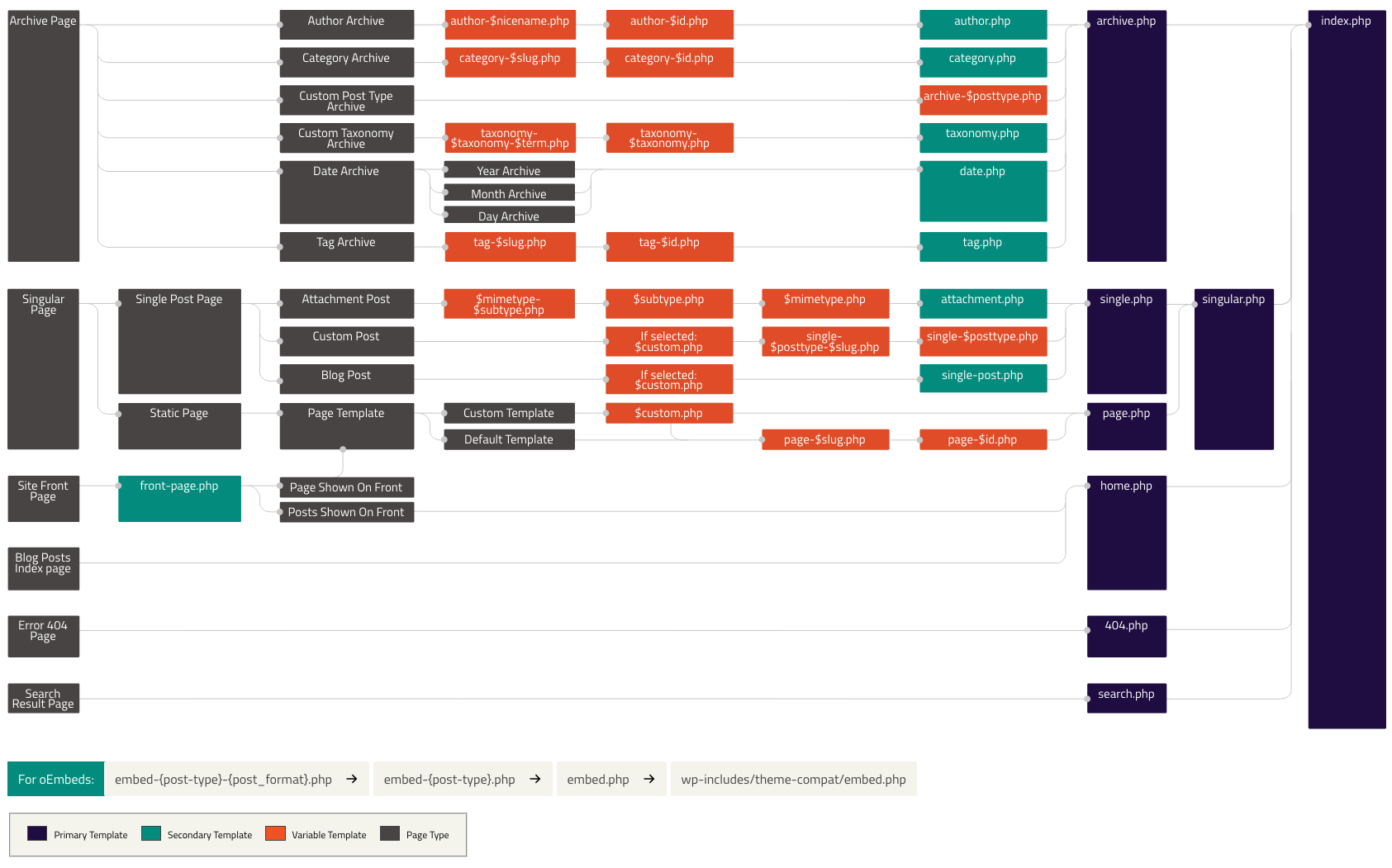
Mastering WordPress template priority is the first step in learning WordPress development, and it is also one of the most important steps. After understanding how WordPress templates work, we can go one step further and learn how to use WP_Query to query and output posts in order to build custom content modules.