In WordPress, a theme controls how the site looks, and that theme is made up of template files. When a visitor opens a page, WordPress fetches the right data from the database and then chooses the most specific available template file to render that request.
If you want to develop WordPress themes or even make reliable theme customizations, you need to understand the template hierarchy. It is one of the first things worth learning because it explains why WordPress loads one file instead of another.
Front page templates
WordPress lets you choose, in Settings → Reading, whether the homepage should show your latest posts or a static page. The homepage template priority works like this:

front-page.php— highest priority whether the homepage shows latest posts or a static page.home.php— used when the homepage is set to show the latest posts andfront-page.phpis not present.page.php— used when the homepage is set to a static page andfront-page.phpis not present.index.php— the final fallback when none of the files above exist.
Templates for posts, pages, and custom post type singular views
Posts, pages, and custom post type single views are all singular content views. Their template lookup order generally moves from the most specific file to the most generic file.
In the file names below, the placeholders inside braces represent post data:
{post-type}is the post type name, such assingle-product.php.{slug}is the post slug, such assingle-hello.php.{id}is the post ID, such assingle-1.php.
Single posts and custom post type single views
single-{post-type}-{slug}.phpsingle-{post-type}.phpsingle-{slug}.phpsingle.phpsingular.phpindex.php
Pages
page-{slug}.phppage-{id}.phppage.phpsingle.phpsingular.phpindex.php
Taxonomy archive templates
Archive views list multiple posts. Just like singular templates, archive templates are selected from the most specific match down to a generic fallback.
In the names below, the placeholders stand for archive data:
{taxonomy}is the taxonomy name, such as theproduct_catpart oftaxonomy-product_cat.php.{term}is the term slug, such as thecat1part oftaxonomy-product_cat-cat1.php.
Custom taxonomy archive priority
taxonomy-{taxonomy}-{term}.phptaxonomy-{taxonomy}.phptaxonomy.phparchive.phpindex.php
Category archives
Categories are a built-in taxonomy in WordPress, so their hierarchy is similar to custom taxonomy archives, but without the taxonomy- prefix.
category-{slug}.phpcategory-{id}.phpcategory.phparchive.phpindex.php
Tag archives
Tags are also a built-in taxonomy, and they follow a similar hierarchy to categories.
tag-{slug}.phptag-{id}.phptag.phparchive.phpindex.php
Post type archives
A post type archive displays all posts that belong to a post type. This hierarchy is simpler. Here, {post_type} is the post type slug, as in archive-product.php.
archive-{post_type}.phparchive.phpindex.php
Author archives
An author archive shows all posts published by a specific author. {nicename} refers to the user’s user_nicename field, and {id} is the author ID.
author-{nicename}.phpauthor-{id}.phpauthor.phparchive.phpindex.php
Date archives
Date archives group posts published in a specific time period. Their hierarchy is:
date.phparchive.phpindex.php
Search results
Search results are also an archive view. In most themes the dedicated file is search.php; if that does not exist, WordPress falls back to index.php.
search.phpindex.php
404 templates
When no matching content can be found, WordPress loads the 404 template. That makes 404.php the right place for a custom not-found page.
404.phpindex.php
Attachment templates
Attachments are also a post type, but they can be targeted in more specific ways. For example, a video attachment page could use a custom template to output a specialized player.
{mime-type}.phptext-plain.phpplain.phptext.phpattachment.phpsingle-attachment-{slug}.phpsingle-attachment.phpsingle.phpsingular.phpindex.php
Embed templates
Embed templates are used when a post is embedded into another page or website. You can create the following files to customize the appearance of embedded content:
embed-{post-type}-{post_format}.phpembed-{post-type}.phpembed.php- the fallback
wp-includes/theme-compat/embed.phptemplate
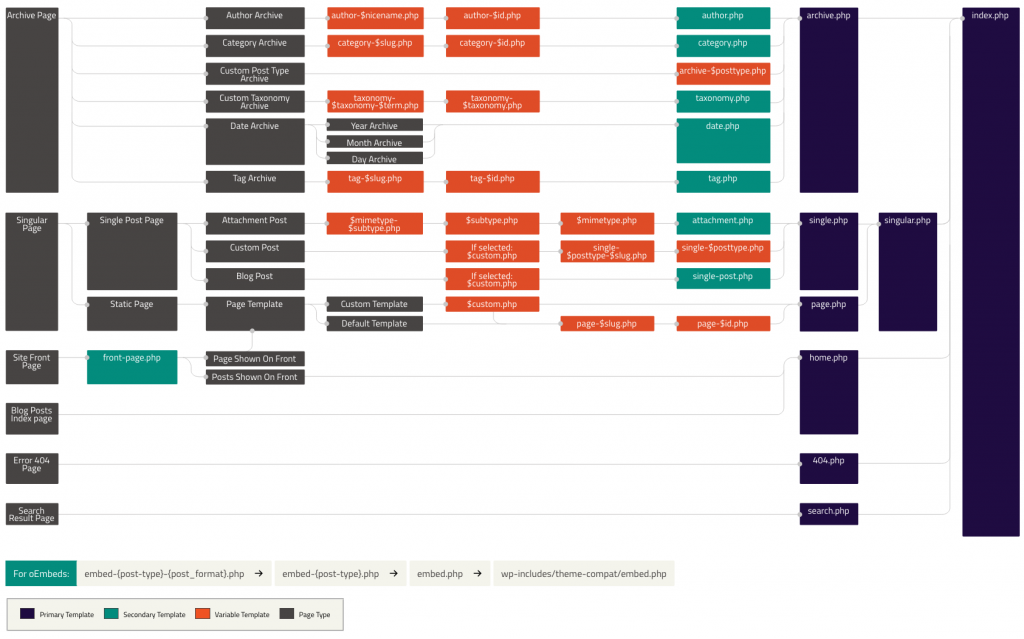
WordPress template hierarchy diagram
If the hierarchy above still feels abstract, keep the official template hierarchy diagram nearby. It is a useful visual reference when you need to decide which file WordPress will load.
Understanding template priority is one of the most important first steps in WordPress development. Once you are comfortable with it, you can move on to custom loops, custom post displays, and more advanced theme work.