As a WordPress plugin, WooCommerce initially and naturally used Custom Post Types (CPT) to store product and order data. However, as WooCommerce logic became more sophisticated, the CPT data structure began to cause increasingly severe performance issues. WooCommerce HPOS (High-Performance Order Storage) is the solution developed by the WooCommerce team to address these performance bottlenecks.
What Exactly is HPOS?
HPOS (High-Performance Order Storage) is a more efficient way of storing WooCommerce orders in the database. Starting from version 8.2, HPOS is enabled by default for all newly created stores. Previously, an order was merely a custom post type shop_order, with order data stored in the wp_posts and wp_postmeta tables. Now, we have a dedicated set of database tables specifically designed for WooCommerce orders.
Database Structure
Next, let’s examine the data structure of HPOS through several examples. These will help you understand why the HPOS storage method is significantly more efficient.
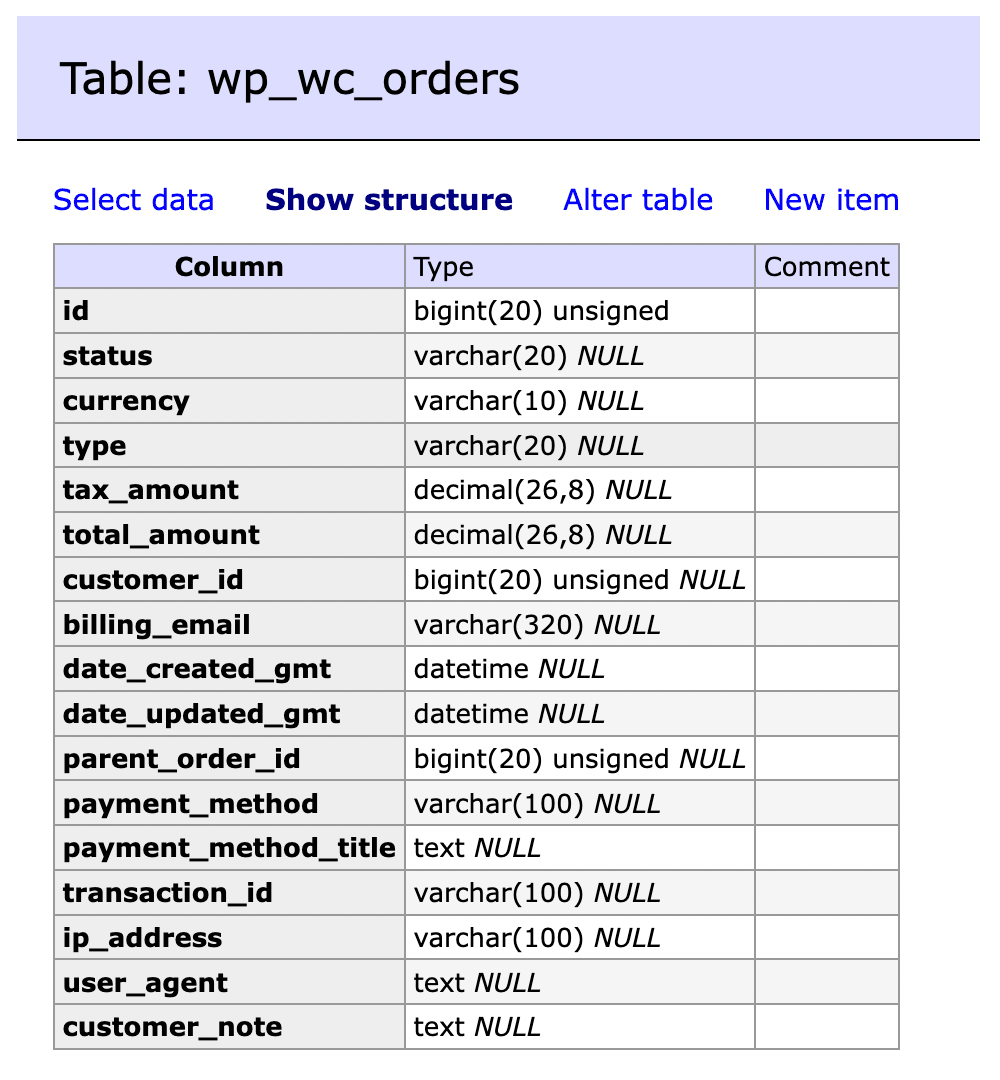
In practice, there are three primary data tables we need to focus on.
First is wp_wc_orders—this table stores the core order information.
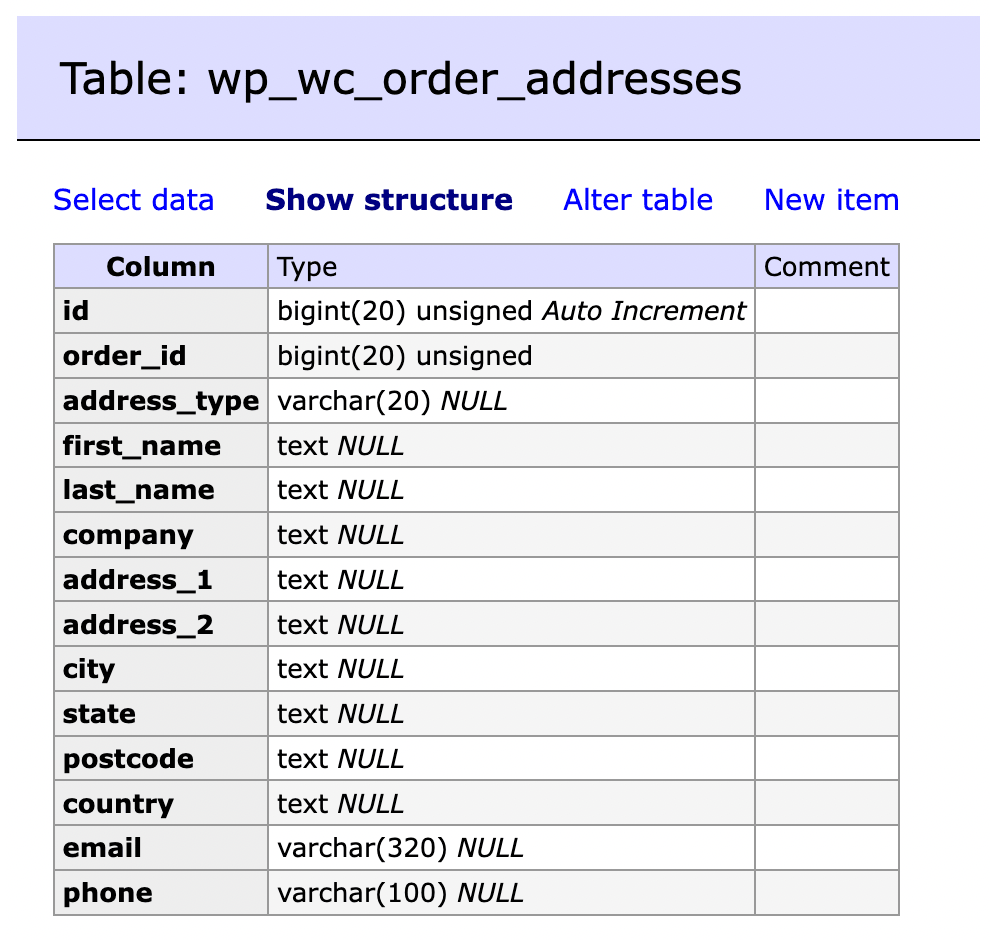
Second is wp_wc_order_addresses—this table stores billing and shipping address information.
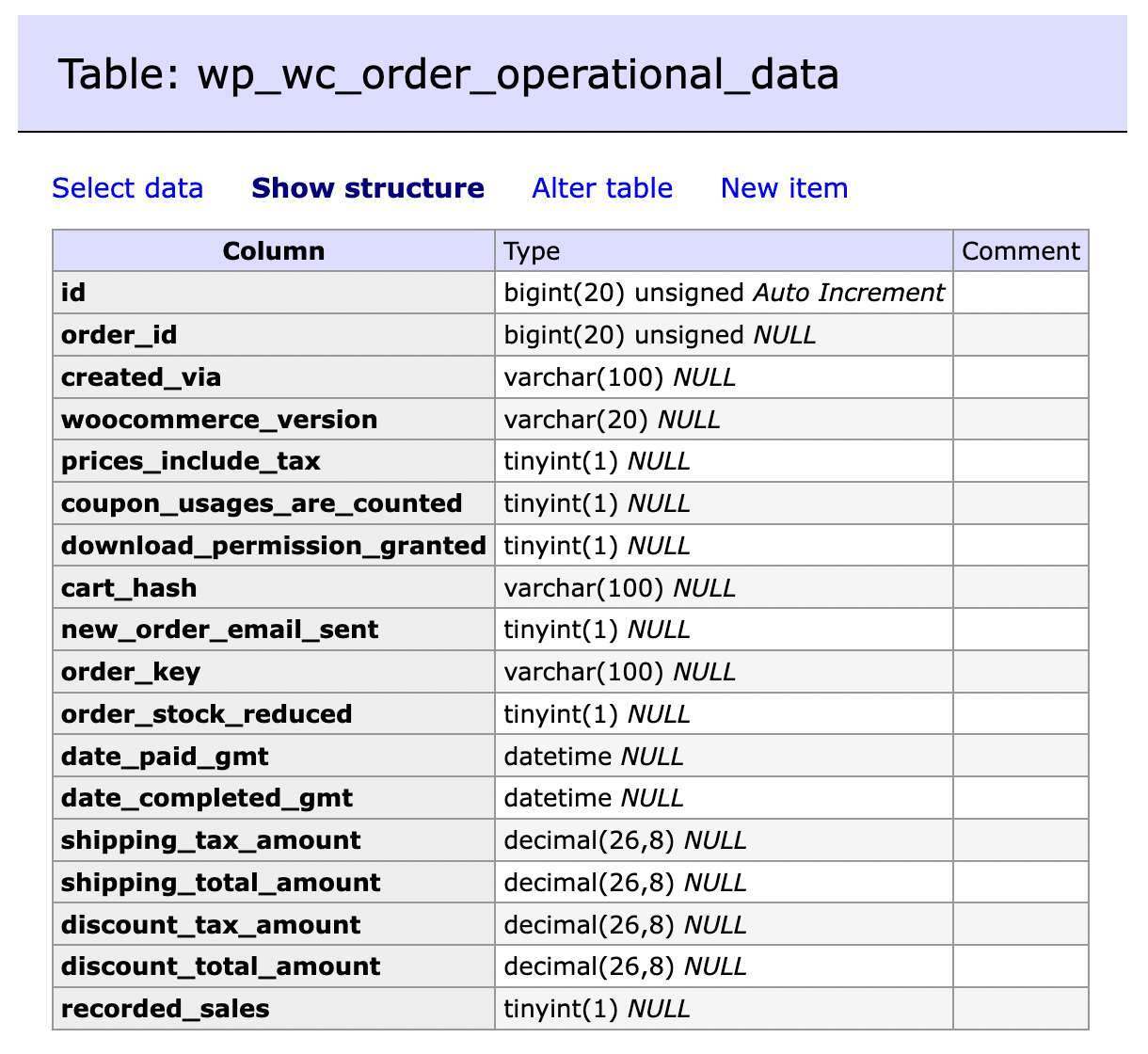
Third is wp_wc_order_operational_data—this table supplements the main order table. It contains fields related to order status and is kept in a separate table because changes to these fields are expected to be more frequent.
Fourth is wp_wc_orders_meta (Wait, didn’t you say there were only three?). This table is not yet fully utilized in core, but it functions similarly to wp_postmeta and can be used by other plugins.
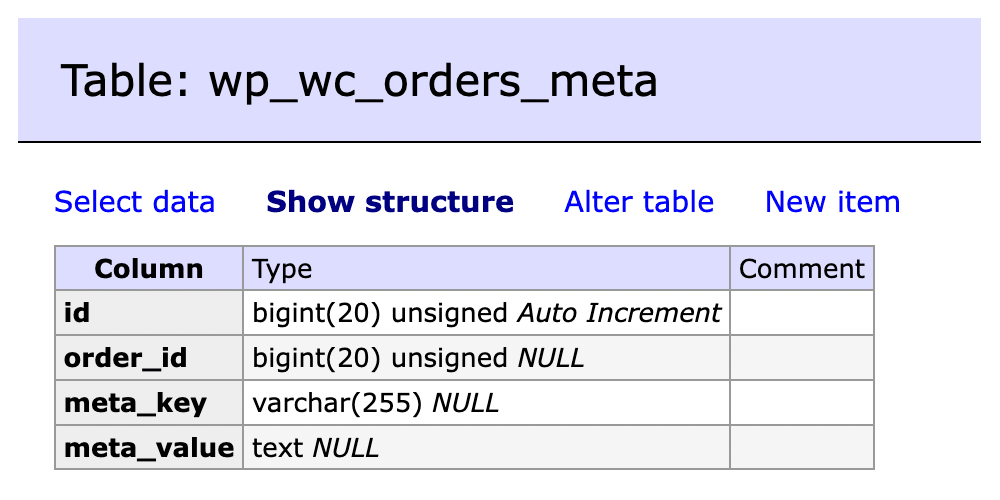
With these dedicated tables, fetching and displaying orders from the database becomes much more efficient. Let’s look at a simple SQL query where we need to retrieve orders by billing country.
In a store using Custom Post Types to store order data, the query looks like this:
SELECT wp_posts.ID
FROM wp_posts
INNER JOIN wp_postmeta AS country ON wp_posts.ID = country.post_id AND meta_key = '_billing_country'
WHERE wp_posts.post_type = 'shop_order'
AND country.meta_value = 'DK'
In a store using HPOS, the query for the same data becomes:
SELECT wp_wc_orders.id
FROM wp_wc_orders
INNER JOIN wp_wc_order_addresses AS address ON address.order_id = wp_wc_orders.id AND address.address_type = 'billing'
WHERE address.country = 'DK'
If your database contains around 5,000 orders, the HPOS query will be nearly 4 times faster! In other words, the more orders your store has, the greater the performance advantage of HPOS. One reason for this is that we no longer have to deal with the bloated wp_posts and wp_postmeta tables (especially wp_postmeta).
How to Enable HPOS?
In short, you just need to navigate to WooCommerce > Settings > Advanced > Features and switch to HPOS-based order storage.
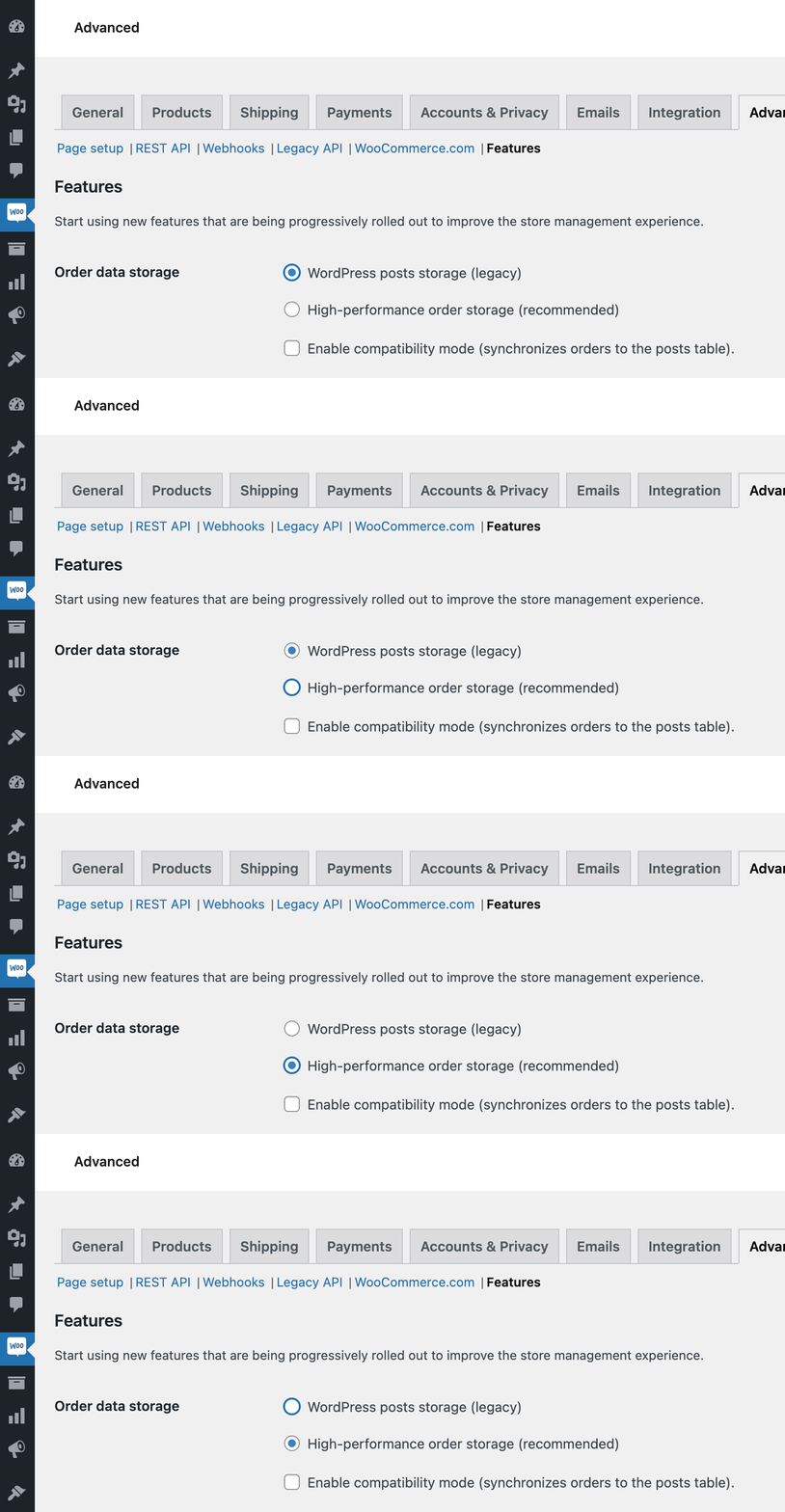
However, there are a few nuances to keep in mind:
- Since WooCommerce 8.2, all new stores have HPOS enabled by default.
- If your plugins are incompatible, you cannot switch to HPOS.
- If there are unsynced orders in the store, you cannot switch to HPOS (you can either delete these orders or click the “Sync X pending orders” link at the bottom of the settings page).
- There is also a “Compatibility Mode” checkbox. This basically allows using both HPOS and CPT-based order storage simultaneously (Yes, it duplicates orders, which isn’t great for performance but is excellent for transition compatibility).
Making Your Plugins HPOS Compatible
This is a topic worth discussing. Many developers currently use WP_Query to retrieve WooCommerce order or product data. If you switch to HPOS, this old code will fail. However, if you have been using CRUD (Create, Read, Update, Delete) methods to interact with WooCommerce orders from the start, you likely won’t need to change a single line of code—everything will work exactly as before.
Regardless, let’s look at the key points you must remember.
Code Migration Examples
The key here is to stop using WordPress-specific post query functions and start using functions, classes, and methods based on the WooCommerce CRUD engine. Here are some examples:
Retrieving Order Information:
// STOP using this approach:
// $post = get_post( $post_id ); // Returns a WP_Post object
// $order_status = $post->post_status;

// START using this approach:
$order = wc_get_order( $post_id ); // Returns a WC_Order object
$order_status = $order->get_status();
Using wc_get_orders instead of WP_Query:
// STOP using this approach:
// $query = new WP_Query( array( 'post_type' => 'shop_order', 'posts_per_page' => 10 ) );

// START using this approach:
$query = new WC_Order_Query( array( 'limit' => 10 ) );
$orders = $query->get_orders();

// STOP using this approach:
// $orders = get_posts( array( 'post_type' => 'shop_order', 'posts_per_page' => 10 ) );

// START using this approach:
$orders = wc_get_orders( array( 'limit' => 10 ) );
Getting and Updating Order Metadata:
// STOP using this approach:
// $custom_meta = get_post_meta( $order_id, '_misha_key', true );
// $custom_meta .= 'test';
// update_post_meta( $order_id, '_misha_key', $custom_meta );

// START using this approach:
$order = wc_get_order( $order_id );
$custom_meta = $order->get_meta( '_misha_key', true );
$custom_meta .= 'test';
$order->update_meta_data( '_misha_key', $custom_meta );
$order->save();
Checking Post Type:
// STOP using this approach:
// if( 'shop_order' === get_post_type( $post_id ) ) {

// START using this approach:
use Automattic\WooCommerce\Utilities\OrderUtil; // at the beginning of the file

if( 'shop_order' === OrderUtil::get_order_type( $post_id ) ) {
Since WooCommerce creates Order Placeholders that match the ID, you can also check using 'shop_order_placehold' === get_post_type( $post_id ) without needing the OrderUtil class.
Order Placeholders
An interesting backward compatibility feature is that every HPOS order has its own “Order Placeholder,” which is a custom post type shop_order_placehold created in the wp_posts table. It contains the actual order ID, but almost all other columns in the database row are empty, and nothing is written to the wp_postmeta table.

Checking if HPOS is Enabled
Official documentation recommends using the OrderUtil class for this check.
use Automattic\WooCommerce\Utilities\OrderUtil;

if( OrderUtil::custom_orders_table_usage_is_enabled() ) {
	// HPOS is enabled.
} else {
	// Standard CPT-based orders are in use.
}
Declaring Compatibility in Your Plugin
The good news is that if you cannot yet support HPOS in your custom plugin for some reason, you can let WooCommerce know.
Here is an example of a plugin declaring itself incompatible with HPOS:
<?php
/*
 * Plugin name: HPOS compatibility check
 * Version: 1.0
 * Author: Misha Rudrastyh
 * Author URI: https://rudrastyh.com
 */
add_action( 'before_woocommerce_init', 'wprs_hpos_compatibility' );

function wprs_hpos_compatibility() {

	if( class_exists( \Automattic\WooCommerce\Utilities\FeaturesUtil::class ) ) {
		\Automattic\WooCommerce\Utilities\FeaturesUtil::declare_compatibility(
			'custom_order_tables',
			__FILE__,
			false // true (compatible, default) or false (not compatible)
		);
	}

}
While nothing stops you from activating such a plugin in an HPOS-enabled store, if the plugin is already active, store owners won’t be able to switch to HPOS in the settings.
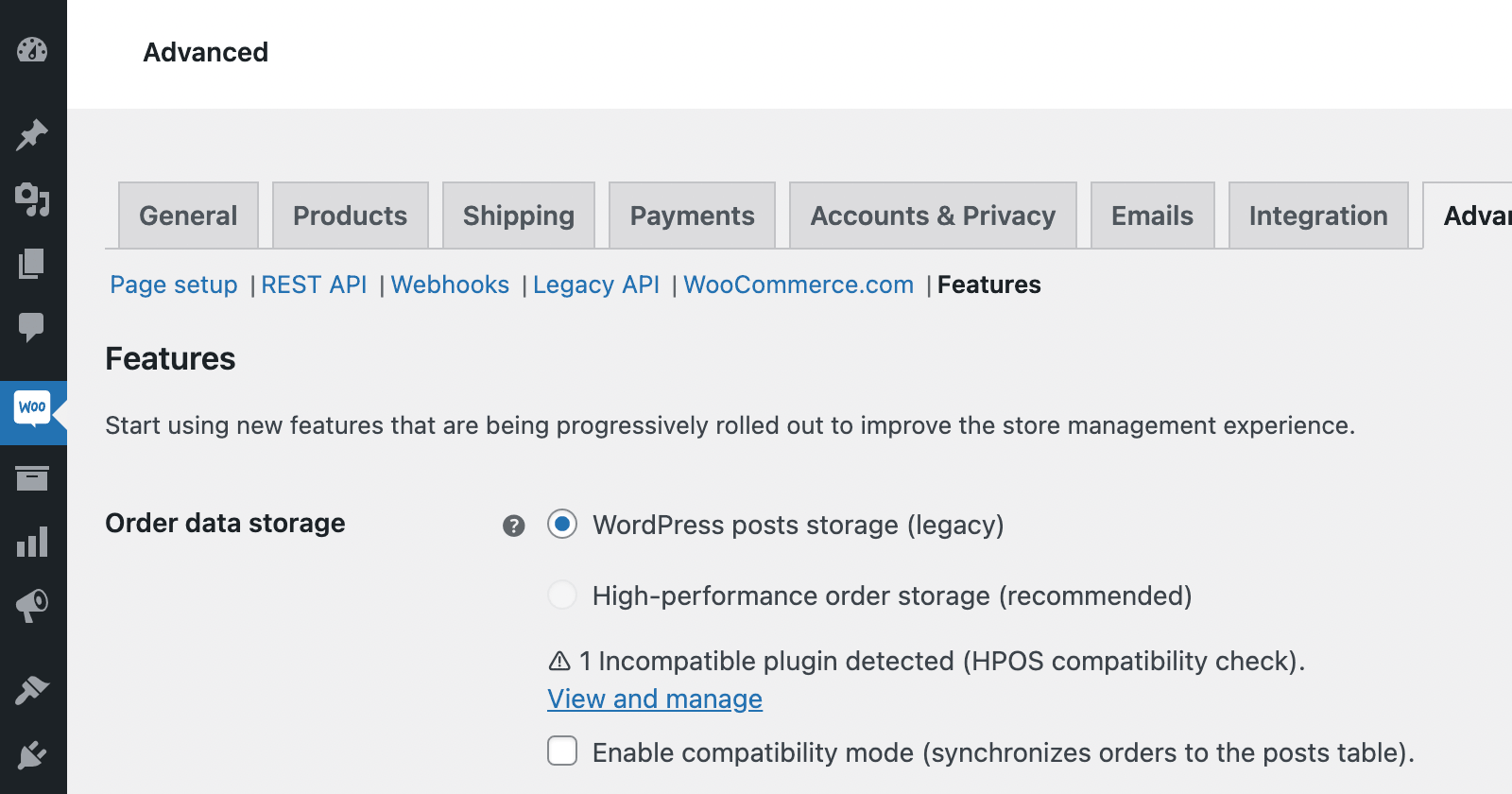 You cannot switch to High-Performance Order Storage while incompatible plugins are active.
Screen ID Changes
Since orders are no longer a post type (though they still use the same WP_List_Table class), we can’t use standard post type Screen IDs in our conditions. The new Screen ID is woocommerce_page_wc-orders. Here are a few examples:
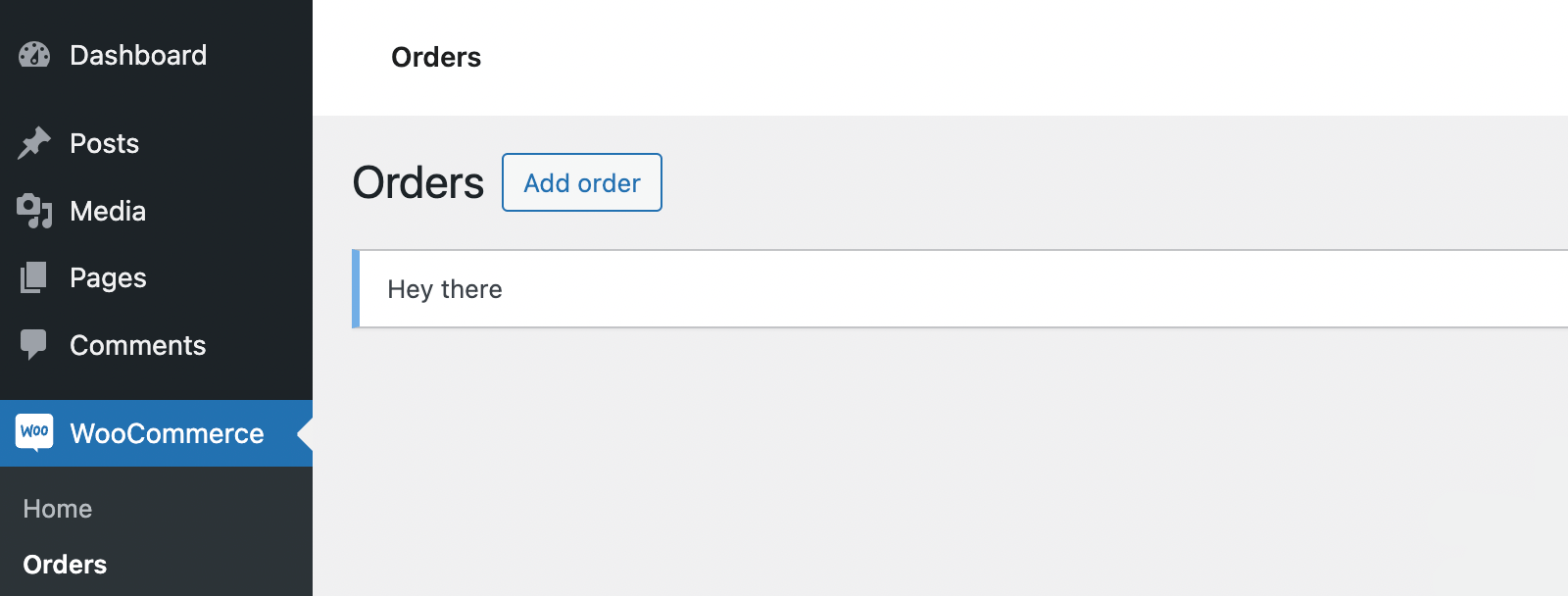
In this first example, we use the admin_notices action hook to print a notice:
add_action( 'admin_notices', 'wprs_woo_notice_example' );
function wprs_woo_notice_example() {

	$screen = get_current_screen();
	// For CPT-based orders, we used:
	// if( 'edit-shop_order' === $screen->id ) {
	if( 'woocommerce_page_wc-orders' === $screen->id ) {
		echo '<div class="notice notice-info"><p>Hey there</p></div>';
	}

}
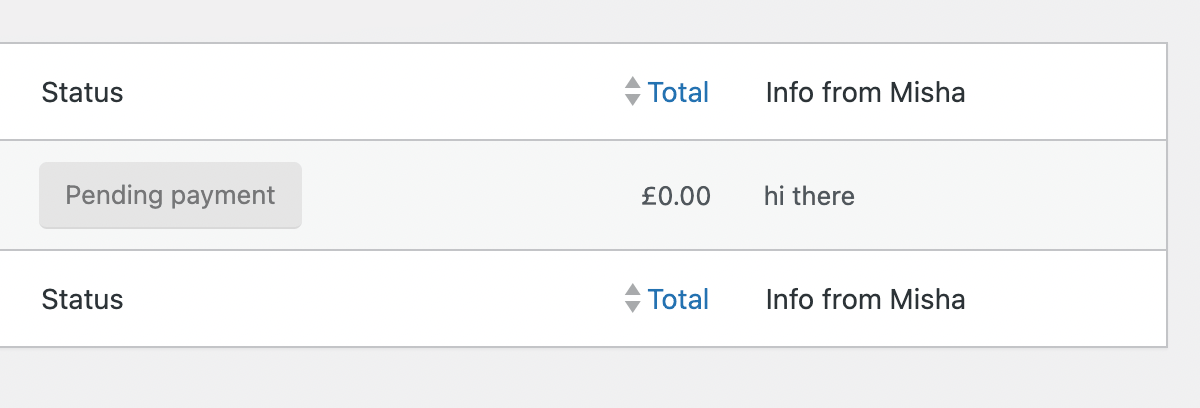
In the second example, we’ll add a custom column to the order list table. The column hook uses the Screen ID as part of its name.
// Previously, we used the manage_edit-{POST TYPE}_columns hook:
// add_filter( 'manage_edit-shop_order_columns', function( $columns ){
add_filter( 'manage_woocommerce_page_wc-orders_columns', function( $columns ) {

	$columns[ 'misha_column' ] = 'Info from Misha';
	return $columns;

} );

// Previous data hook:
// add_action( 'manage_posts_custom_column', function( $column_name, $order_id ){
add_action( 'manage_woocommerce_page_wc-orders_custom_column', function( $column, $order ){

	if( 'misha_column' === $column ) {
		echo 'hi there';
	}

}, 25, 2 );
Note that in the second hook, we not only changed the hook name but also received the entire WC_Order object as the second parameter, allowing us to use $order->get_id() or other properties. Previously, only $order_id was available.
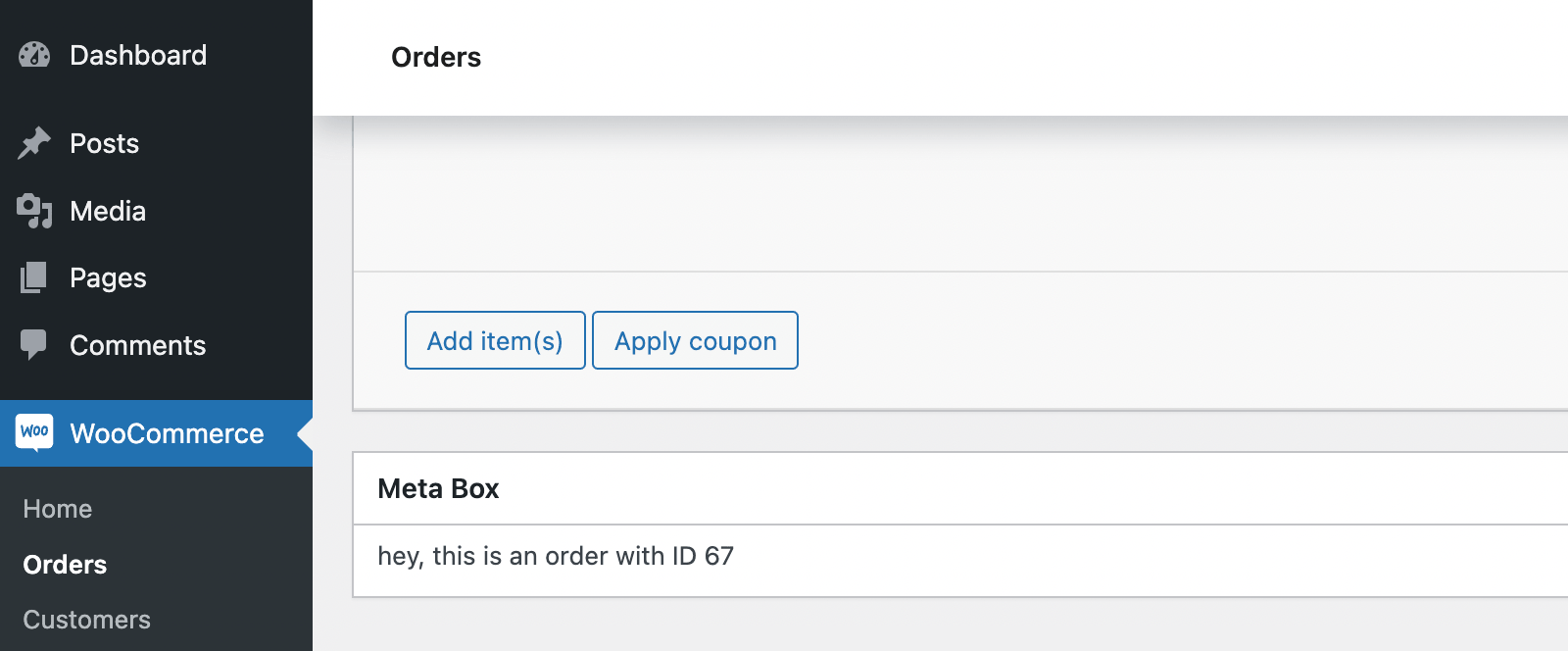
Another example: creating a custom Meta Box for the “Edit Order” page. You can no longer use shop_order in the add_meta_box() function. Instead, you must use wc_get_page_screen_id( 'shop-order' ).
add_action( 'add_meta_boxes', function() {
	// Previously:
	// add_meta_box( 'misha', 'Meta Box', 'misha_metabox', 'shop_order' );
	add_meta_box( 'misha', 'Meta Box', 'misha_metabox', wc_get_page_screen_id( 'shop-order' ) );
} );

function misha_metabox( $order ) { // WC_Order object is available here
	echo 'hey, this is an order with ID ' . $order->get_id();
}
We’ve covered the multifaceted aspects of WooCommerce High-Performance Order Storage. We hope this deep dive helps you optimize your store’s performance. If you encounter any issues with WooCommerce HPOS, feel free to join the discussion in the comments!